Every time entry and expense sits in one of three states. The state tells you where it is in the billing process and, crucially, whether you can still change it.
UnBilled
Where every entry starts. It is yours to correct, recategorise, or delete. Nothing has been promised to the client yet.
Pre-Billed
The entry has been pulled onto a draft invoice. The draft is a proposal, not a commitment — you can still delete the pre-bill entirely, which releases every entry on it back to UnBilled.

Two invoices side by side — a finalized invoice marked with a green tick, and a pre-bill marked with an orange P.
Billed
The invoice has been finalized. It has a real invoice number, and every entry on it is locked. This is deliberate — once a client has an invoice, the underlying records should not quietly change.
Telling them apart at a glance
The Invoice Status column on the Invoices page is the quickest read. An orange P means pre-bill — still a draft, still editable. A green tick means finalized — the entries beneath it are locked.
Filtering by status
On Time & Expenses → Manage Time & Expense Entries, the All / Billed / Pre-Billed / UnBilled filters in the top right let you see exactly what is in each state. Filtering to UnBilled before you invoice is a good habit — it shows you everything waiting to be charged.
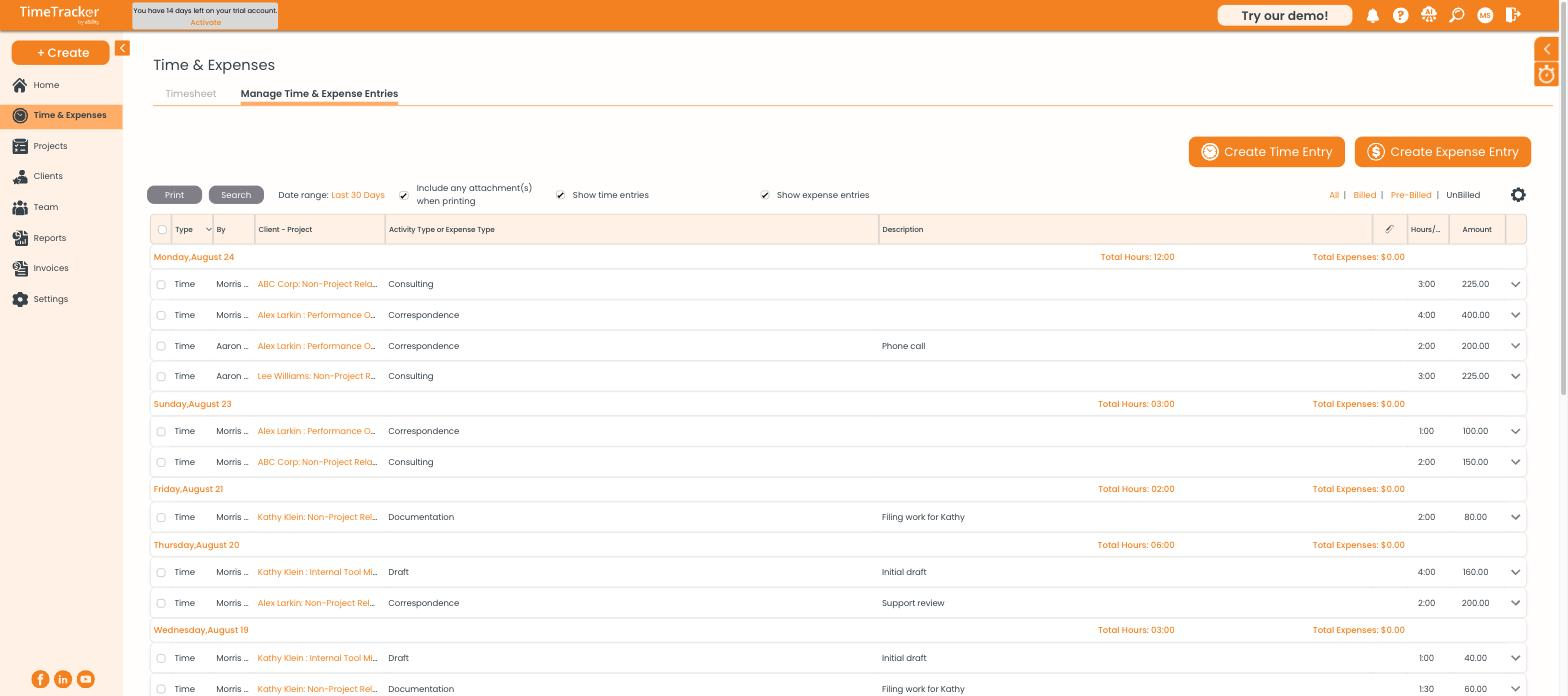
The billing status filters sit in the top right of the entries list.
Fixing something that is already billed
You have two routes:
- Unfinalize the invoice — the Unfinalize button on the Invoices page returns it to pre-bill and unlocks its entries.
- Post an adjustment — leave the invoice as it stands and record a credit or charge against the client on the Adjustments tab.