Creating a schedule is only half the equation. The real value comes from comparing what was planned against what actually happened — who showed up late, who worked overtime, and where the gaps are.
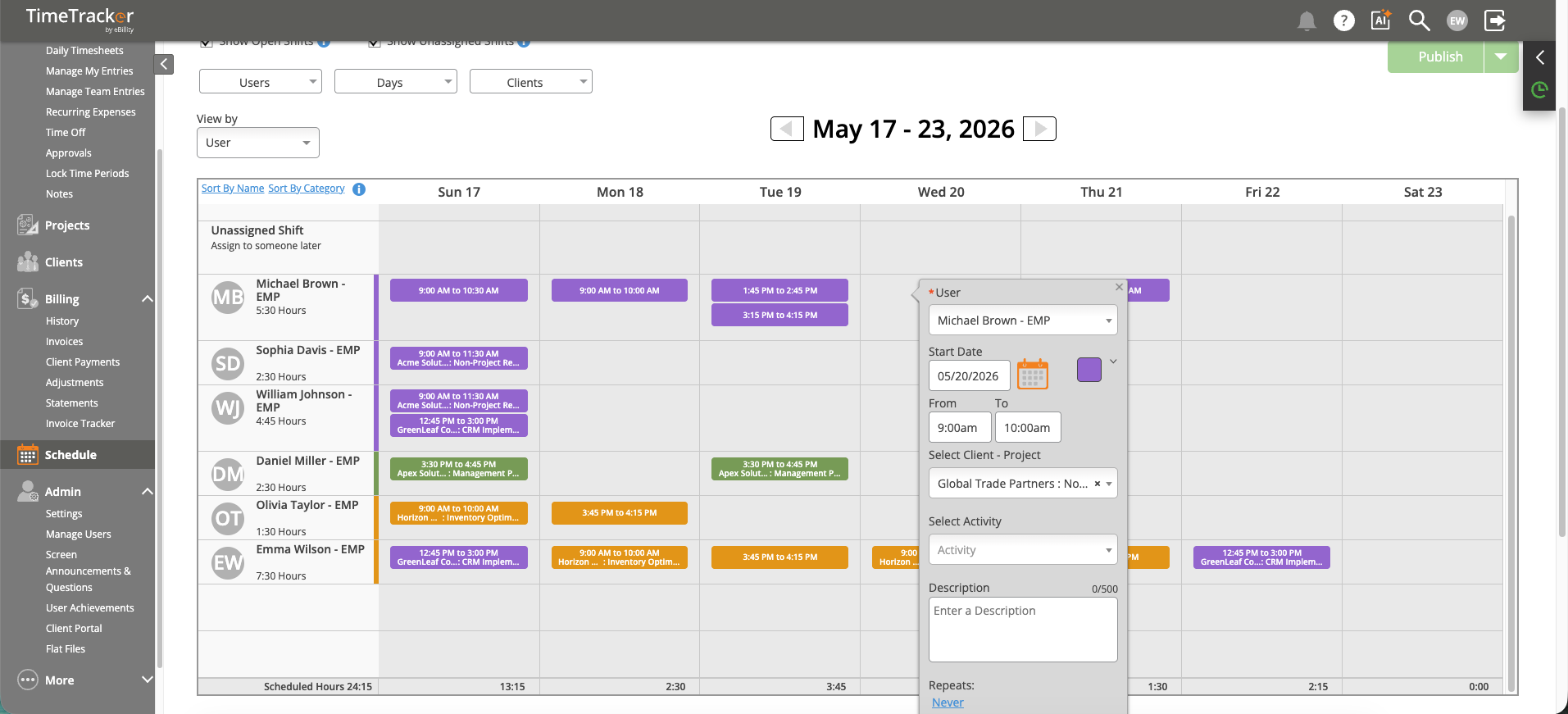
Shift Detail shows the assigned user, date, time range, project, and description.
How to Compare
View the schedule alongside timesheet data for the same period. For each employee, compare:
- Scheduled hours — What was planned on the schedule.
- Actual hours — What the employee logged on their timesheet.
- Variance — The difference between the two. Positive means they worked more than scheduled; negative means they worked less.
What to Look For
- No-shows — An employee was scheduled but logged zero hours. Follow up to find out why.
- Overtime — Actual hours consistently exceed scheduled hours. This could indicate understaffing or scope creep on projects.
- Mismatches — An employee logged time to a different project than what was scheduled. They may have been reassigned without the schedule being updated.
Who Uses This
This comparison is especially useful for:
- Shift-based teams (retail, field service, healthcare) where adherence to schedules matters for coverage and payroll.
- Project managers who need to know if the team is spending time where it was planned.
- Payroll administrators who need to verify hours before processing.