If QuickBooks Online is where you manage your accounting, connecting it to TimeTracker eliminates the double-entry problem. Clients, invoices, and payments flow between the two systems automatically, so your books stay in sync without manual data entry.
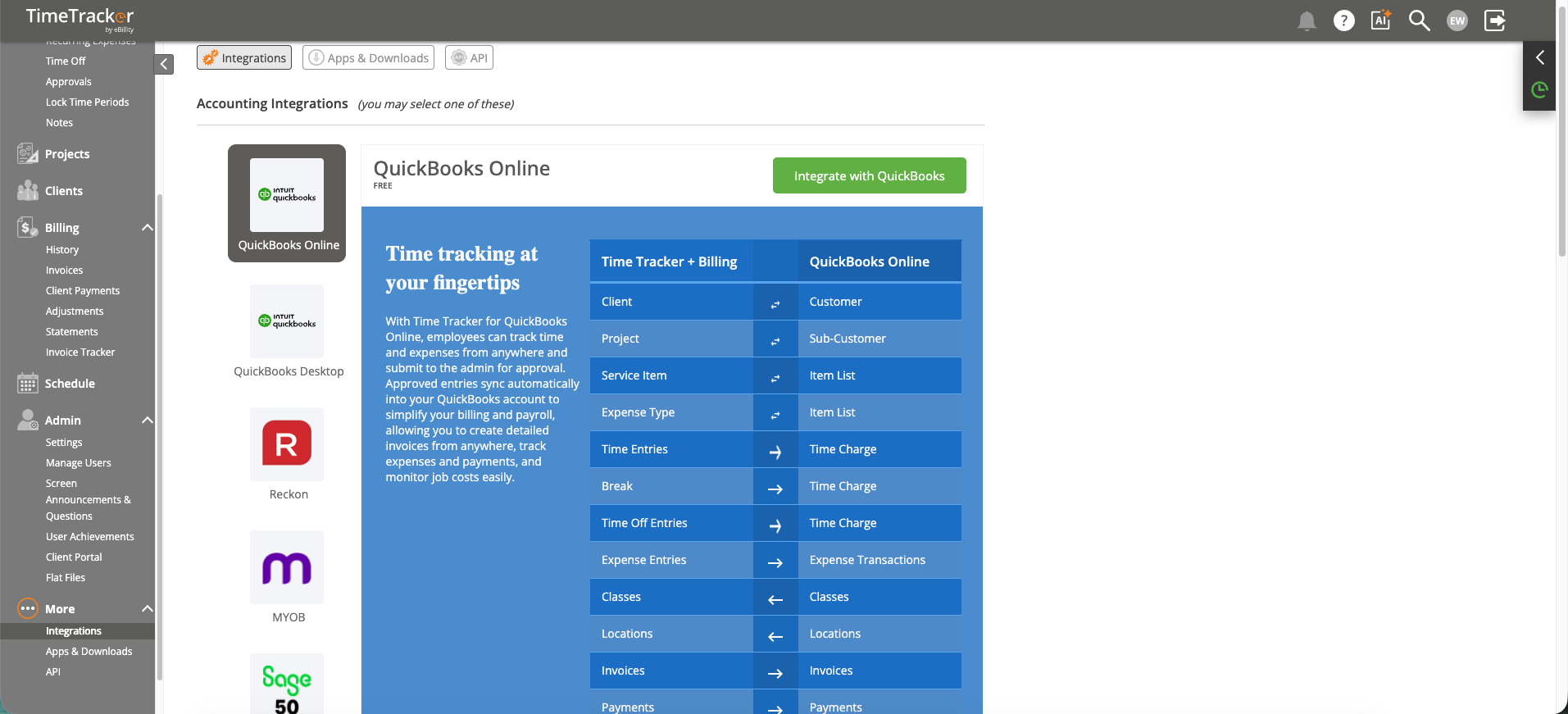
The Integrations page shows available accounting integrations including QuickBooks, ADP, Paychex, and more.
Setting Up the Connection
- Go to More > Integrations in the left sidebar.
- Select QuickBooks Online.
- Click Connect and sign in to your QuickBooks account.
- Authorize TimeTracker to access your QBO data.
- Map your fields — Match TimeTracker clients to QBO customers, and map items and accounts. This step is critical — unmapped items will be skipped during sync.
- Configure sync settings: automatic vs. manual sync, and sync frequency.
- Click Save.
What Syncs
- Clients/Customers — Import customers from QBO into TimeTracker, or push new TimeTracker clients to QBO.
- Invoices — Finalized invoices in TimeTracker can be pushed to QBO as invoices, keeping your accounting current.
- Payments — Payments recorded in either system can sync to the other, so your receivables are always accurate.
Tips for a Clean Setup
- Match names first — Before the initial sync, make sure client names match between both systems. "Acme Corp" and "Acme Corporation" will be treated as two different entities.
- Map all items — Any client, product, or account that isn't mapped will be silently skipped during sync.
- Test with one invoice first — After connecting, push a single invoice to QBO and verify it looks correct before syncing everything.
Troubleshooting
- Authorization expired — QBO tokens expire periodically. Reconnect from More > Integrations.
- Sync errors — Check the sync log for specific error messages. The most common issue is unmapped fields.
- Duplicate records — Usually caused by name mismatches during the initial sync. Clean up duplicates in QBO and re-map.