Not every column on your timesheet is relevant to your workflow, and sometimes you need a printed copy for a supervisor's signature or for your own records. TimeTracker lets you tailor the view and generate a clean printout.
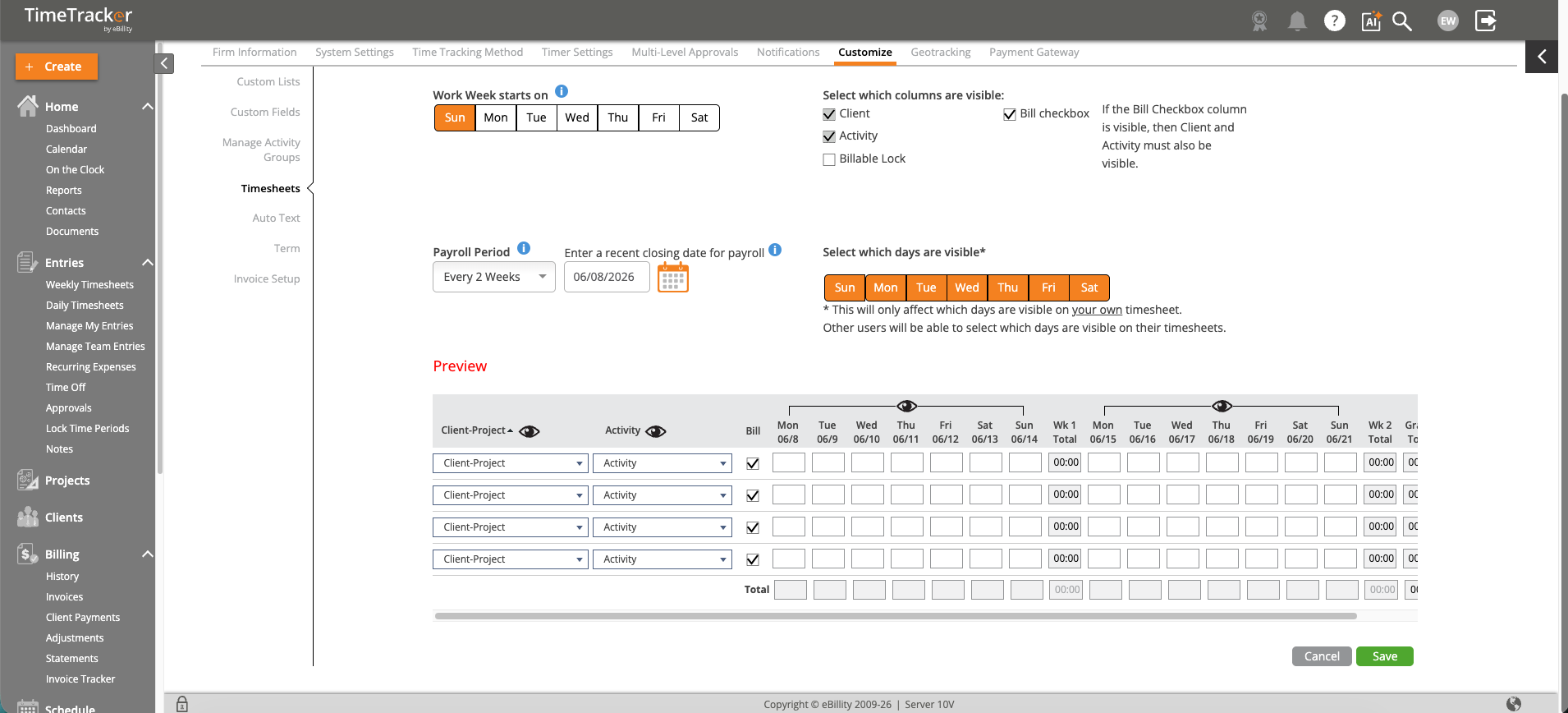
The Customize Timesheet settings let you choose visible columns, select which days appear, set payroll periods, and preview the timesheet layout.
Customizing Columns
- Open your Weekly or Daily Timesheet.
- Click the Customize button in the top-right corner.
- A settings panel opens where you can show or hide columns — for example, you might hide the "Bill" column if all your work is billable, or show the "Description" column if your firm requires notes on every entry.
- Click Save to apply, or Reset to return to the default layout.
Your customization is saved to your profile, so it persists across sessions. Other users' views are not affected.
Printing Your Timesheet
- Navigate to the week or day you want to print.
- Click Print in the top-right corner.
- A print-friendly version opens in your browser's print dialog.
- The printout includes your name, the date range, and all visible columns.
Common Uses
- Supervisor sign-off — Print the weekly timesheet for a manager to review and sign.
- Client documentation — Some clients request printed timesheets as backup for invoices.
- Personal records — Keep a copy for your own files, especially for contractors tracking hours across multiple clients.