In many organizations, time entries need a second set of eyes before they become billable. Maybe it's a compliance requirement, or maybe you just want to catch errors before they end up on an invoice. The approval workflow adds that review step between entering time and billing it.
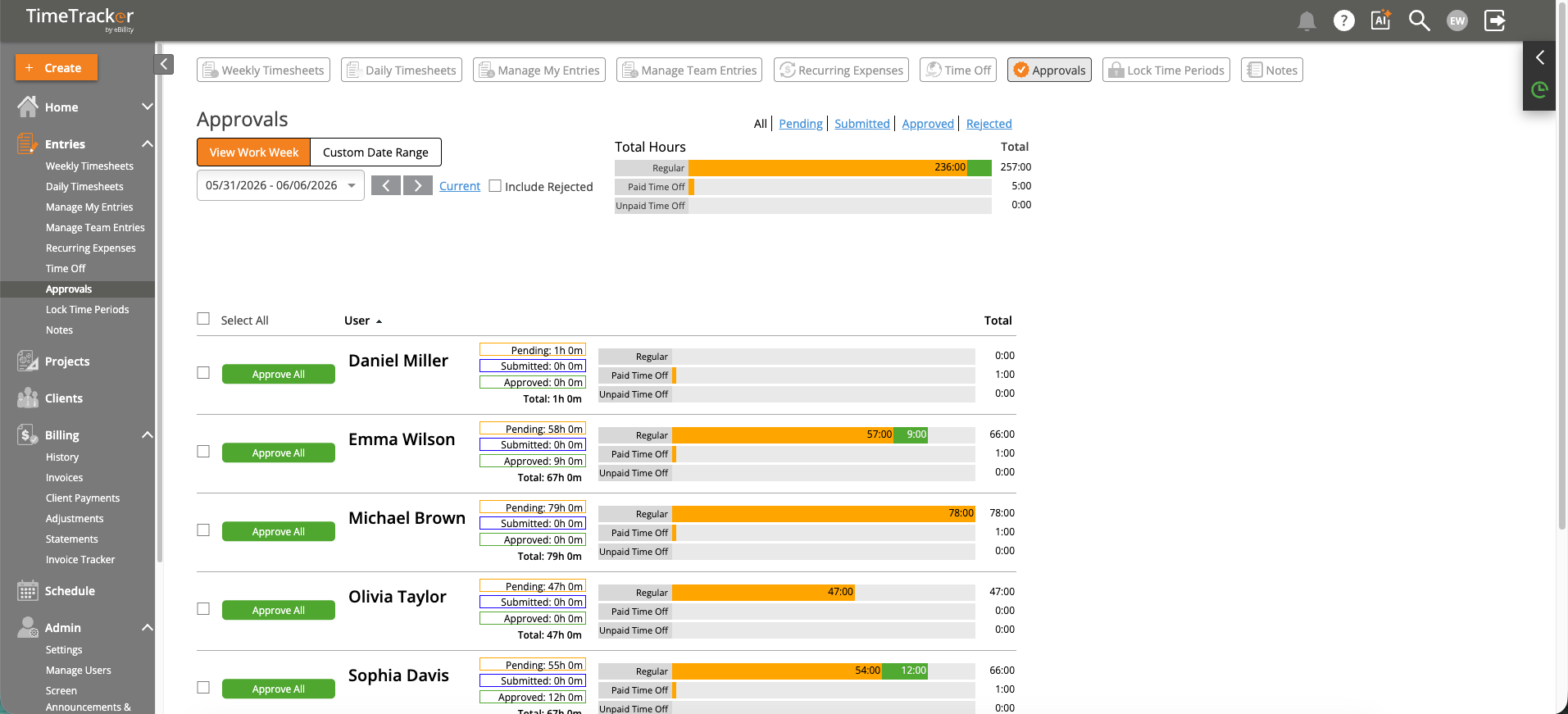
The Approvals screen shows per-user hours with Pending, Submitted, and Approved breakdowns.
The Approval Flow
- Employee enters time on their timesheet as usual.
- Employee submits their entries for approval (see "Submitting Time for Approval").
- Manager or admin reviews the submitted entries on the Approvals page.
- Each entry is Approved or Rejected. Approved entries become eligible for invoicing. Rejected entries are returned to the employee with a reason for correction.
What Happens at Each Stage
- Pending — The entry exists but hasn't been submitted yet. It's editable and not visible to approvers.
- Submitted — The employee has submitted the entry for review. It appears on the Approvals page for managers.
- Approved — The entry has been reviewed and accepted. It's now locked against further edits and available for invoicing.
- Rejected — The entry was sent back for correction. The employee sees the rejection reason and can edit and resubmit.
Enabling Approvals
Approvals are configured under Admin > Settings > Time Tracking. See "Enabling or Disabling the Approval Workflow" for setup instructions.
Note: During invoice creation, you can choose to include unapproved entries if needed, but this option is off by default to prevent unbilled time from being invoiced before review.