Projects are specific bodies of work within a client. For example, "Acme Corporation" (client) might have "Website Redesign" and "Marketing Campaign" (projects). Creating a project lets your team log time and expenses against it, and gives you budget tracking and reporting at the project level.
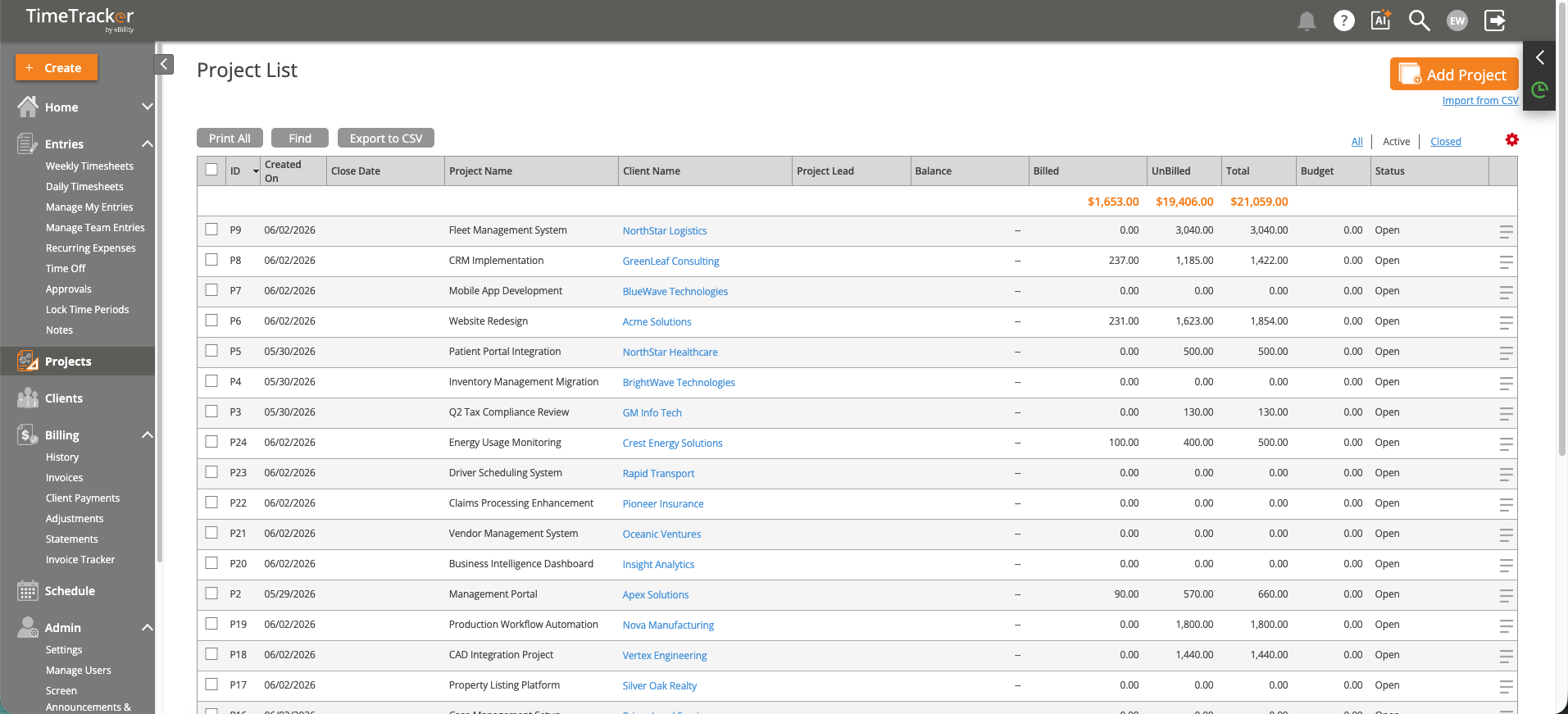
The Project List shows all projects with client, lead, budget, billed, and unbilled amounts.
Creating a Project
- Click the +Create button in the top navigation and select Project.
- The "Add New Project" form opens.
Required Fields
- Client — Select the client this project belongs to. Every project must be associated with a client.
- Project Name — Give it a descriptive name that your team will recognize in dropdown menus.
- Project Status — Defaults to "Open." Change to "On Hold" or "Completed" as the project progresses.
Optional Settings
- Project ID — Auto-generated, but you can enable Custom IDs if your organization uses its own numbering system.
- Project Type — Categorize the project (e.g., Consulting, Development, Audit). Types are configurable in Admin > Custom Lists.
- Billable Type — Hourly, Flat Fee, or Contingency. This determines how time is calculated on invoices.
- Budget — Set an estimated budget in hours or dollars for tracking against actuals.
- Team Access — Choose whether all users or only selected users can log time to this project.
After Creating
The project immediately appears in dropdown menus across timesheets, expense forms, and reports. Your team can start logging time against it right away.