If your team works defined shifts — retail, field service, healthcare, or any scheduled environment — the Schedule feature lets you plan who works when. Creating shifts in advance gives your team visibility into their upcoming schedule and gives you a baseline to compare against actual hours worked.
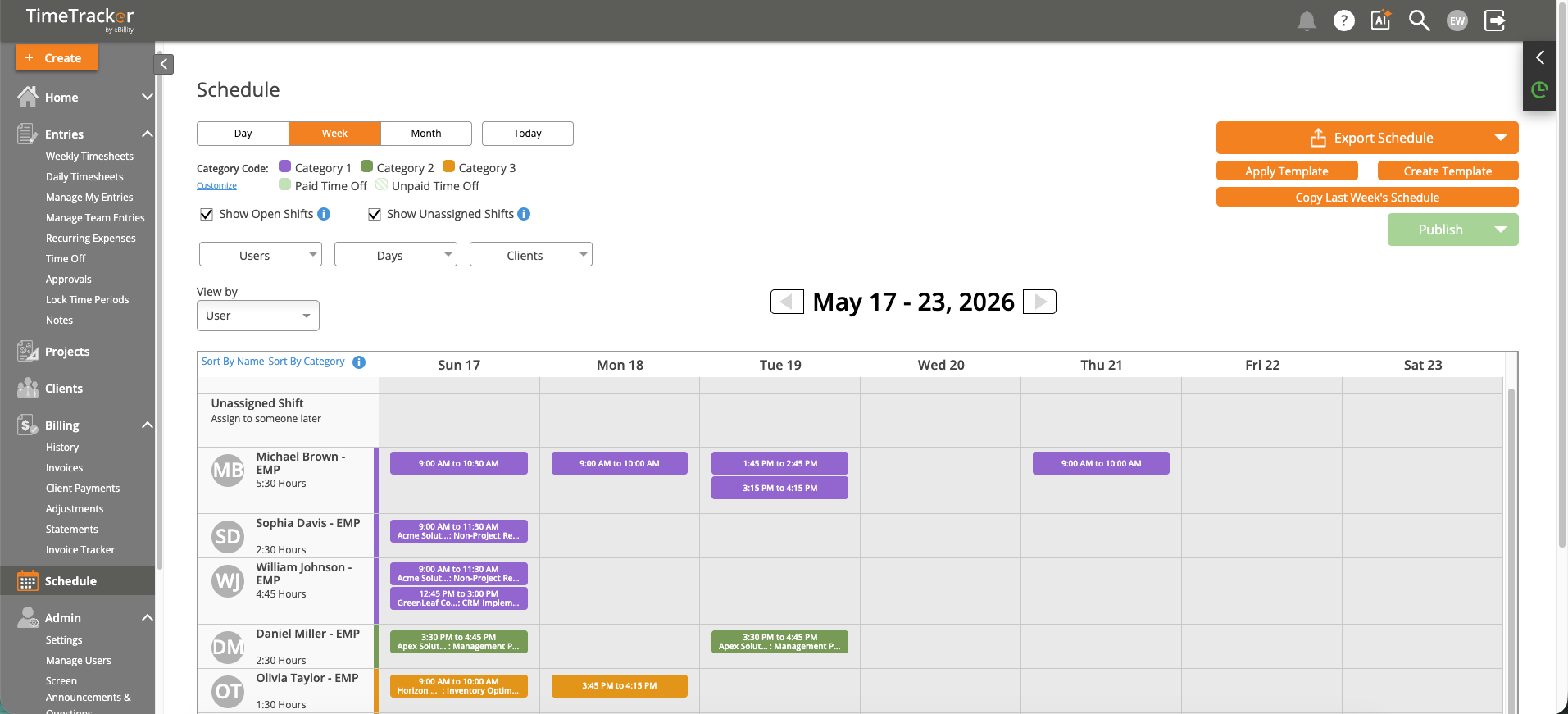
The Schedule view shows employee shifts in a weekly calendar format with drag-and-drop editing.
Creating a Shift
- Open the Schedule section from the left sidebar.
- Select the day and time slot where you want to add a shift.
- Enter shift details: start time, end time, client/project (optional), and any notes.
- Assign the shift to one or more employees.
- Click Save.
Schedule Views
- Day View — See all shifts for a single day across all employees. Best for daily staffing checks.
- Week View — See the full week's schedule at a glance. The most commonly used view for planning.
- Month View — High-level overview of the entire month for longer-term planning.
Managing Shifts
- Drag and drop — Move shifts to different days or times by dragging them.
- Copy shifts — Duplicate a shift or an entire week's schedule to save time on recurring patterns.
- Notifications — Employees receive notifications when their schedule changes, so they always know their current assignments.
Comparing to Actual Time
After the scheduled period, compare planned shifts against actual timesheet entries to see who showed up, who worked overtime, and where gaps occurred. See "Comparing Scheduled Time vs. Actual Time Worked" for details.