TimeTracker is a web-based application that runs in your browser. You can access it from any computer, tablet, or phone with an internet connection.
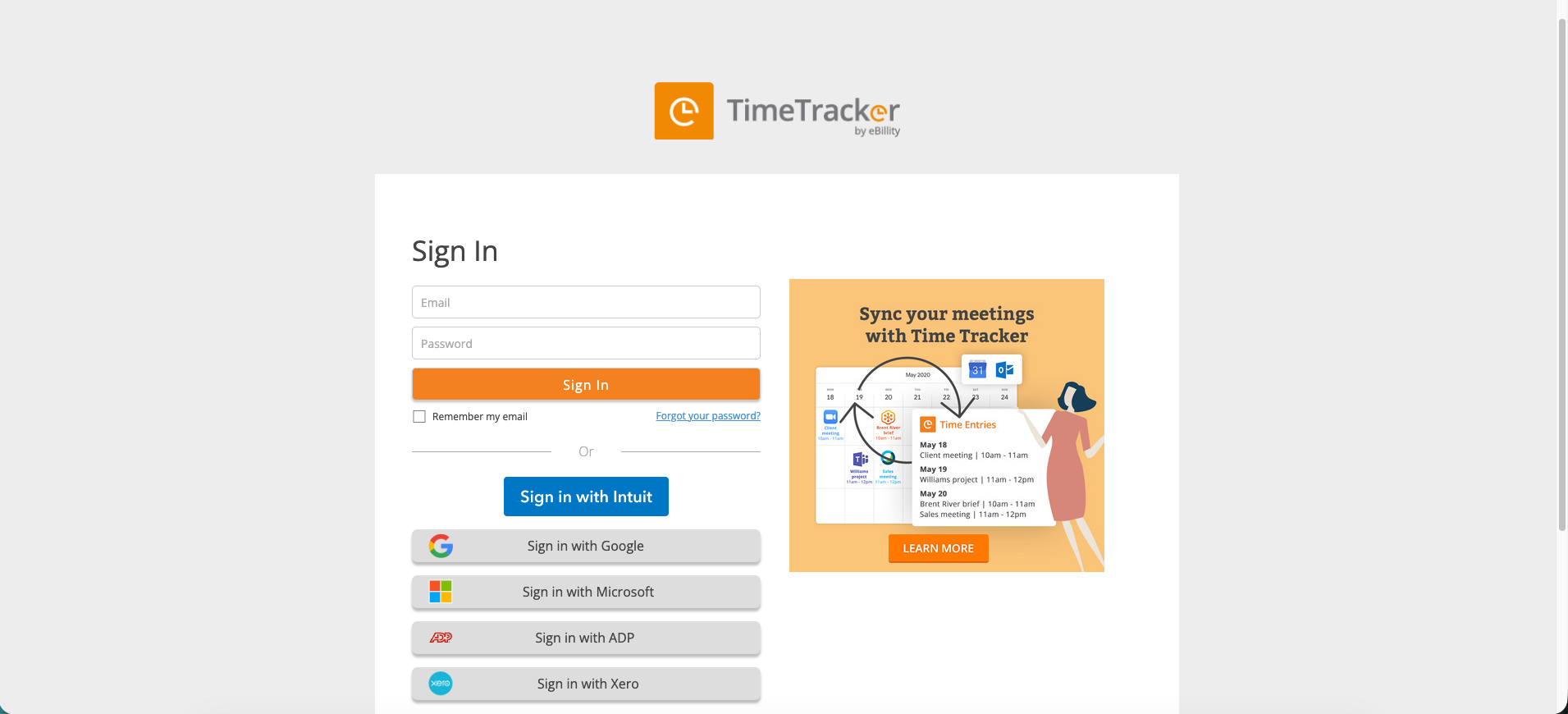
The TimeTracker Sign In page with email/password fields and SSO options for Intuit, Google, Microsoft, ADP, and Xero.
Logging In with Email and Password
Go to https://secure.ebillity.com/web/session/new in your web browser. This is the TimeTracker sign-in page.
- Enter your email address in the first field.
- Enter your password in the second field.
- Click the orange Sign In button.
Optional: Check “Remember my email” to pre-fill your email on future visits. This saves your email only — not your password.
Logging In with a Connected Account (SSO)
If your administrator has connected TimeTracker to an external identity provider, you can sign in with a single click. Supported providers:
- Intuit (QuickBooks)
- Microsoft
- ADP
- Xero
Click the corresponding button below the standard sign-in form. You will be redirected to verify your identity and then returned to TimeTracker automatically.
What You See After Logging In
After signing in, you land on the Dashboard. What you see depends on your role:
- Admins and Managers see the full dashboard with the setup wizard, project overview, time entry widget, billable hours chart, and the complete left sidebar with access to all features.
- Employees see a simplified view focused on their own time entries and assigned projects, with no access to admin features like settings, billing, or other users’ data.
Troubleshooting Login Issues
- Forgot your password? Click “Forgot your password?” on the sign-in page and follow the emailed instructions.
- Page won’t load? TimeTracker works best in Chrome, Firefox, Safari, or Edge. Try clearing your cache or using a private/incognito window.
- Getting an error? Verify your email is spelled correctly, check that Caps Lock is off, and make sure you’re entering any required two-factor authentication code.