TimeTracker lets employees request time off directly from the platform. Your manager or admin reviews, approves, or rejects the request, and approved time off automatically appears on your timesheet.
Submitting a Request
- Click Time Off in the left sidebar (under Entries).
- Click the Add Time Off button in the upper-right corner.
- In the Enter Time Off Details dialog, fill in:
- Time Off Code — Select the type (Vacation, Sick – Paid, Personal Day, etc.)
- Date — The day you're requesting off
- Hours and Minutes — How many hours for that day (8 for a full day, 4 for a half day)
- Description (optional) — Any notes for your manager
- To request multiple days, click Add Date to add additional dates to the same request.
- Review the Total Hours at the bottom, then click Save.
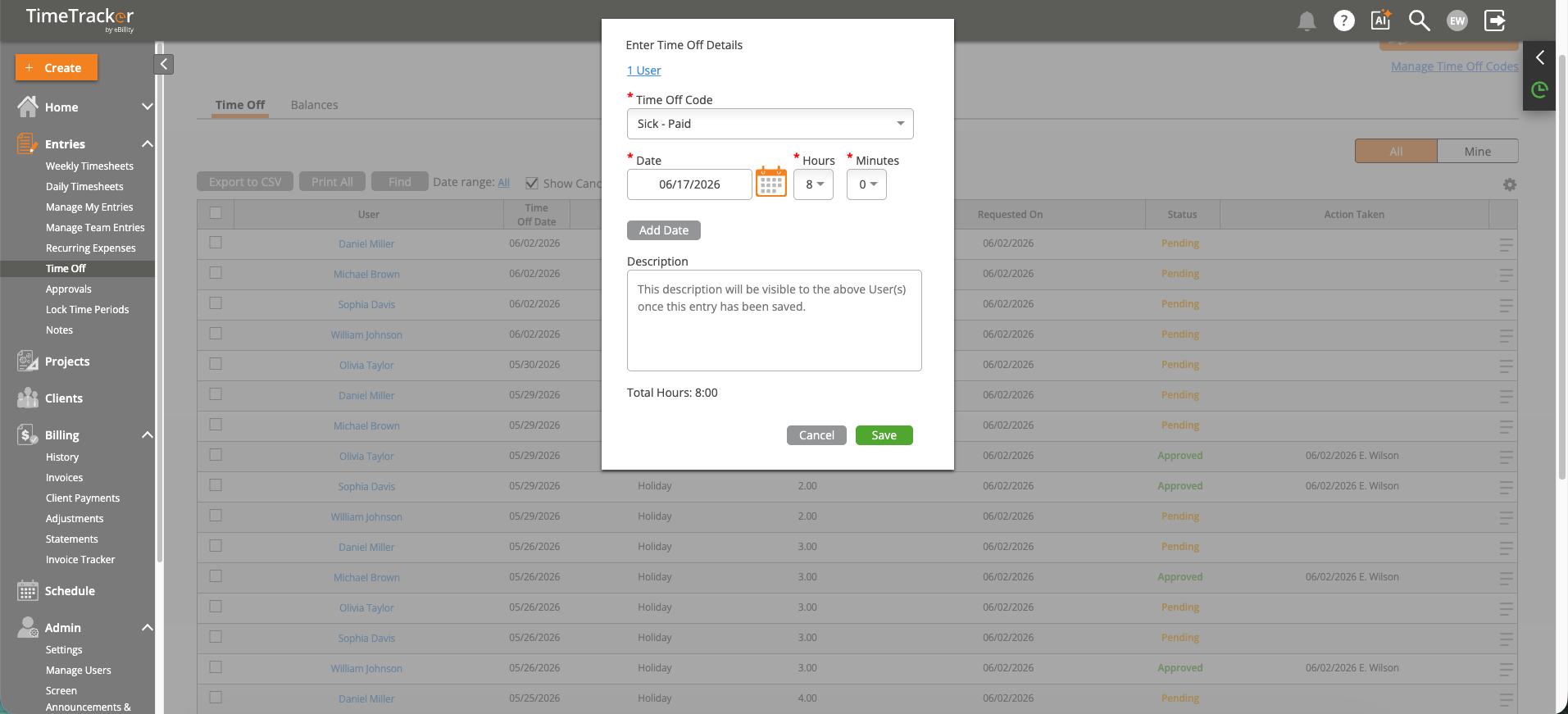
The Enter Time Off Details dialog lets you select a time off code, date, hours, and an optional description.
Tracking Your Request
After submitting, your request appears on the Time Off list with a Pending status. Once a manager reviews it, the status updates to Approved or Rejected. You can see who took the action and when. Approved time off automatically appears on your timesheet for the relevant dates — you don't need to create a separate time entry.
Checking Your Balance
Before submitting a request, click the Balances tab on the Time Off page to see your remaining accrued hours for each time off type. This helps you avoid requesting more time than you have available.