All the time and expense data your team enters becomes truly useful when you can slice it into reports. Whether you need to see hours by client, check project profitability, prepare for payroll, or review utilization, there's a report for it.
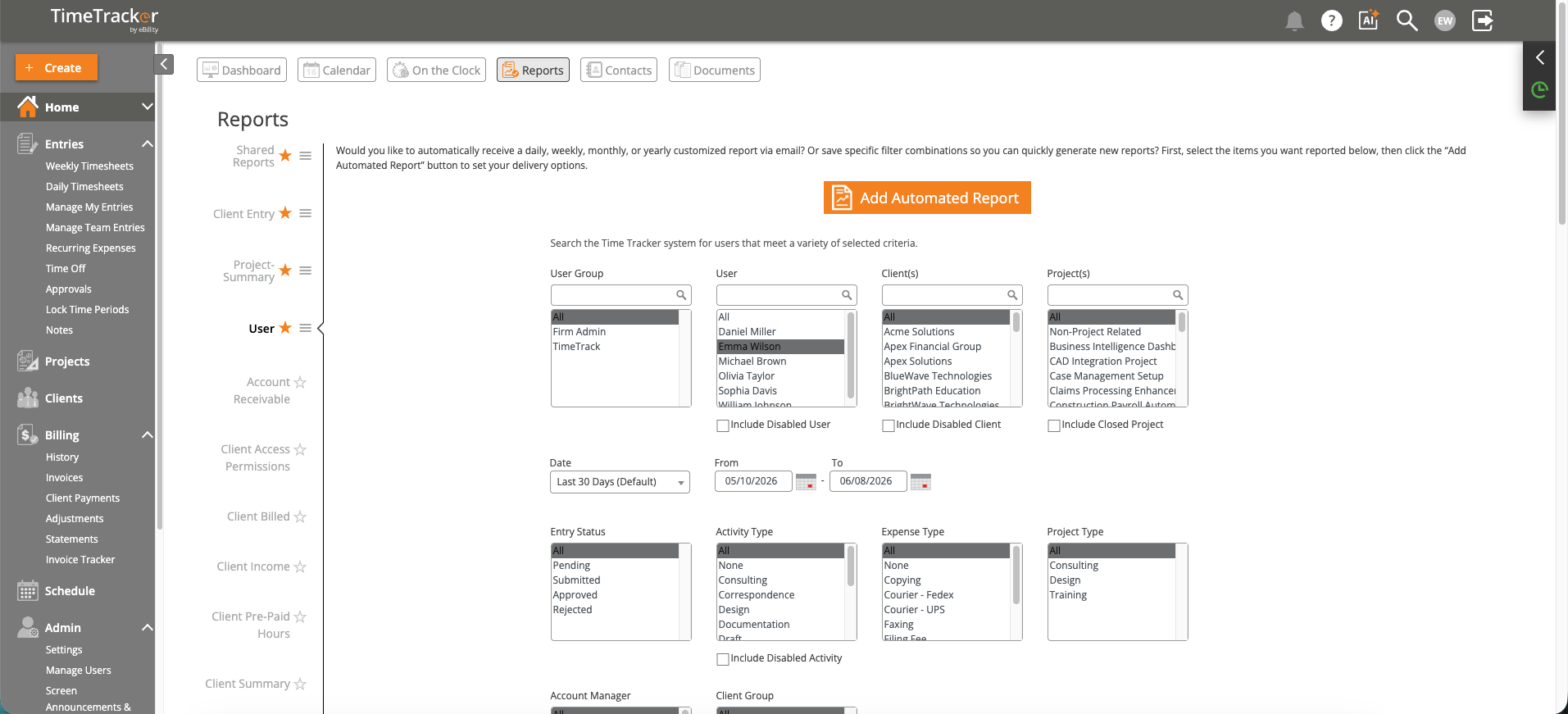
The Reports page offers extensive filtering options including user, client, project, date range, and entry status.
Running a Report
- Click Reports in the top navigation bar or left sidebar.
- Select a report category (Time Reports, Billing Reports, Expense Reports, Project Reports, Payroll Reports, User Reports, or Tax Reports).
- Choose the specific report you want to run.
- Configure filters: date range, users, clients, projects, billing status. Most reports let you filter by multiple criteria simultaneously.
- Click "Run Report."
Report Categories at a Glance
- Time Reports — Hours by user, client, project, or activity. Start here for general time analysis.
- Billing Reports — Invoice summaries, aging, payment status. Essential for collections and cash flow.
- Expense Reports — Spending breakdowns by client, category, or employee.
- Project Reports — Budget vs. actual comparisons and profitability analysis.
- Payroll Reports — Employee hour totals formatted for payroll processing.
- User Reports — Utilization rates and activity breakdowns by team member.
Export Options
- Print — Generate a print-friendly version.
- Export — Download as CSV or Excel for further analysis in a spreadsheet.
- Email — Send the report directly to a recipient.
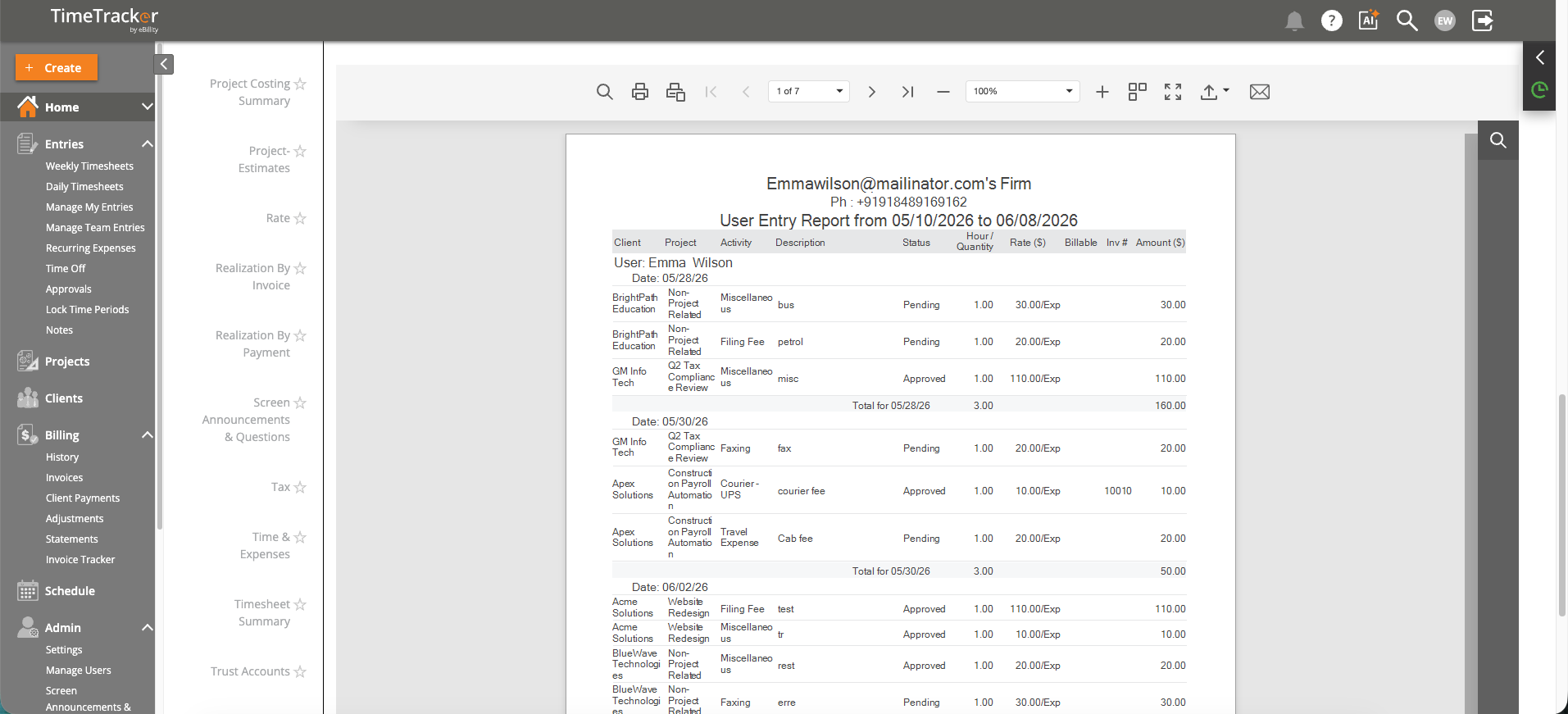
A sample User Entry Report showing time entries broken down by user, client, and project.