Everything about how your invoices look and behave lives at Settings → Customize → Invoices.
Logo and templates
Upload your logo under Invoice Logo — up to 5MB. Beneath it, Invoice Templates offers three layouts:
Add Invoice Template lets you build a further layout if none of the three fits.
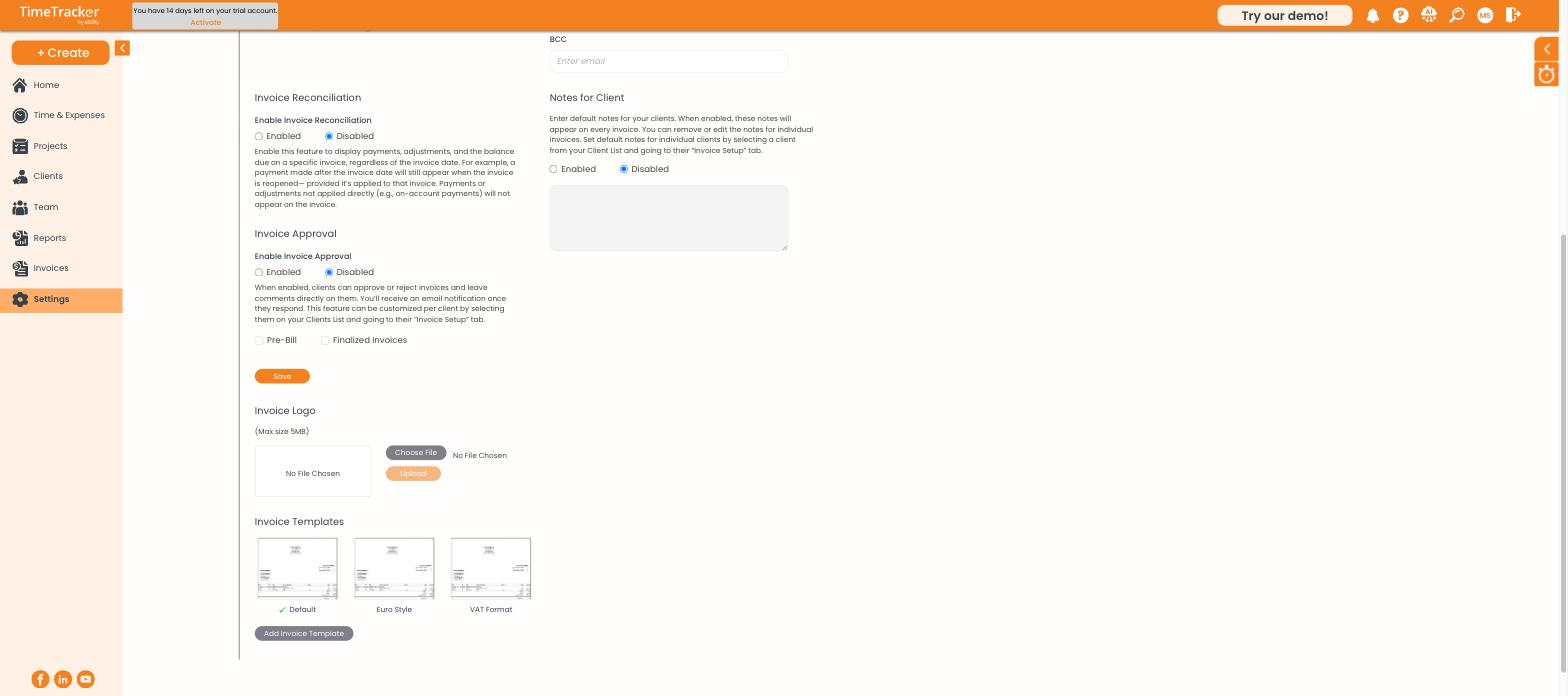
Invoice logo upload and the three built-in templates.
Finance charges
Charge interest on invoices that go unpaid. Enable it, then set:
- Annual Interest Rate — the yearly percentage
- Minimum Finance Charge — a floor, so tiny charges are not worth issuing
- Grace Period — days after the due date before charges begin
- Calculate charges from — the invoice date or the due date
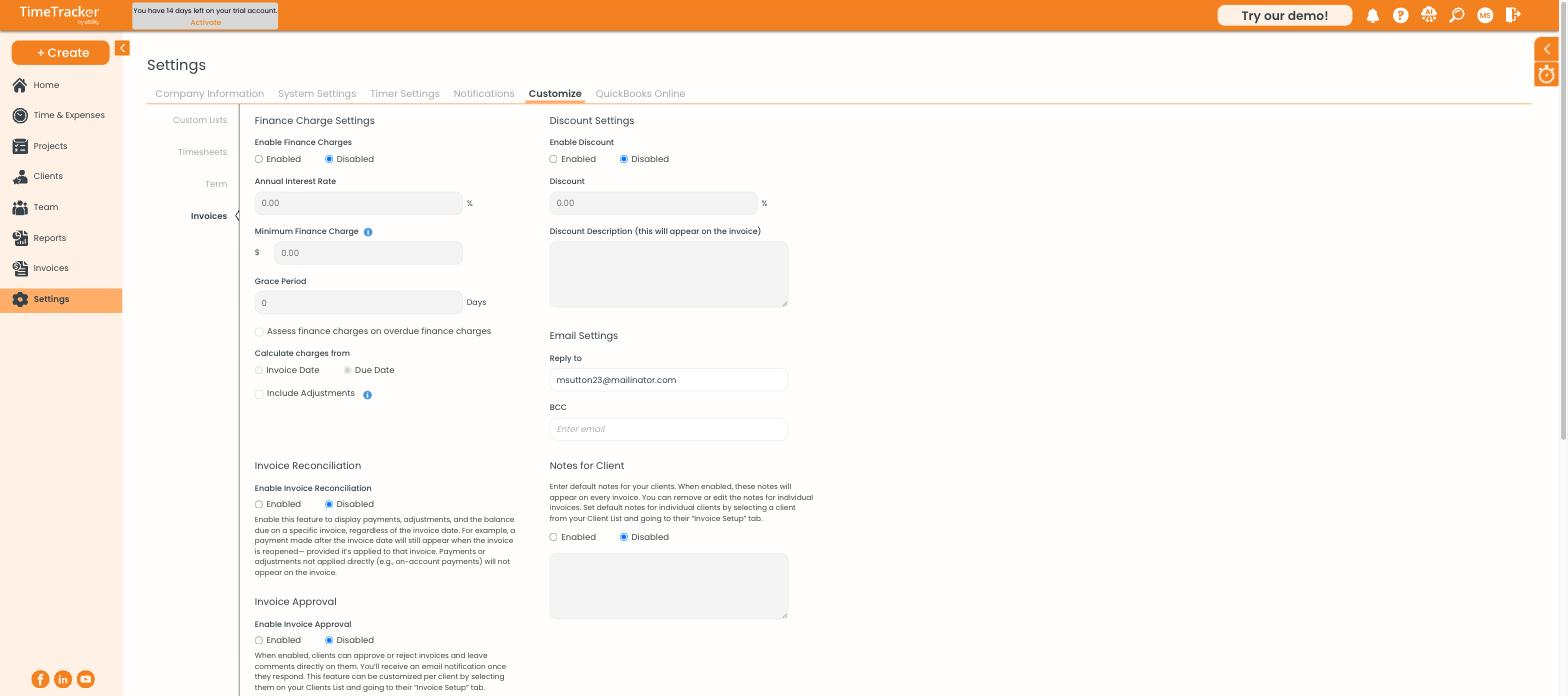
Finance charge and discount settings, alongside email settings and invoice approval.
Discounts
Enable discounts to set a firm-wide percentage and a description that appears on the invoice. Individual invoices can also carry a one-off discount via the Add a Discount tickbox on the invoice header.
Email settings
Set the Reply to address that clients see when they receive an invoice, and a BCC address if you want a copy of everything that goes out.
Invoice approval
With approval enabled, clients can approve or reject invoices and leave comments directly on them, and you get an email when they respond. You choose whether it applies to pre-bills, finalized invoices, or both, and it can be turned on for individual clients from their Invoice Setup tab.
Invoice reconciliation
When enabled, the invoice displays payments, adjustments, and the balance due as of a specific date. Payments applied directly to the invoice appear even if they were made after the invoice date; payments recorded on account do not.