Not everyone on your team needs access to every project. Controlling who can see and log time to a project keeps your data clean — employees only see the projects relevant to them, and you avoid misallocated time entries landing on the wrong project.
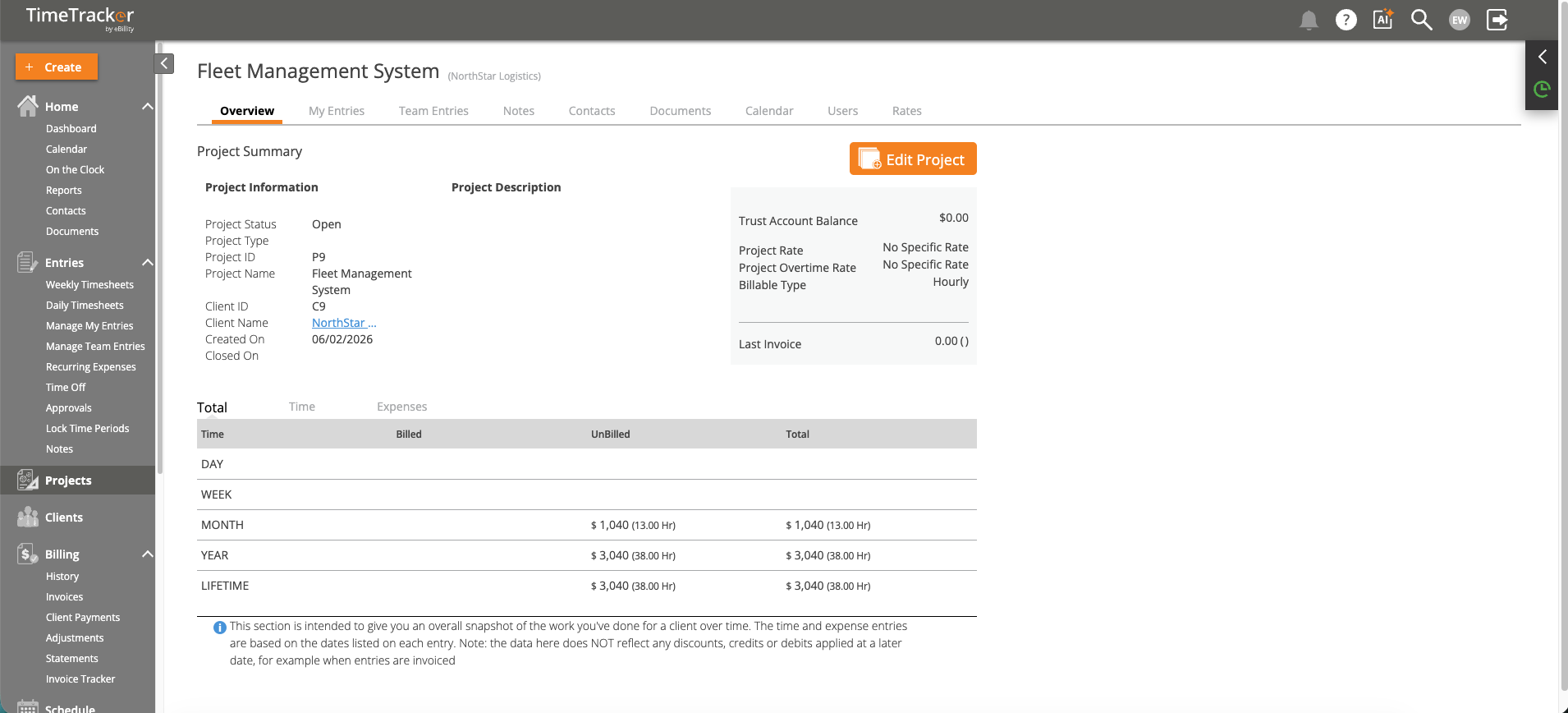
The Project Detail Overview shows project summary, billing information, and team member assignments.
Setting Project Access
- Open the project from Projects > Project List.
- Go to the Users tab.
- Choose an access level:
- ALL — Every user in your firm can see and log time to this project. Use this for company-wide projects like internal meetings or admin work.
- SOME — Only selected users can access this project. Use this for confidential projects, client-specific teams, or when you want to prevent accidental time entries from unrelated team members.
- If you chose SOME, select the users who should have access.
- Click Save.
Project Lead
Assign a Project Lead who receives notifications about project activity — new time entries, budget thresholds, and status changes. The lead is also highlighted in project reports, making it easy to see who owns each project.
Subscribers
Users added as Subscribers receive email alerts whenever new time entries or expenses are added to the project. This is useful for managers or stakeholders who need real-time visibility without logging into TimeTracker daily.
When to Restrict Access
- Confidential matters — Legal work, HR investigations, or acquisition-related projects that not everyone should see.
- Focused teams — A 3-person development team doesn't need to see the marketing team's projects in their dropdowns.
- Preventing errors — If employees keep accidentally logging time to the wrong project, restricting access eliminates the option entirely.