As your business grows, so does your client list. Some clients are active, others are on hold, and a few may be wrapping up. Keeping your client list organized makes it easier for your team to find the right client when logging time, and ensures old or inactive clients aren't cluttering up dropdown menus.
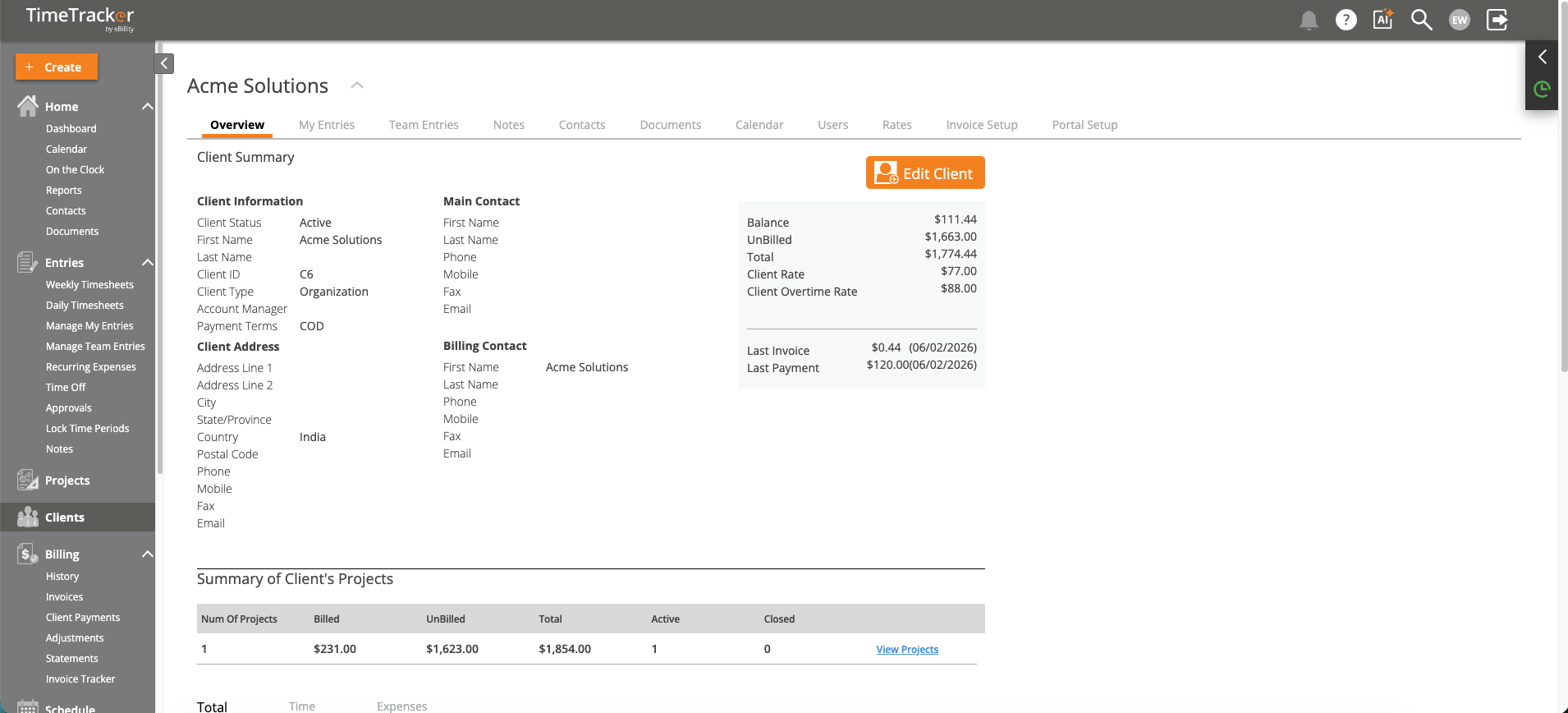
The Client Detail Overview shows client summary, contact information, billing data, and project totals.
Getting There
Click Clients in the left sidebar to view your full client list.
Finding Clients
- Search — Type a client name in the search bar to filter the list instantly.
- Filter by Group — If you use Client Groups (e.g., by industry, region, or account manager), filter the list to show only clients in a specific group.
- Filter by Status — Toggle between Active and Inactive clients. By default, only active clients are shown.
- Sort — Click any column header to sort alphabetically, by balance, or by date.
Managing Client Status
When you stop working with a client, deactivate them rather than deleting them. Deactivated clients:
- Disappear from dropdown menus (time entry, invoicing, expense forms)
- Retain all historical data — time entries, invoices, payments, and reports
- Can be reactivated at any time if the relationship resumes
To deactivate a client, open their record, change the status to Inactive, and save.
Client Groups
Organize clients into groups for easier management. Common groupings include industry type, account manager, geographic region, or billing arrangement. Groups make report filtering more powerful — run a report for all "Healthcare" clients, or all clients managed by a specific partner.