Time & Expenses → Manage Time & Expense Entries is the full record of everything you and your team have logged, grouped by day with totals for each.
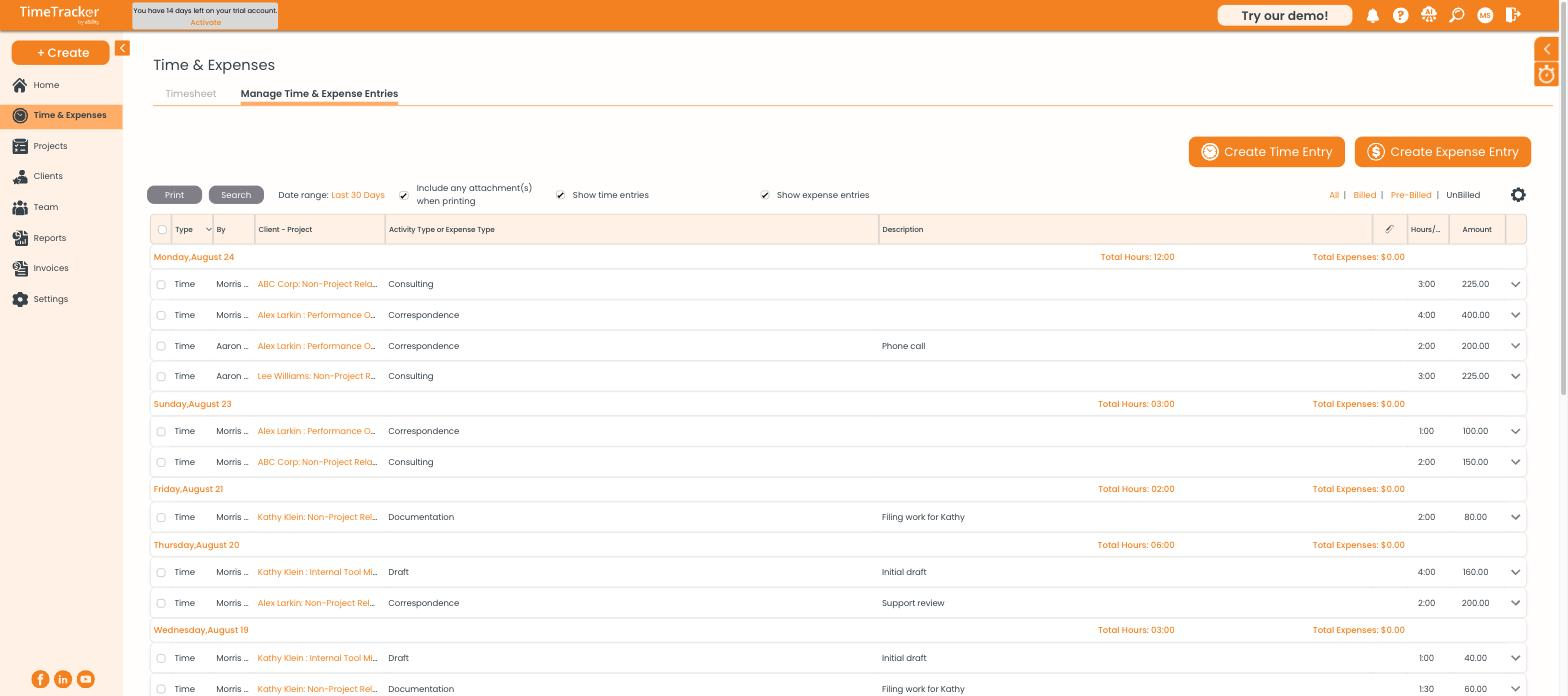
The entries list, grouped by date, with billing status filters in the top right.
Filtering the list
- Date range — defaults to the last 30 days; click it to change the window.
- Show time entries and Show expense entries — tick either or both.
- All / Billed / Pre-Billed / UnBilled — filter by where the entry has got to in the billing process.
Use Search to narrow further, and Print to produce a copy of what you are looking at.
Editing an entry
Click the arrow at the end of any row to expand it and change the details. Whether you can edit depends on the entry's billing status:
Important: If an entry will not let you edit it, the usual reason is that it has already been billed. To correct a billed entry you either unfinalize the invoice it sits on, or leave it and post a billing adjustment against the client instead.
Creating from here
The Create Time Entry and Create Expense Entry buttons at the top of the page open the same forms as the + Create menu. Both open in a separate browser window.