In addition to clocking in and out, you can add time entries manually from the menu. Tap the hamburger menu and select New Time Entry, or tap the + icon in the top-right corner of the Time Card screen.
Time Entry Fields (Time Card Mode)
Field
Description
Worker
Your name (pre-filled). Managers can select a different employee.
Client - Project
Select from the dropdown.
Service
The type of service being performed (for example, Drive Rate, Field Work).
Description
Describe the work performed.
Internal Description
Internal-only notes, not shown on invoices. Up to 1,000 characters.
Billable Type
Hourly or Flat Fee.
Type
Standard or Overtime.
Time In/Out vs. Duration
Below the entry fields, you will see two tabs:
- Time In/Out (default) — Enter a specific start date/time and end date/time. The app calculates the Total Time automatically.
- Duration — Enter the total hours directly (for example, 1.00 hours) without specifying exact start and end times.
Tap the tab you prefer and fill in the appropriate fields. The bottom of the screen shows the same three buttons: Cancel, Save & Add New, and Save.
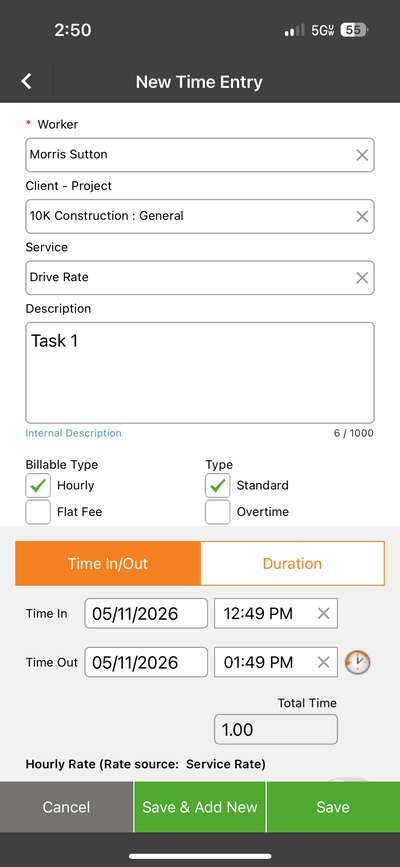
New Time Entry in Time Card mode with Time In/Out tab selected