Category: Expense Tracking • Premium & LawBility
To enter a new expense, tap Add Expense from the Dashboard or the hamburger menu.
Expense Form Fields
Field
Description
Date
Required (red asterisk). Defaults to today.
Client - Project
Required. The client and project this expense belongs to.
Expense type
Required. Select the type of expense from the dropdown (for example, Travel, Meals, Supplies, Mileage).
Description
Required. Describe the expense.
Cost ($)
Required. The unit cost of the expense.
Quantity
Required. Defaults to 1. Adjust if you are entering multiple units.
Markup Ratio (%)
Optional. Enter a percentage if this expense will be marked up when billed to the client.
Total cost
Calculated automatically as Cost x Quantity x (1 + Markup Ratio).
Reimbursable
Toggle on if this expense should be reimbursed to the employee.
Taxable
Toggle on if this expense is subject to tax.
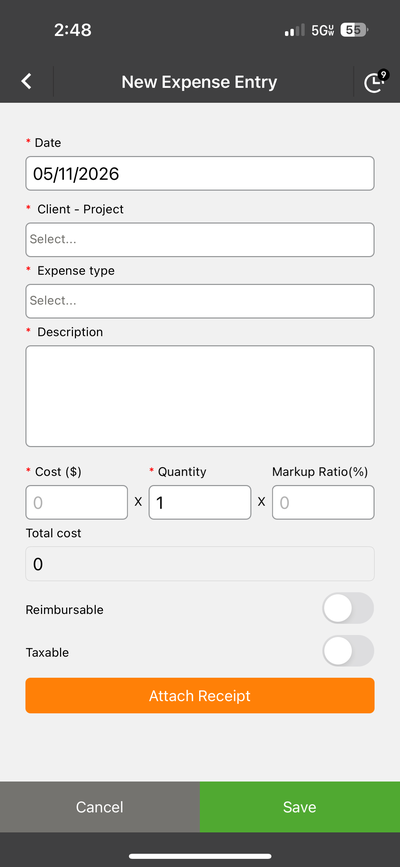
The New Expense Entry form with Attach Receipt button
At the bottom of the form, tap Cancel to discard or Save (green) to save the expense entry.