When one or more timers are running, the clock icon in the top-right corner of the Dashboard displays a badge with the count of active timers. Tap it to open the Timers screen.
The Timers Screen
The Timers screen lists all of your running and paused timers. At the top is a "Start New Timer" link. Each timer card shows:
- Elapsed time in orange (for example, 00:02:02).
- Three control buttons: Pause (orange), Stop (red), and Reset (gray). If the timer is paused, the Pause button changes to Start (green).
- An expand icon to open the full time entry details.
- A close icon (X) to discard the timer.
- The employee name associated with the timer.
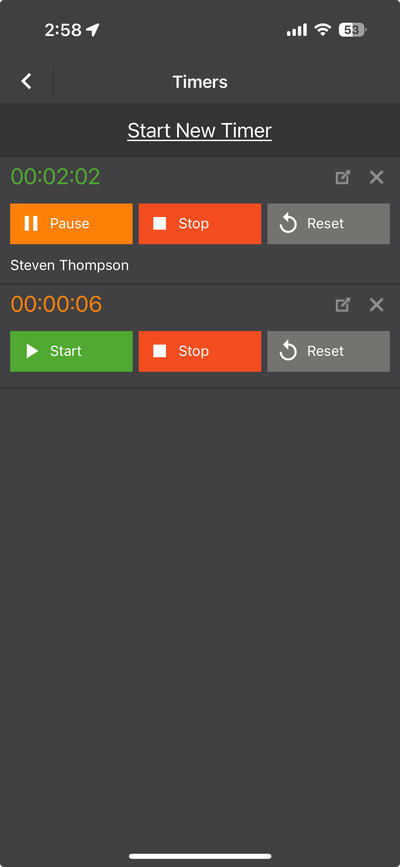
The Timers screen — manage multiple running timers
Timer Controls
Button
What It Does
Start
Begins or resumes the timer. Green button.
Pause
Temporarily pauses the timer. Orange button. Tap Start to resume.
Stop
Ends the timer and records the "To" time. Red button. The entry can then be saved.
Reset
Resets the timer back to 00:00:00. Gray button. Use this to start over without saving.
💡 Multiple Timers: Unlike many time tracking apps, Time Tracker allows you to run multiple timers at the same time. This is useful if you need to track overlapping work periods or switch between tasks without losing track of any.