The Time Tracker mobile app uses a slide-out menu for navigation. Tap the hamburger icon (three horizontal lines) in the top-left corner of any screen to open the menu.
Menu Items
The menu includes the following options. Some items are only visible depending on your plan, your role, and whether your account uses Timers or Time Cards.
Menu Item
Description
Dashboard / Time Card
Returns to the home screen. Shows "Dashboard" in Timer mode or "Time Card" in Time Card mode.
Track Time / New Time Entry
Open a new time entry form. Labeled "Track Time" in Timer mode or "New Time Entry" in Time Card mode.
Manage My Time Entries
View and manage your own time entries.
Manage Team Time Entries
View and manage time entries for all team members. (Managers and admins)
On the Clock
See which employees are currently clocked in, on a break, or clocked out.
Schedule
View assigned shifts and schedules.
Time Off
View and request time off.
Add Expense
Create a new expense entry. (Premium & LawBility)
Manage My Expenses
View and manage your own expenses. (Premium & LawBility)
Manage Team Expenses
View and manage expenses for all team members. (Premium & LawBility, Managers and admins)
View & Create Invoices
Browse, create, and manage invoices. (Premium & LawBility)
Settings
App settings.
Subscription
View or manage your subscription plan.
Help
Contact eBillity support.
Logout [Name]
Sign out of the app.
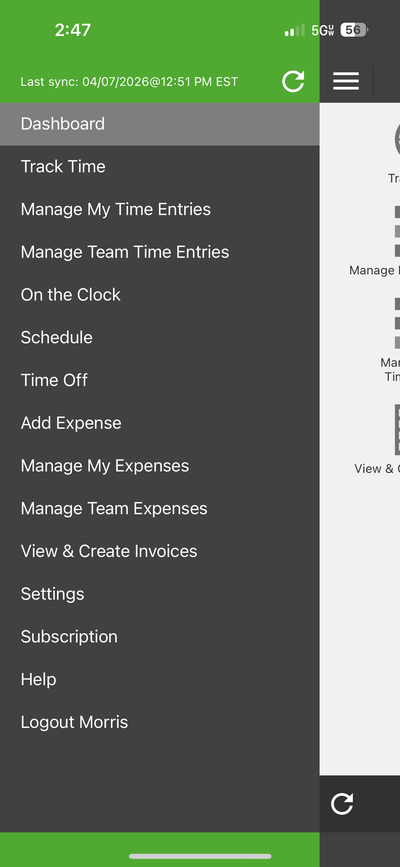
Navigation menu (Timer mode)
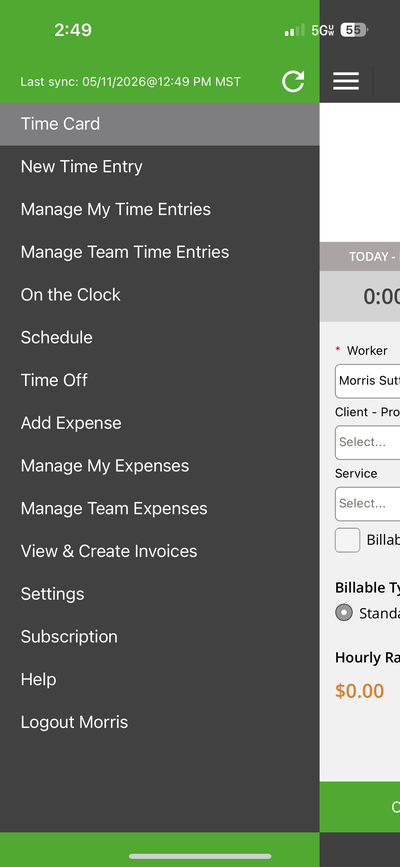
Navigation menu (Time Card mode)
The Sync Bar
At the bottom of the screen you will always see a sync status bar. It shows the last sync time (for example, "Last sync: 05/11/2026@12:49 PM MST") along with a refresh icon you can tap to force a manual sync and a gear icon for quick access to Settings.