What you see when the app opens depends on how your account is configured. Time Tracker supports two time-tracking modes, and each one presents a different home screen.
Timer Mode — The Dashboard
If your account is configured to use Timers, the app opens to the Dashboard. This is a grid of large icons that provide quick access to the most common actions:
Icon
Action
Track Time
Open the New Time Entry screen to start a timer or enter time manually.
Add Expense
Create a new expense entry. (Premium & LawBility)
Manage My Time Entries
View your list of past time entries.
Manage My Expenses
View your list of past expense entries. (Premium & LawBility)
Manage Team Time Entries
View time entries for all team members. (Managers and admins only)
Manage Team Expenses
View expense entries for all team members. (Managers and admins only)
View & Create Invoices
Browse, create, and manage invoices. (Premium & LawBility)
In Timer mode, the top-right corner of the screen displays a clock icon with a badge showing the number of currently running timers. Tap it to jump to the Timers management screen.
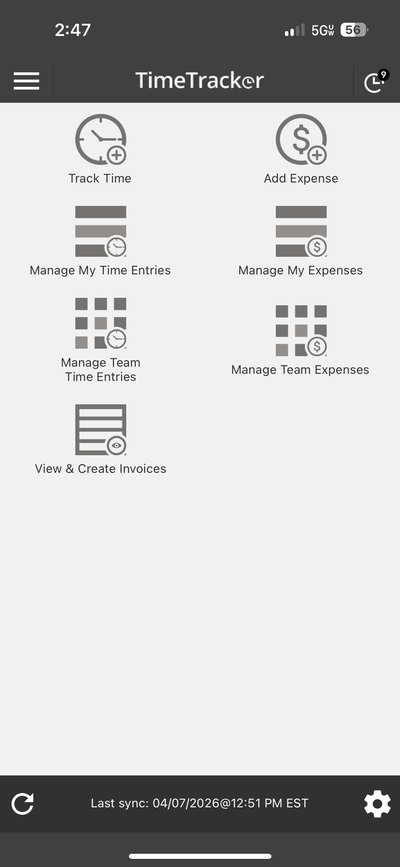
The Dashboard in Timer mode — tap any icon to get started
Time Card Mode
If your account is configured to use Time Cards, there is no Dashboard. Instead, the app opens directly to the Time Card screen, where you can clock in with a single tap. The Time Card screen shows:
- Today's date and a clock display showing 0:00:00 (or your current elapsed time if clocked in).
- A summary bar with three totals: Today - Paid, Today - Unpaid, and This Week Paid.
- Entry fields: Worker, Client-Project, Service, Billable, Include in Invoice, Billable Type (Standard or Overtime), and Hourly Rate.
- Two action buttons at the bottom: Clock In (green) and Take a Break (orange).
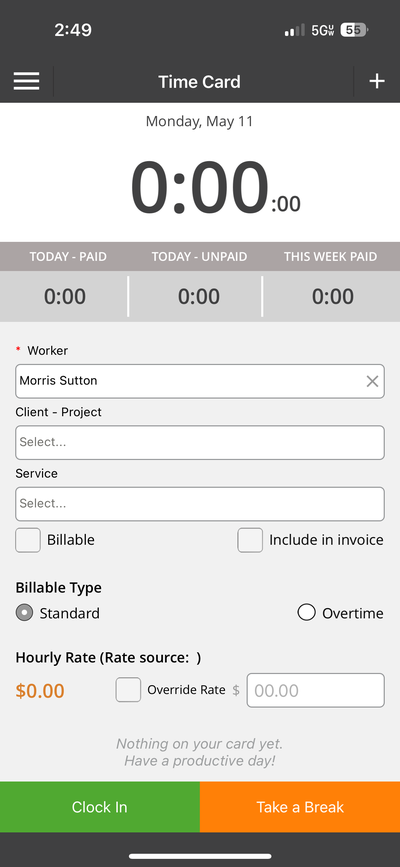
The Time Card screen — clock in with a single tap
Note: Your admin controls whether your account uses Timers or Time Cards. This is set in the web application under Settings. If you are not sure which mode you are on, check whether the app opens to a Dashboard (Timers) or a Time Card screen (Time Cards).