If your company uses the Scheduling feature, tap Schedule in the hamburger menu to view your assigned shifts.
Schedule Views
The Schedule screen provides multiple views, selectable via tabs at the top:
View
What It Shows
Schedule
A summary list of scheduled shifts.
Day
An hourly calendar for a single day, with shifts shown as color-coded blocks.
Week
A weekly view with shifts displayed across the seven days.
Month
A monthly calendar overview.
All
All scheduled shifts in a list format.
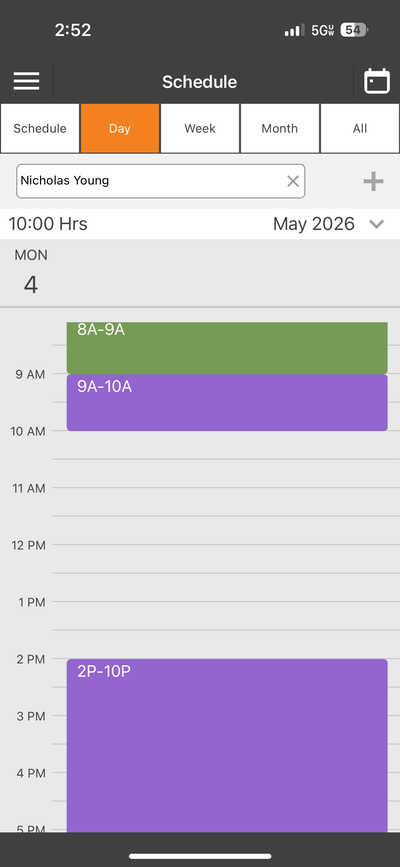
The Schedule screen in Day view — shifts shown as color-coded time blocks
Reading the Schedule
In the Day view, shifts appear as colored blocks on an hourly timeline. Each block shows the time range (for example, "8A-9A" or "2P-10P"). Different colors represent different shifts or assignments. The total scheduled hours for the period are shown at the top-left (for example, "10:00 Hrs"), and you can navigate to different months using the dropdown at the top-right.
An employee filter lets you select which employee's schedule to view. Managers can view schedules for all team members. Tap the + icon to add a new schedule entry if you have the appropriate permissions.
Note: Schedule management (creating and editing shifts) is typically handled by managers and admins. If you see an error in your schedule, contact your manager directly.