Tap the hamburger menu and select Manage My Time Entries (or tap the icon on the Dashboard in Timer mode) to view a list of all your past time entries.
The My Time Entries Screen
This screen shows your entries grouped by date, with the most recent dates at the top. Each entry displays:
- The date and total hours for that day
- The Client - Project name and Service or Activity
- The time range (for example, 3:57PM - 3:5...)
- The duration (for example, 0h 02m)
- A color-coded status icon on the left — green for approved, orange for pending, yellow for other statuses.
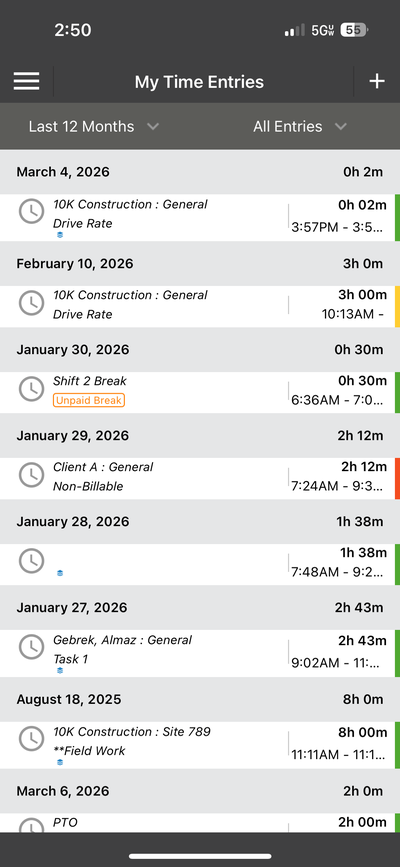
The My Time Entries list — entries grouped by date
Filtering Entries
At the top of the screen are two dropdown filters:
- Time period — Filter by Last 12 Months, Last 30 Days, This Week, or other ranges.
- Entry type — Show All Entries, or filter by specific types.
Editing or Deleting an Entry
Tap any entry in the list to open it for editing. You can change the Client-Project, Service, Activity, hours, description, or other fields. Tap Save when done. To delete an entry, look for the delete option within the entry detail screen.
Note: If the "Ask before deleting" setting is turned on (it is by default), the app will prompt you to confirm before deleting any entry.
ℹ️ Note: If the "Ask before deleting" setting is turned on (it is by default), the app will prompt you to confirm before deleting any entry.