Skip to content
English
  • There are no suggestions because the search field is empty.

Navigating TimeTracker: The Sidebar & Quick Create Menu

Find any feature quickly using the sidebar and create entries without leaving your current page

Everything in TimeTracker is reachable within two clicks. Once you know where things live, you'll spend less time navigating and more time on the work that matters. Here's a quick tour of the layout so you always know exactly where to go.

The left sidebar is your primary navigation. Here’s what each icon leads to:
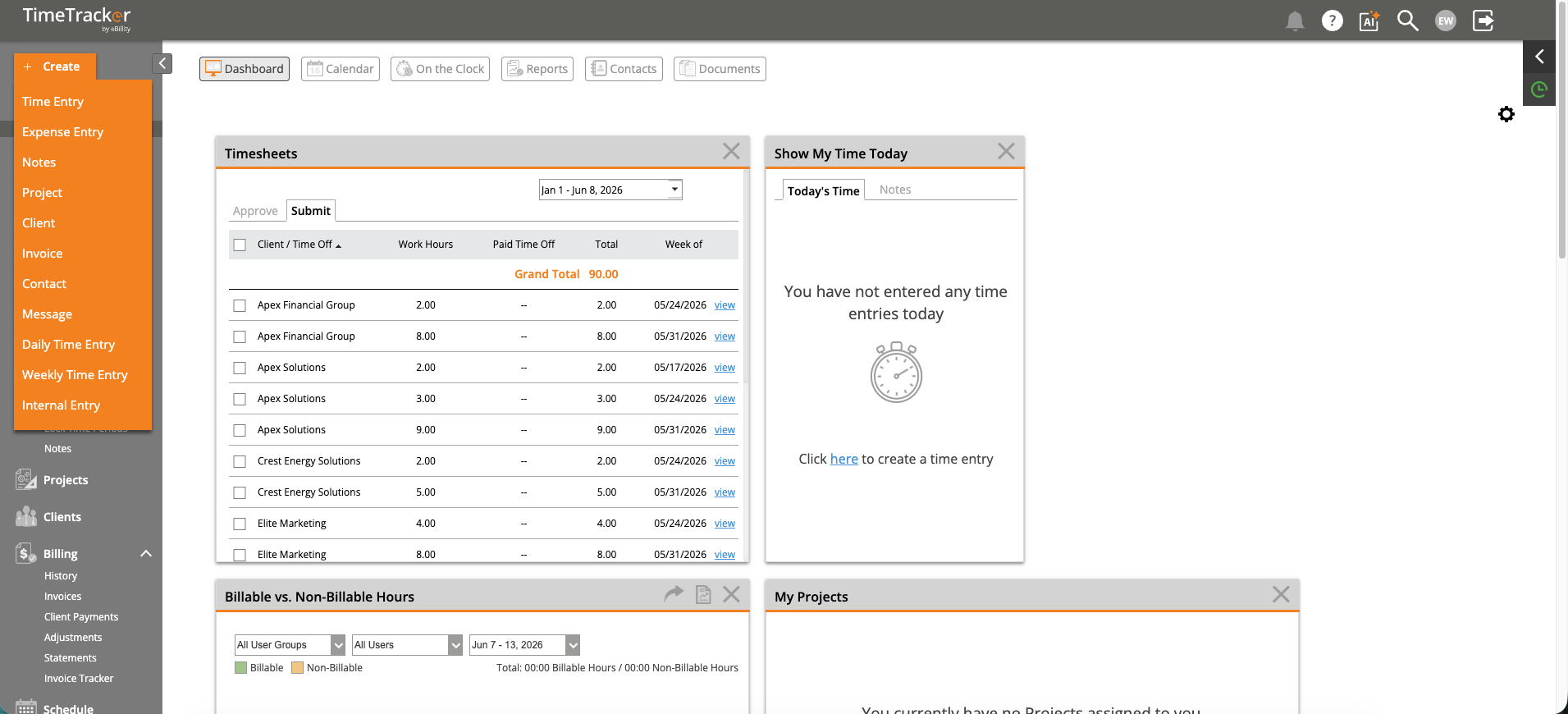
Dashboard with Quick Create Menu

The Quick Create menu provides shortcuts to create time entries, expenses, projects, invoices, and more from any page.

Icon
Destination
+Create
Quick Create menu (see below)
Home
Dashboard, Calendar, On the Clock, Reports, Documents
Entries
Weekly Timesheets, Daily Timesheets, Time/Expense & Notes, Recurring Expenses, Lock Time Periods
Projects
Project List, Project Tracker
Clients
Client List
Billing
History, Invoices, Client Payments, Adjustments, Statements, Invoice Tracker
Schedule
Scheduling features
Calendar
Calendar with sync options
Contacts
Contact management
More > Integrations
QuickBooks, Xero, ADP, Gusto, Paychex, and other connections (accessed via More tab)
More
Additional features and settings

The Quick Create Menu (+)

Clicking the +Create button in the top-left opens a dropdown with shortcuts to create: Time Entry, Expense Entry, Notes, Project, Client, Invoice, Contact, Message, Daily Time Entry, Weekly Time Entry, and Internal Entry. This menu is available from every page in the application.