A budget turns a project from something you bill afterwards into something you can steer while it is running. Time Tracker Billing gives you four ways to frame it.
Open a project and go to the Project Estimates tab, then tick Add an estimate for this project.
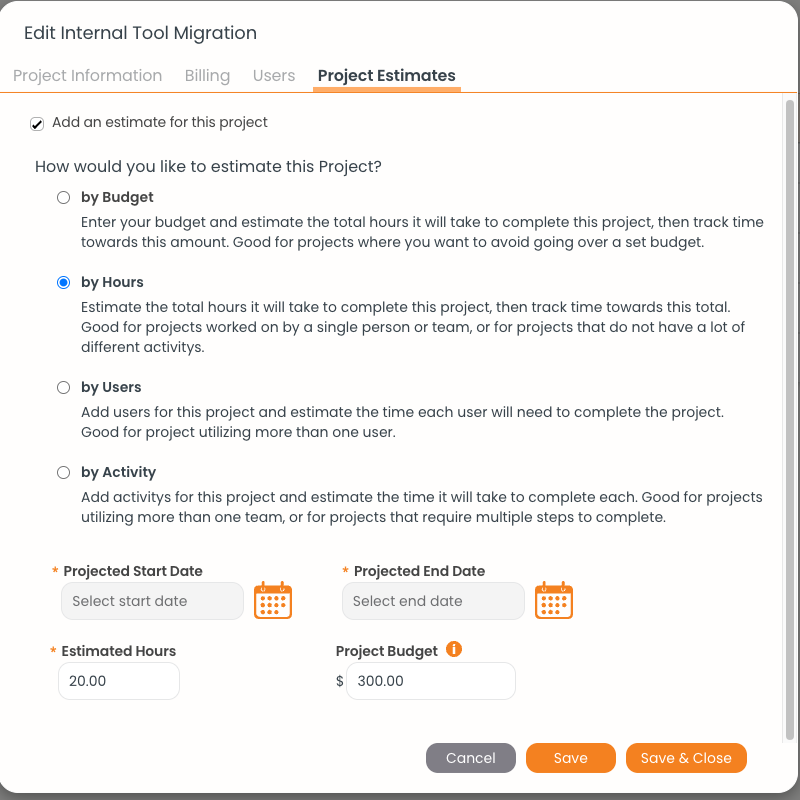
The four estimate methods, each with a short description of what it suits.
The four methods
Dates and totals
Set a Projected Start Date and Projected End Date, then your Estimated Hours and, if you are budgeting by money, a Project Budget amount. The project list then shows a Budget column alongside billed and unbilled totals, so you can see at a glance which projects are running hot.
Getting warned before you overrun
Budgets are much more useful with alerts attached. Go to Settings → Notifications and you can be told:
- when a project's total estimated time has been reached
- when a set percentage of the estimate has been reached — 80% by default, which gives you room to act
- on a project's projected end date
- a set number of days before the projected end date — five by default
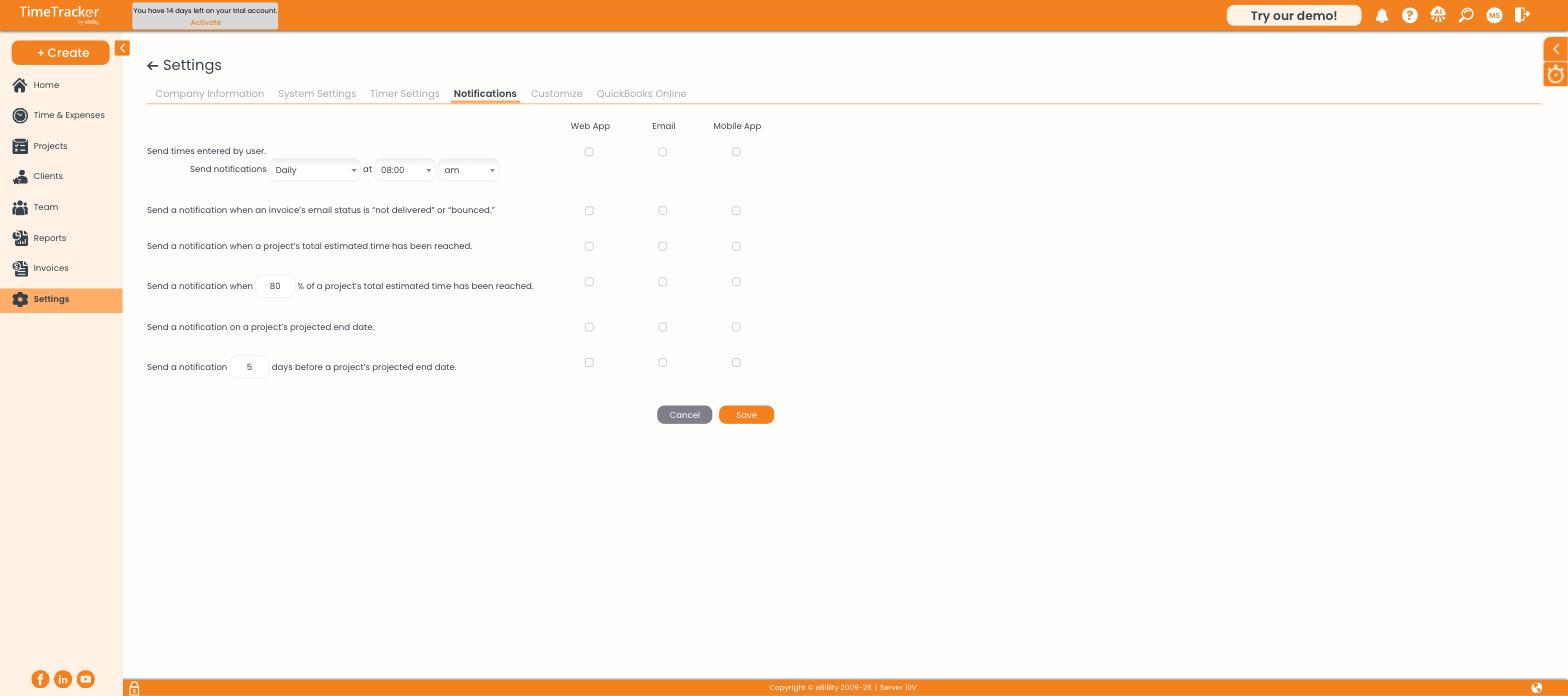
Notification settings can alert you in the web app, by email, or in the mobile app.