When a client pays, record it so your balances and your accounts receivable report stay accurate.
Adding a payment
- Go to Invoices and open the Payments tab.
- Click Add Payment.
- Check the Payment Date.
- Choose the Client. Their open balance, unbilled balance, and last payment date appear on the right.
- Pick a Payment Method and enter the Payment Amount.
- Apply the payment to the open invoices, then Save.
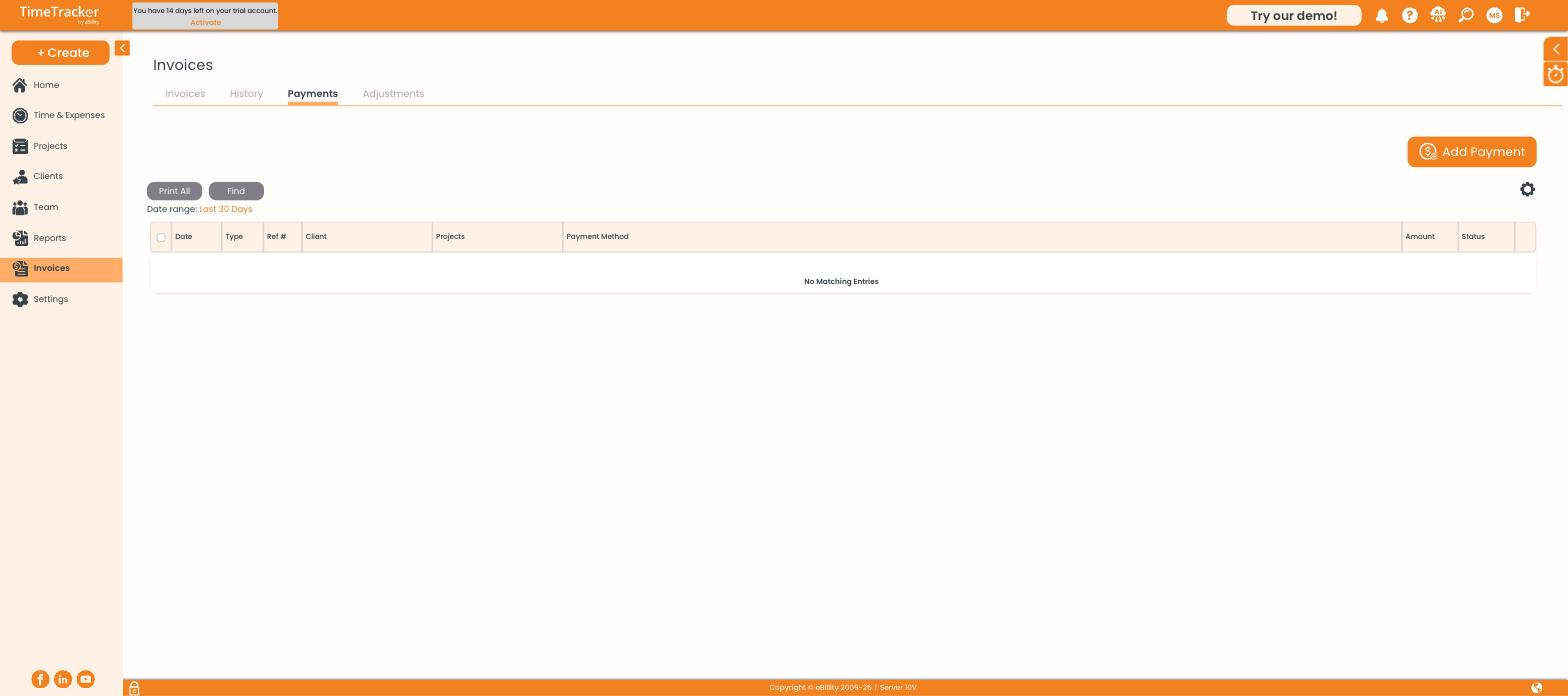
The Payments tab under Invoices lists every payment received, with Add Payment in the top right.
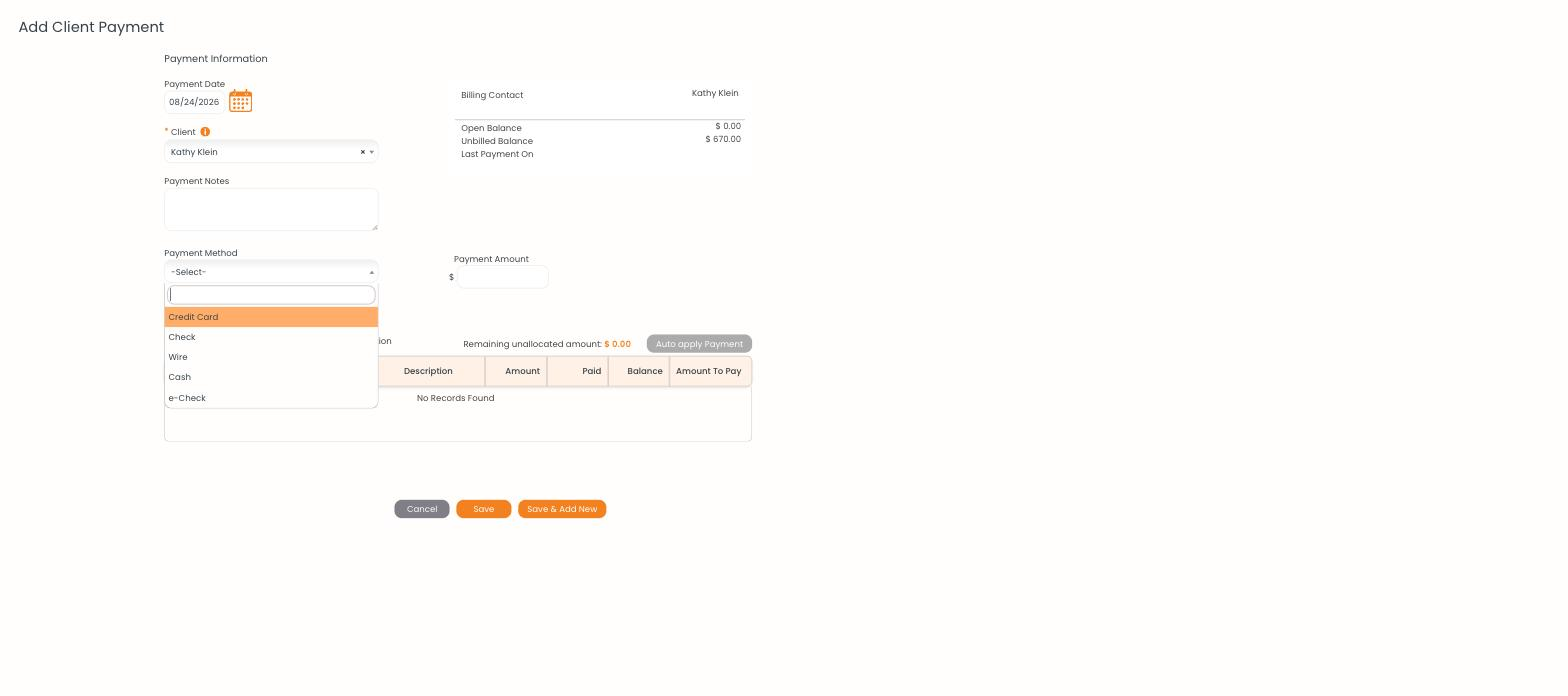
The Add Client Payment form, with the client's balances on the right and the invoice allocation table below.
Payment methods
Credit Card, Check, Wire, Cash, and e-Check. The method is recorded for your own reporting and reconciliation.
Applying the payment
The table at the bottom lists the client's open invoices with an Amount To Pay column. Either type the amount against each invoice, or click Auto apply Payment to spread it across them automatically. Remaining unallocated amount shows what is still unassigned — get this to $0.00 before saving.
Understanding the two balances
Payments on account
You can record a payment without applying it to a specific invoice — useful for retainers or advance payments. It sits against the client and can be applied to invoices later.