When a client pays an invoice, recording that payment in TimeTracker closes the loop on your billing cycle. It keeps your accounts receivable accurate and gives you a clear picture of cash flow across all your clients.
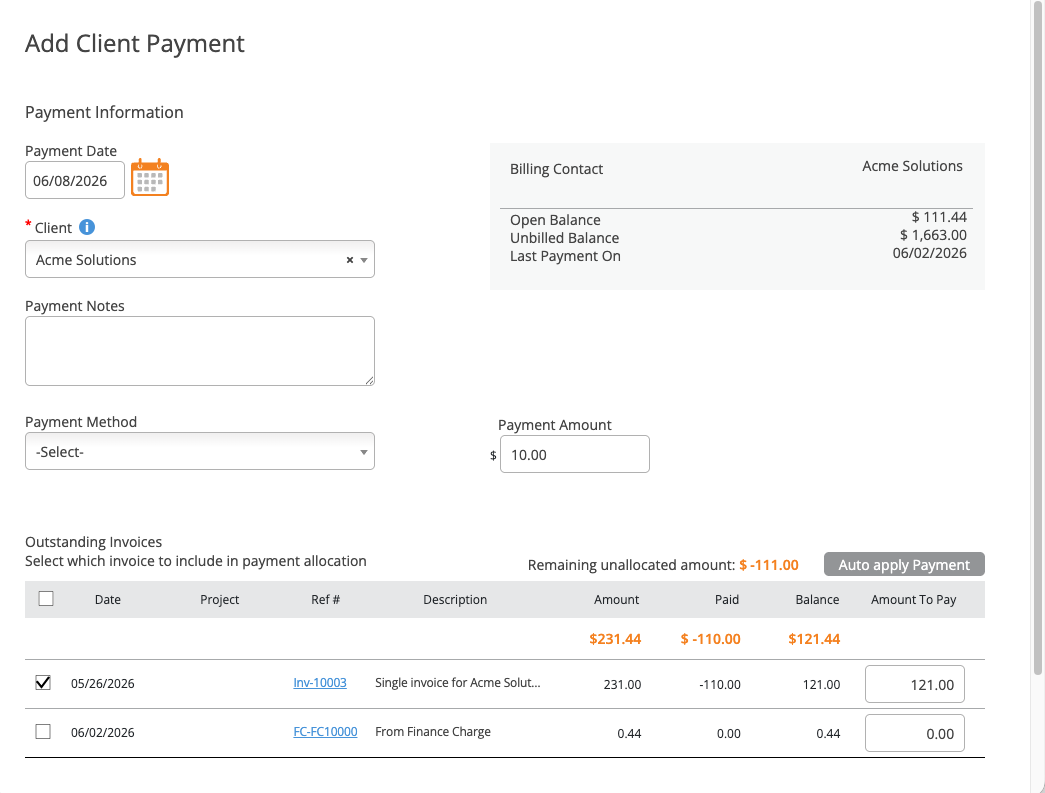
The Add Client Payment screen records payments and allocates them to outstanding invoices.
Recording a Payment
- Open the invoice you want to record payment against.
- Click Receive New Payment.
- Enter the payment amount, date received, and payment method (check, wire, credit card, etc.).
- Click Save.
Partial Payments
If the client pays less than the full amount, enter the amount received. The remaining balance is tracked automatically and the invoice status changes to "Partially Paid." You can record additional payments later until the balance reaches zero.
Online Payments
If you've set up online payments (Stripe, LawPay, or CPACharge), payments made through the Client Portal or payment link are recorded automatically — you don't need to manually enter them.
Where Payments Appear
- Invoice detail — Each invoice shows its payment history.
- Invoice Tracker — Updated balance due and payment status.
- Client Statements — Payments appear as line items alongside invoices.
- Billing Reports — The Payment Details report shows all recorded payments for reconciliation.