For costs that repeat on a regular schedule (e.g., a monthly software subscription or a weekly parking pass), Recurring Expenses let you set it up once and have it auto-create on your chosen schedule. No more manually entering the same expense every month.
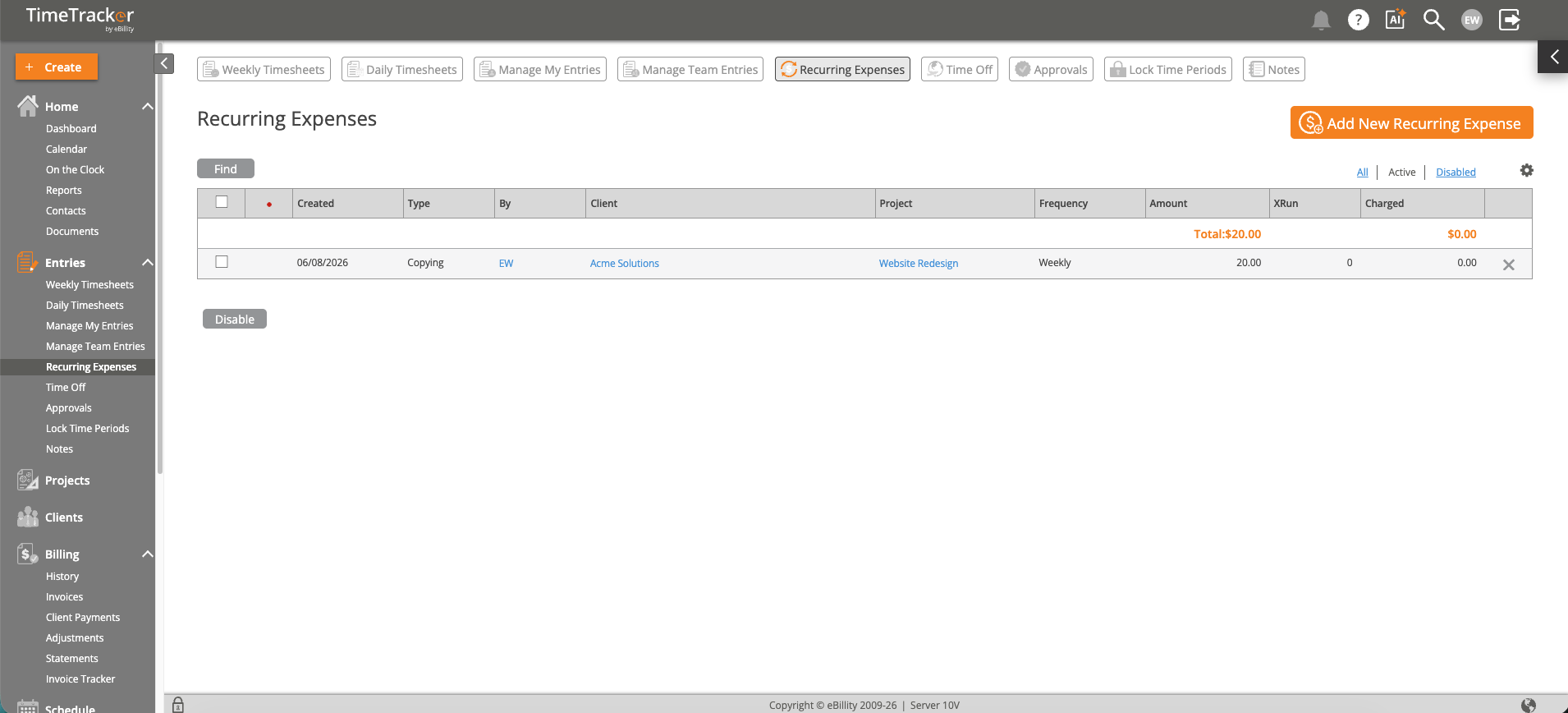
The Recurring Expenses screen shows active recurring expense entries with type, client, project, frequency, and amounts.
Creating a Recurring Expense
- Go to Entries > Recurring Expenses in the left sidebar.
- Click Add Recurring Expense.
- Select the Client-Project this expense belongs to.
- Choose an Expense-Description category from the dropdown.
- Enter the QTY and COST. You can also mark it as Reimbursable and/or Taxable.
- Set the recurrence schedule — frequency (weekly, monthly, etc.) and start date.
- Click Save.
Managing Recurring Expenses
The system auto-creates the expense entry on the scheduled date. You can manage all recurring expenses from the same page:
- Edit — Change the amount, schedule, or client/project.
- Pause — Temporarily stop the recurrence without deleting it.
- Delete — Permanently remove the recurring expense. Past entries that were already created are not affected.
Common Uses
- Monthly software subscriptions billed to a client (e.g., $99/mo hosting fee).
- Weekly mileage or parking costs.
- Monthly retainer fees passed through as expenses.