If your organization has approvals enabled, your time entries need to be reviewed by a manager or admin before they can be invoiced. Here's how the submission process works from the employee side.
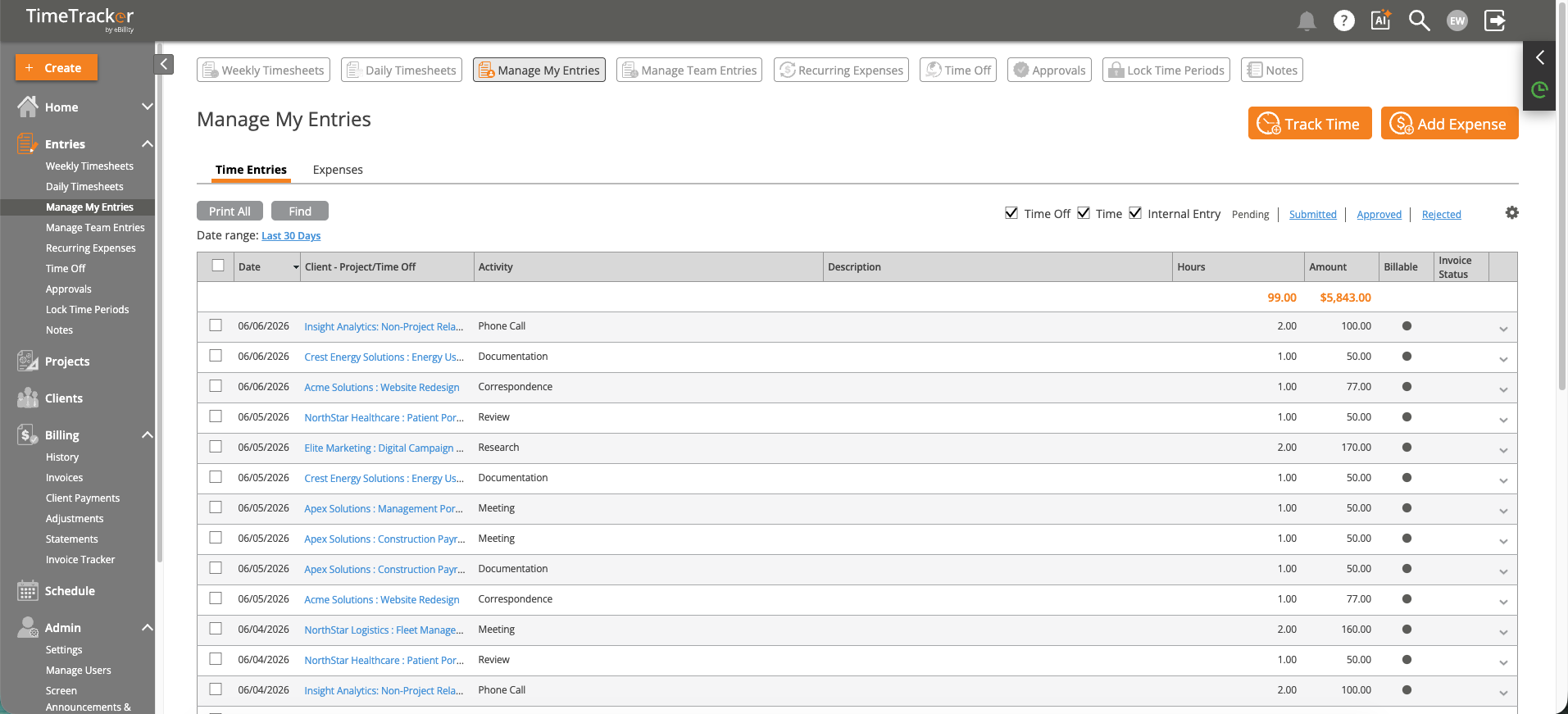
Manage My Entries shows your own time entries with hours, amounts, and approval status.
How to Submit
- Enter your time on the Weekly or Daily Timesheet as usual.
- When you're ready to submit, go to Time > Manage My Entries.
- Select the entries you want to submit (or use "Select All" for the current period).
- Click Submit.
Your entries are now sent to your manager or admin for review. You'll see the status change from "Unsubmitted" to "Pending Approval."
After You Submit
- Approved — The entry is accepted and moves into the billing pipeline. You'll see a green status indicator.
- Rejected — Your manager sent it back with feedback. Open the rejected entry, read the comments, make the requested changes, and resubmit.
Tips
- Submit at the end of each day or week — don't let entries pile up. Your manager is waiting on your submissions to approve and invoice.
- Double-check your entries before submitting. Once approved, entries are locked and require your manager to unapprove them before you can make changes.