The Dashboard is your home screen — the first thing you see when you log in. It provides a snapshot of your day and your business at a glance, and serves as the starting point for most tasks.
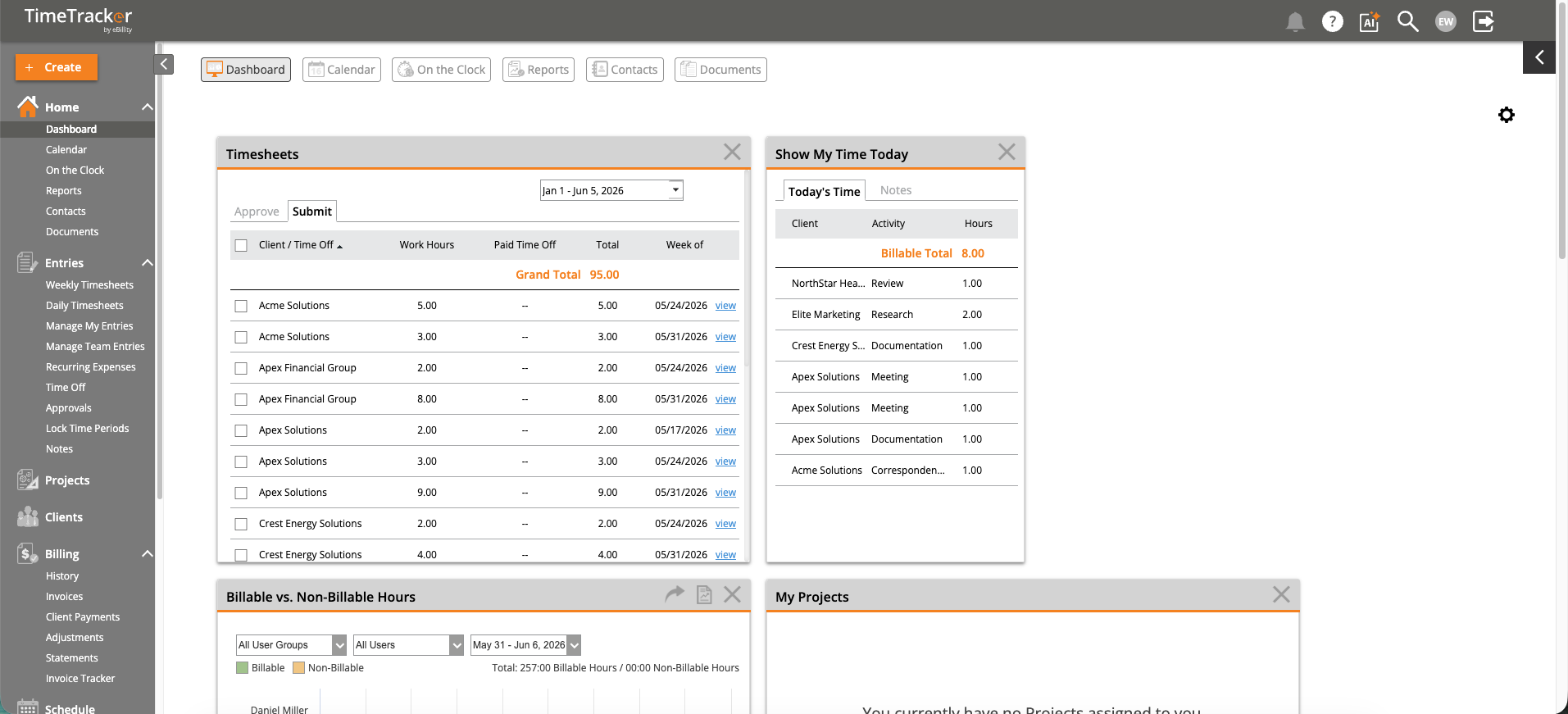
The Dashboard displays configurable widgets including Timesheets, Today's Time, and Billable vs. Non-Billable Hours.
Dashboard Widgets
- Show My Time Today — Displays your time entries for the current day. If you haven't logged anything yet, it shows a quick link to create a time entry. A good visual check before you leave for the day.
- My Projects — Lists all projects you're assigned to with their status. Click any project to jump directly to its detail page.
- Billable vs. Non-Billable Hours — A chart showing the split between billable and non-billable time. Admins and managers can filter by User Group, specific User, and date range to see team-wide utilization.
Top Navigation Bar
Across the top of the dashboard, shortcut buttons provide quick access to: Dashboard, Calendar, On the Clock (see who's currently timing), Reports, and Documents. The +Create button lets you quickly add a time entry, expense, client, project, or invoice from anywhere.
Admin vs. Employee View
What you see depends on your role:
- Admins and managers see all widgets, team-level data, the Setup Wizard (for new accounts), and billing summaries.
- Employees see only their own time entries and assigned projects — no billing data, no other users' information, and no admin controls.
Customization
Click the gear icon on any widget to customize it — change the date range, filter by group, or rearrange widgets on the page.