When you manage multiple projects, you need a way to check on all of them at once — which ones are on track, which are running hot, and which are close to their budget limit. The Project Tracker gives you that bird's-eye view without opening each project individually.
Getting There
Go to Projects > Project Tracker in the left sidebar.
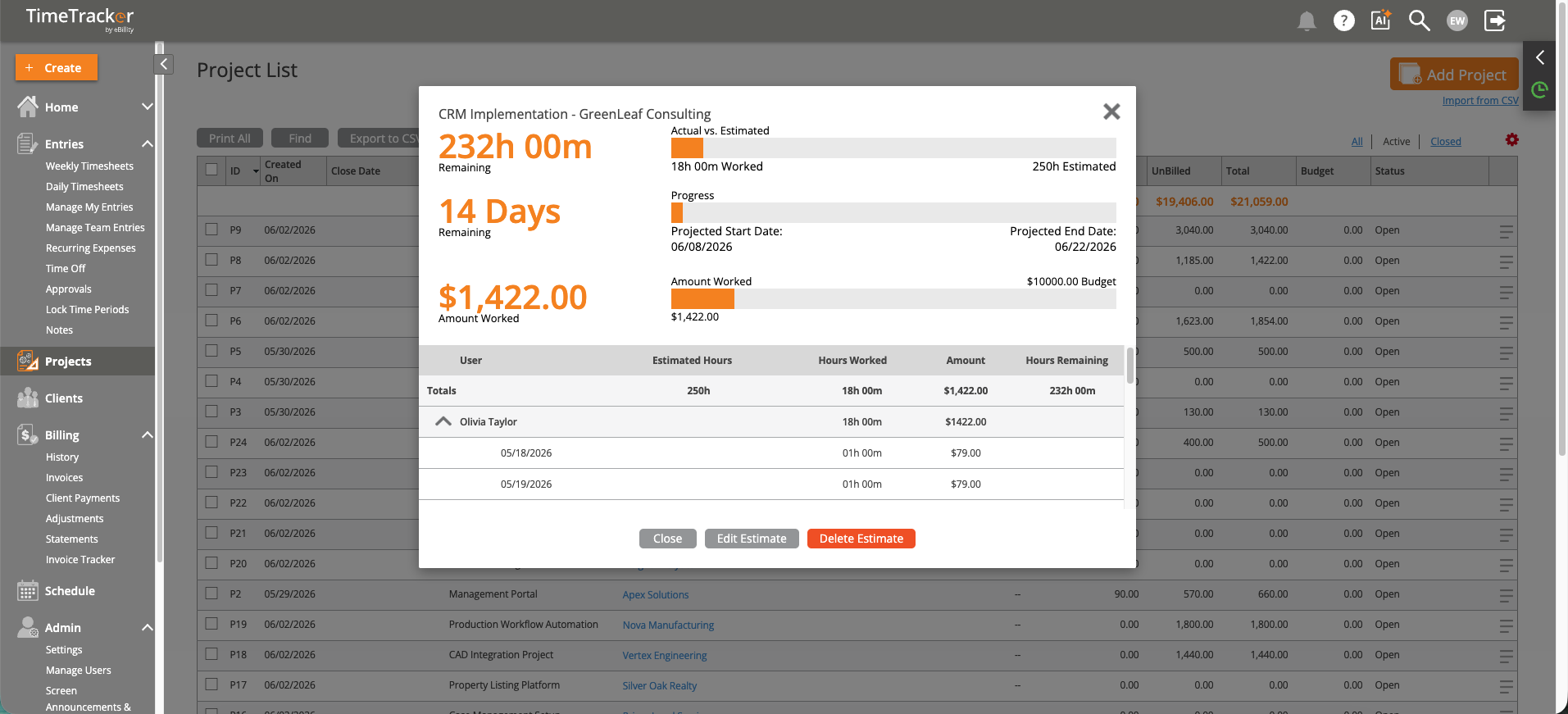
The Project Tracker shows hours worked, budget remaining, and progress at a glance.
What You'll See
Each project row shows:
- Project name and client
- Budget vs. actual — Hours or dollars consumed against the estimate.
- Progress bar — A visual indicator of how much of the budget has been used. Green means on track; yellow and red indicate you're approaching or over budget.
- Status — Open, on hold, or completed.
How to Use It
- Weekly project meetings — Pull up the tracker to review all active projects. Focus on anything over 75% of budget that isn't close to completion.
- Client conversations — Before a client check-in, look at their project's budget status so you can proactively address any overruns.
- Resource planning — Projects nearing completion free up team capacity. The tracker helps you plan ahead.
Click any project to drill down into its full detail — team members, time entries, expenses, and billing history.
Tip: The Project Tracker is only useful if you've set up project budgets. If your projects don't have budgets yet, start with
Setting Up Project Estimates and Budgets.