The orange + Create button sits at the top of the sidebar on every page. It is the fastest way to add something without navigating away from what you are doing.
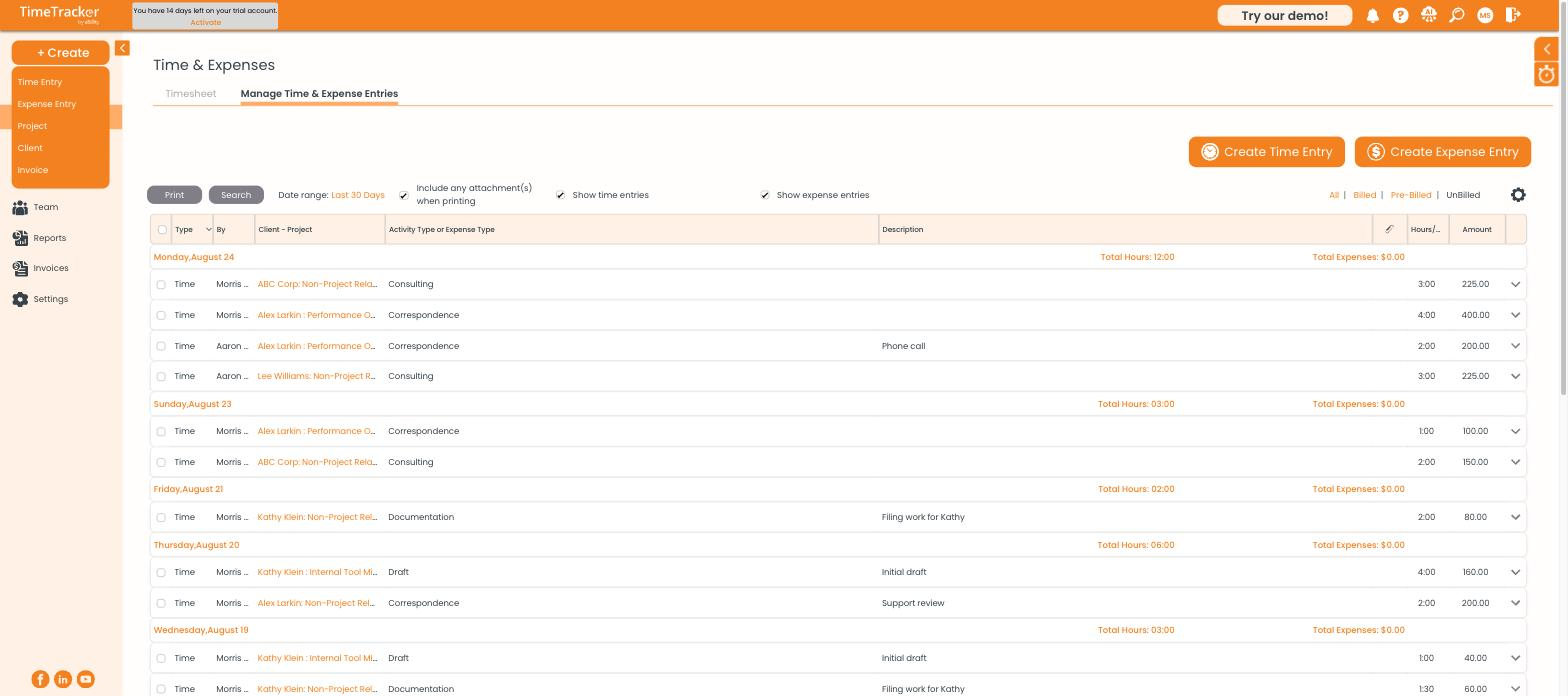
The + Create menu offers five shortcuts: Time Entry, Expense Entry, Project, Client, and Invoice.
What each option does
Important: Time Entry and Expense Entry open in a separate browser window. If nothing seems to happen when you click one, check whether your browser blocked the pop-up — look for a blocked-pop-up icon in your address bar and allow pop-ups for secure.ebillity.com.
When to use it instead of the timesheet
The + Create menu is best for one-off entries — a single expense, a single block of time you forgot to log. If you are entering a whole week of work, the weekly timesheet is faster because it keeps your client and project selections in place across all seven days.