Sometimes a list of time entries isn't the most intuitive way to see your week. The Calendar view lays everything out visually — time entries, shifts, and deadlines on a familiar calendar grid — so you can spot gaps, overlaps, and open blocks at a glance.
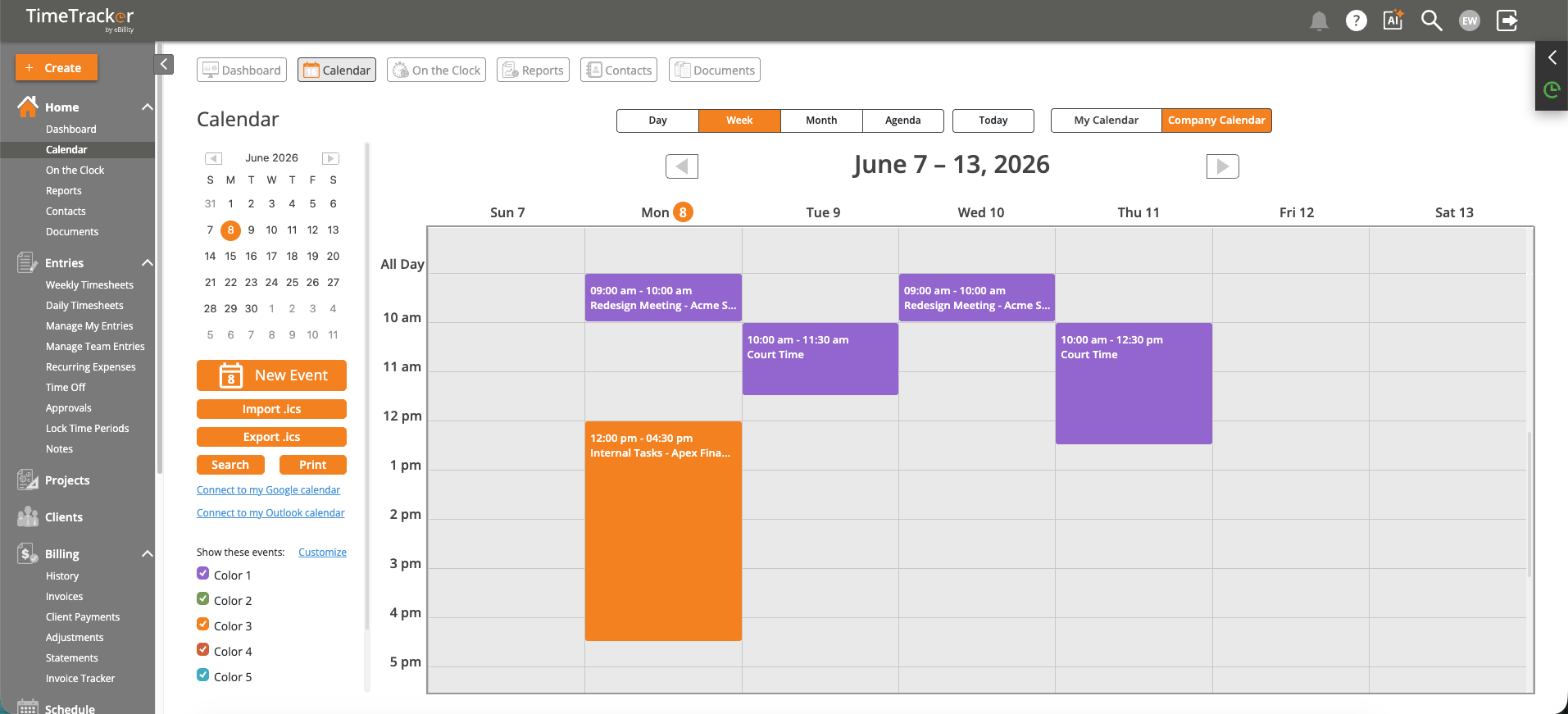
The Calendar provides Day, Week, Month, and Agenda views with color-coded events and Google/Outlook sync options.
Getting There
Click Calendar in the top navigation bar. The calendar opens in Week view by default.
Views
- Day — Detailed hourly view of a single day. Best for seeing exactly how your hours are distributed.
- Week — Seven-day overview. The most commonly used view for planning and reviewing your week.
- Month — High-level monthly view. Useful for spotting patterns over time (e.g., which weeks were heaviest).
Creating Entries from the Calendar
Click any time slot on the calendar to create a new time entry for that date and time. The entry form opens pre-filled with the date you clicked. Fill in Client-Project, Activity, and duration as usual. This is a fast way to fill gaps — see an empty block on Wednesday afternoon? Click it and log the time.
External Calendar Sync
Connect your Google Calendar or Outlook Calendar to see external events alongside your time entries (see "Syncing with Google Calendar or Outlook"). Synced events appear as read-only items, giving you a reference when you're filling out your timesheet.
Tips
- Color coding helps distinguish between different clients or projects at a glance.
- If you use the Schedule feature, assigned shifts also appear on the calendar.
- The calendar respects your Week Start Day setting (Sunday or Monday), configured under Admin > Settings > Time Tracking.