Admins and managers can view and edit other users' timesheets to review time entries, make corrections, or enter time on behalf of team members. This is useful when someone is out of office or when you need to verify entries before approving them.
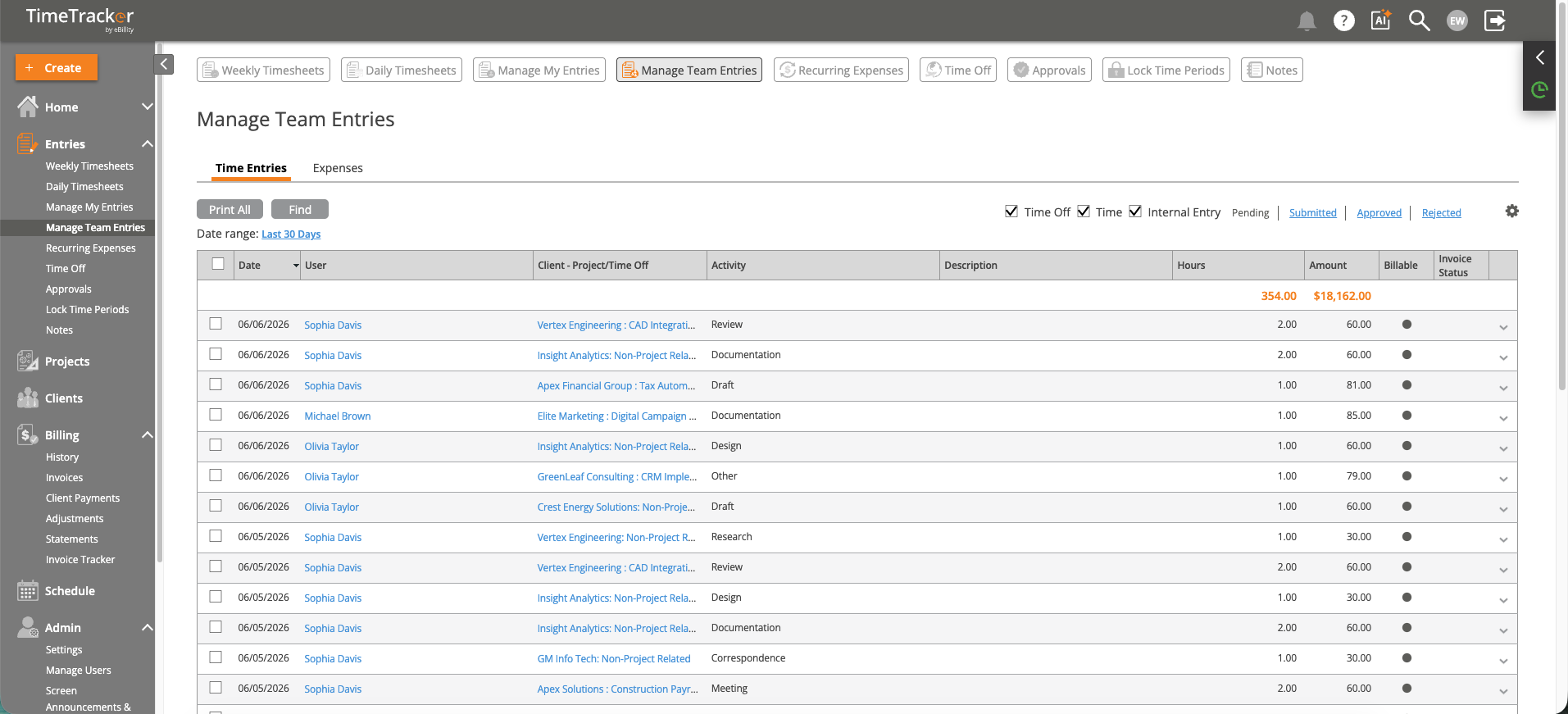
Manage Team Entries shows all team members' time entries in a single list.
Switching to Another User's Timesheet
- Open the Weekly or Daily Timesheet.
- Click the User Selector dropdown at the top of the page.
- Select the user whose timesheet you want to view.
- The timesheet reloads with that user's entries.
What You Can Do
- View entries — See all of the user's time entries for the selected period.
- Edit entries — Correct hours, change client/project assignments, or update descriptions.
- Add entries — Enter time on behalf of the user (e.g., if they forgot to log a day).
Any changes you make are saved under their name, not yours.
Using Manage Team Entries
For a broader view, go to Entries > Manage Team Entries. This shows all team members' time entries in a single list, filterable by user, date range, client, and project. It's faster than switching between individual timesheets when you need to review the whole team.