
Applies to: Billing
When someone joins your team, add them on the Team page. You'll set two things that matter later: their role (what they can see) and their billing rate (what their time is worth on invoices).
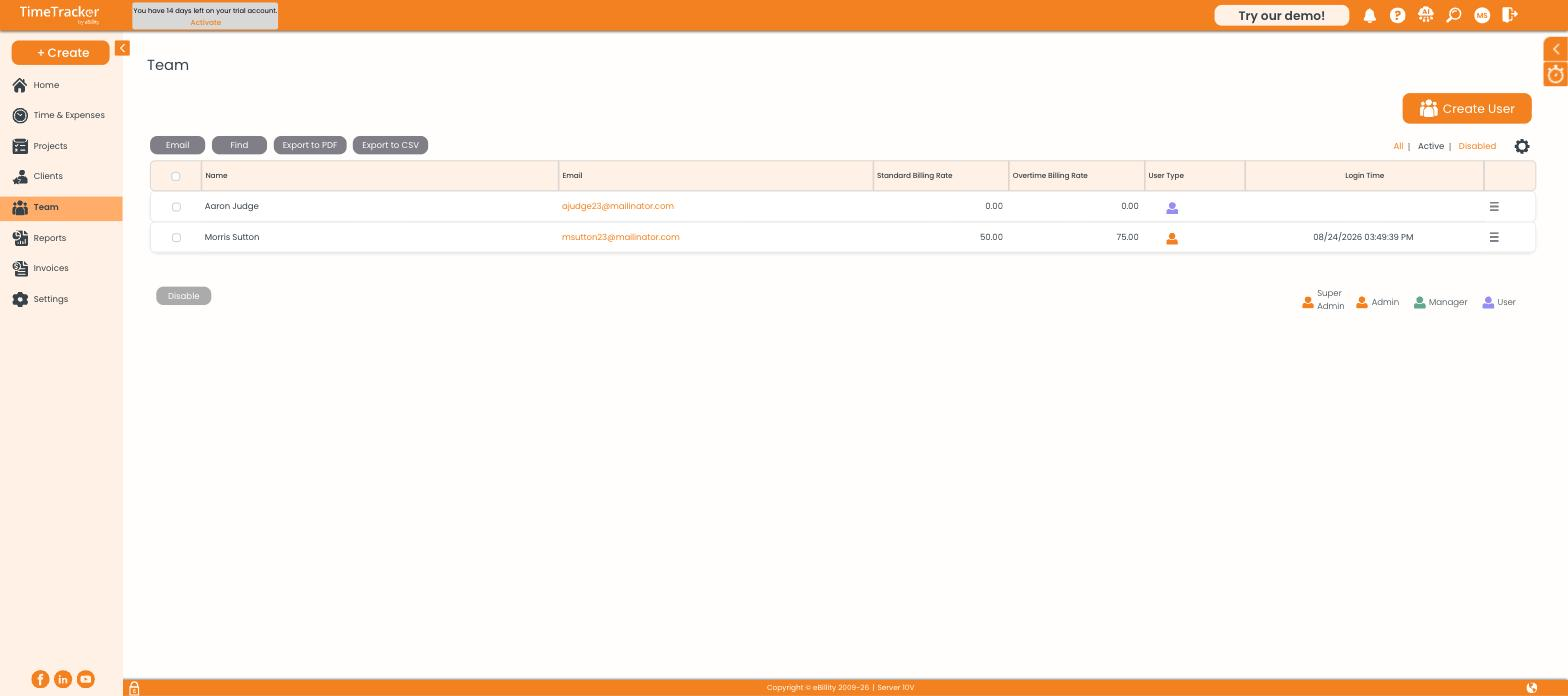
The team list, with each person's standard and overtime billing rates and a role icon.
Adding a User
- Go to Team and click Create User.
- Enter their name and email address — the email is what they'll sign in with.
- Set their Standard Billing Rate and Overtime Billing Rate.
- Choose their role (see below).
- Save. They'll receive an email invitation to set a password.
Important: Set the billing rate when you create the user. If it's left at 0.00 and no client or project rate covers their work, their hours will invoice at $0.00. See "How Billing Rates Work."
Choosing a Role
The icons in the User Type column show each person's role — the legend is below the list.
Removing Someone
- Select them in the list.
- Click Disable.
They can no longer sign in and stop appearing in dropdowns, but their entries and invoices stay intact. Use the All | Active | Disabled filters to see disabled users.
Exporting the List
Export to PDF or Export to CSV downloads the team list. Select users and click Email to message them from inside the product.