
Applies to: Billing
Every time entry and expense has a billing status that tells you where it is in the invoicing process — and whether you can still change it. If you've ever wondered why an entry won't let you edit it, the status is the answer.
The Three Statuses
Entries start as UnBilled, move to Pre-Billed when you put them on a draft invoice, and lock as Billed when the invoice is finalized. Locking is deliberate: once a client has an invoice, the records behind it shouldn't quietly change.
Spotting the Status at a Glance

In the invoice list, an orange P marks a pre-bill (draft) and a green tick marks a finalized invoice.
On the Invoices page, the Invoice Status column shows an orange P for pre-bills and a green tick for finalized invoices. On Time & Expenses > Manage Time & Expense Entries, use the All | Billed | Pre-Billed | UnBilled filters to see entries in each state.
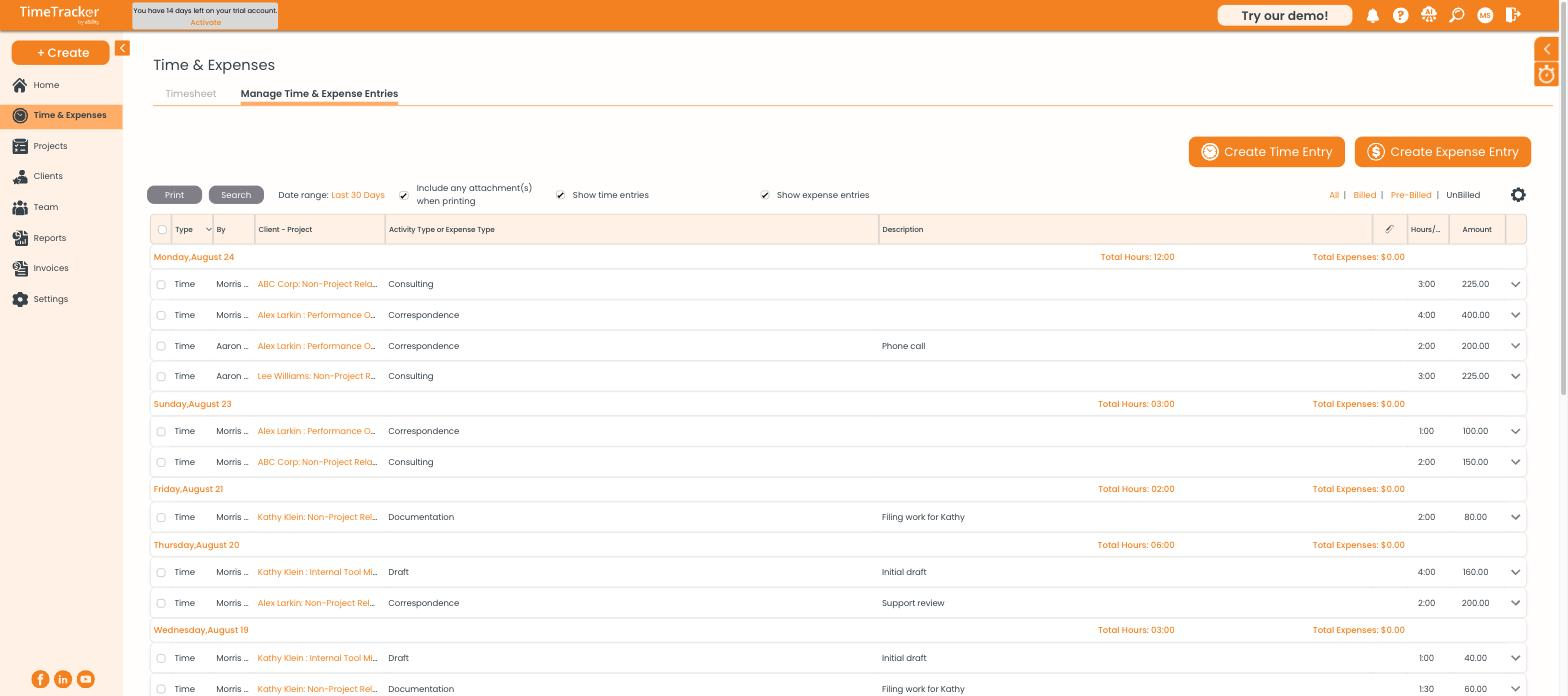
The billing status filters in the top right of the entries list.
Fixing an Entry That's Already Billed
Two options:
- Unfinalize the invoice. On the Invoices page, select the invoice and click Unfinalize. It returns to a pre-bill and its entries unlock. Only do this if the client hasn't received the invoice.
- Post an adjustment instead. Leave the invoice as it is and record a credit or charge on the Adjustments tab. Use this when the invoice has already gone out.