
Skip to content
  • There are no suggestions because the search field is empty.

Clio Integration

Connect Clio to Time Tracker, choose how contacts and service categories sync, and set a default matter name

Applies to: Workforce · Premium · LawBillity

The Clio integration brings your Clio contacts, matters, and users into Time Tracker and sends time and expense entries back to Clio. Matters in Clio become projects in Time Tracker.

Connecting

Go to More > Integrations and click Clio, or open Clio in the left menu. Work down the Clio Setup checklist: Enable Clio, Connect to Clio (sign in to Clio and allow access), Sync Queue Settings, and Sync with Clio.
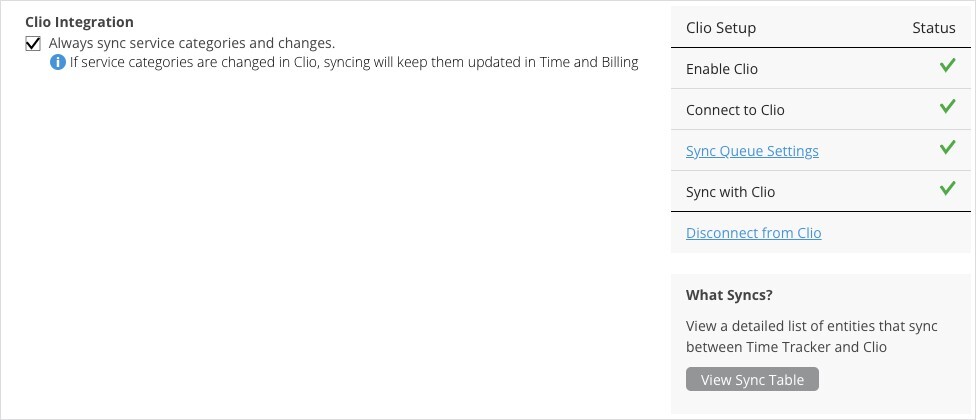
Clio Integration Settings

The Clio page: integration options on the left and the setup checklist on the right.

Clio Integration Options

Option
What it does
Always sync service categories and changes
If service categories are changed in Clio, syncing keeps them updated in Time Tracker.
Sync Clio Contacts (Clients with no matters)
Brings in all Clio contacts, even ones that have no matters.
Default Matter Name
The name of the matter used for work that isn't tied to one of a contact's Clio matters (for example "eBillity non-matter related"). Click Save Default Matter Name after changing it.

What Syncs

Time Tracker
Direction
Clio
Customers
Both ways
Contacts
Projects
Both ways
Matters
Users
From Clio
Users
Activities and expense items
From Clio
Activity categories
Time entries
To Clio
Time
Expense entries
To Clio
Expenses

Syncing

Clio is a cloud integration: click Sync in the Sync menu, or turn on Auto Sync. See "How Syncing Works: Sync Queue, Sync Log, and Auto Sync". If something doesn't arrive in Clio, see "My Integration Isn't Syncing: Finding and Fixing a Failed Sync".