
Applies to: Billing
These are the settings to visit once when you set up your account. Your company details appear on every invoice, and your regional formats affect how everyone on the account sees dates and times.
Entering Your Company Information
- Go to Settings > Company Information.
- Enter your Company Name and Company Email.
- Fill in your address and phone numbers.
- Click Save.
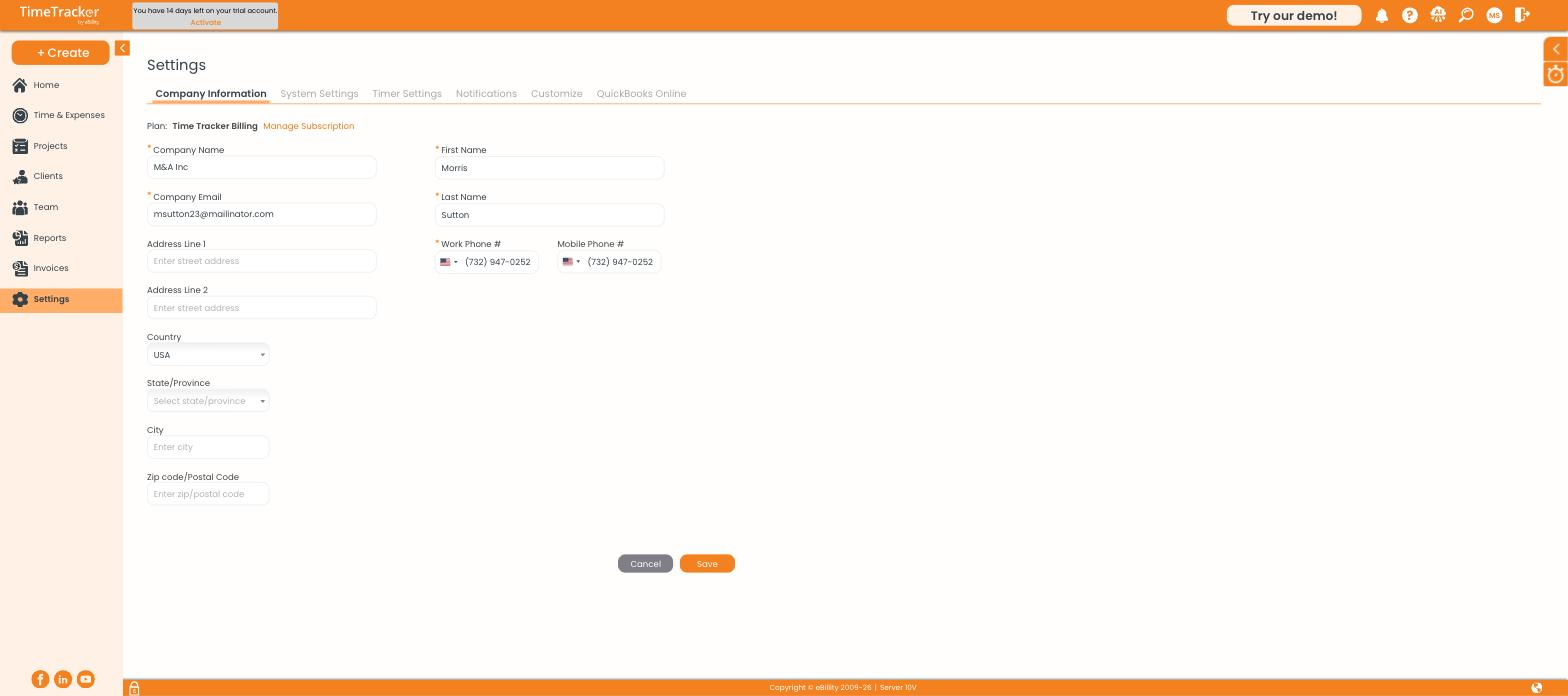
Company Information — your plan and the Manage Subscription link are at the top.
The company name and address appear at the top of every invoice, so enter them the way you want clients to see them. Your plan name is shown at the top of this page, with a Manage Subscription link beside it.
Setting Formats, Time Zone, and Currency
Go to Settings > System Settings:
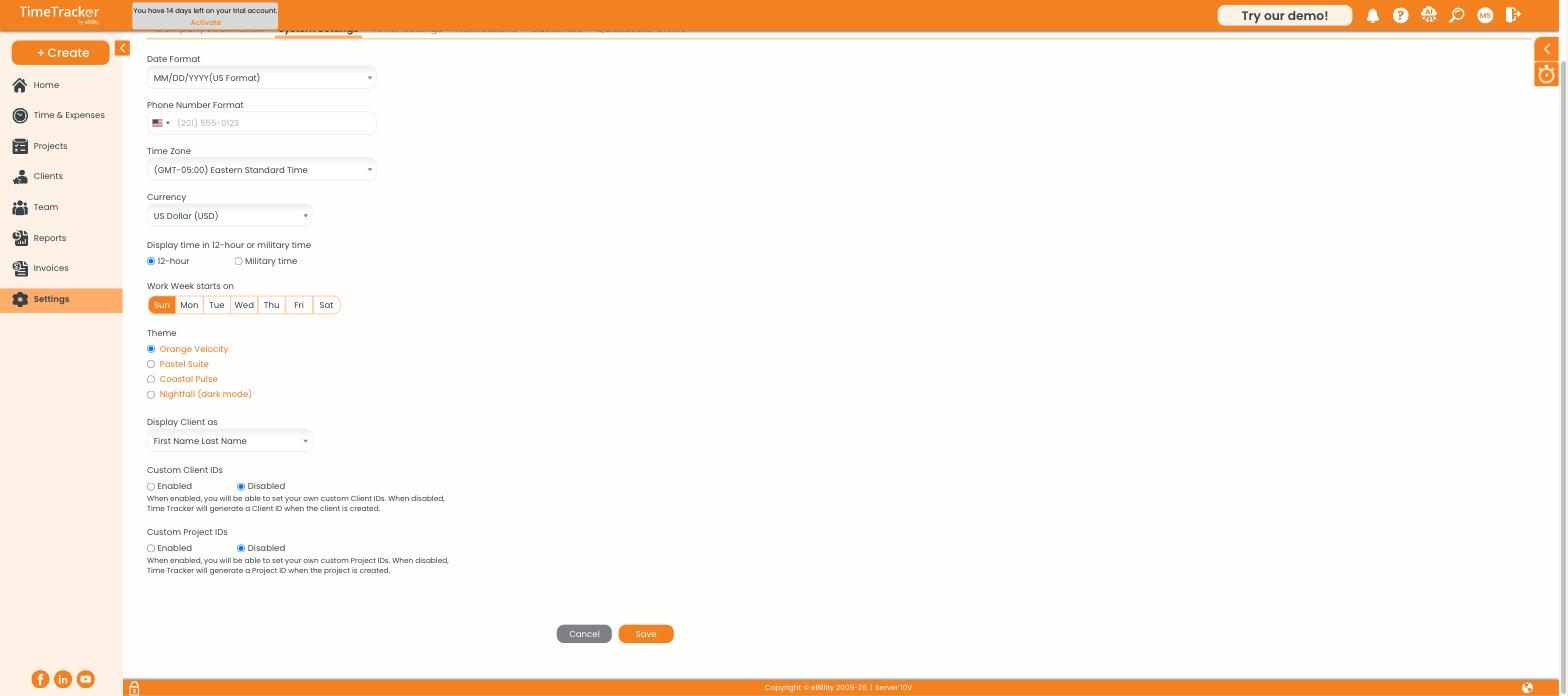
System Settings covers regional formats, week start, theme, and custom IDs.
- Date Format and Phone Number Format — how these display everywhere.
- Time Zone — the zone timers and entries are stamped in.
- Currency — used on rates, invoices, and reports.
- 12-hour or military time — how times display on the daily timesheet.
- Work Week starts on — the first day of the weekly timesheet.
- Display Client as — name order for clients set up as a person.
Choosing a Theme
Four color themes are available under Theme: Orange Velocity (default), Pastel Suite, Coastal Pulse, and Nightfall — a dark mode.
Using Your Own Client and Project IDs
By default, Time Tracker Billing numbers clients and projects automatically (C1, C2… / P1, P2…). If your firm already uses its own numbering — matter numbers, job codes — enable Custom Client IDs and Custom Project IDs here, and you'll set the ID yourself whenever you create one.