
Applies to: Workforce · Premium · LawBillity
Time Tracker can nudge people at the right moment: a Friday reminder to submit time, an alert when a time off request arrives, a warning when a project is about to blow its budget. All of it is configured in one place, and each alert can go to the web app (the bell icon in the top bar), to email, or both. The settings here are firm-wide defaults — users can override the ones that apply to them from their own My Account page.
Getting There
Go to Admin > Settings > Notifications. Seven sub-tabs run down the left: Timesheets, Schedule, Invoices, Time Off, User Monitoring, Project Management, and User Achievements. Tick Web App and/or Email for each alert and click Save on that tab before moving to the next one.
Timesheets
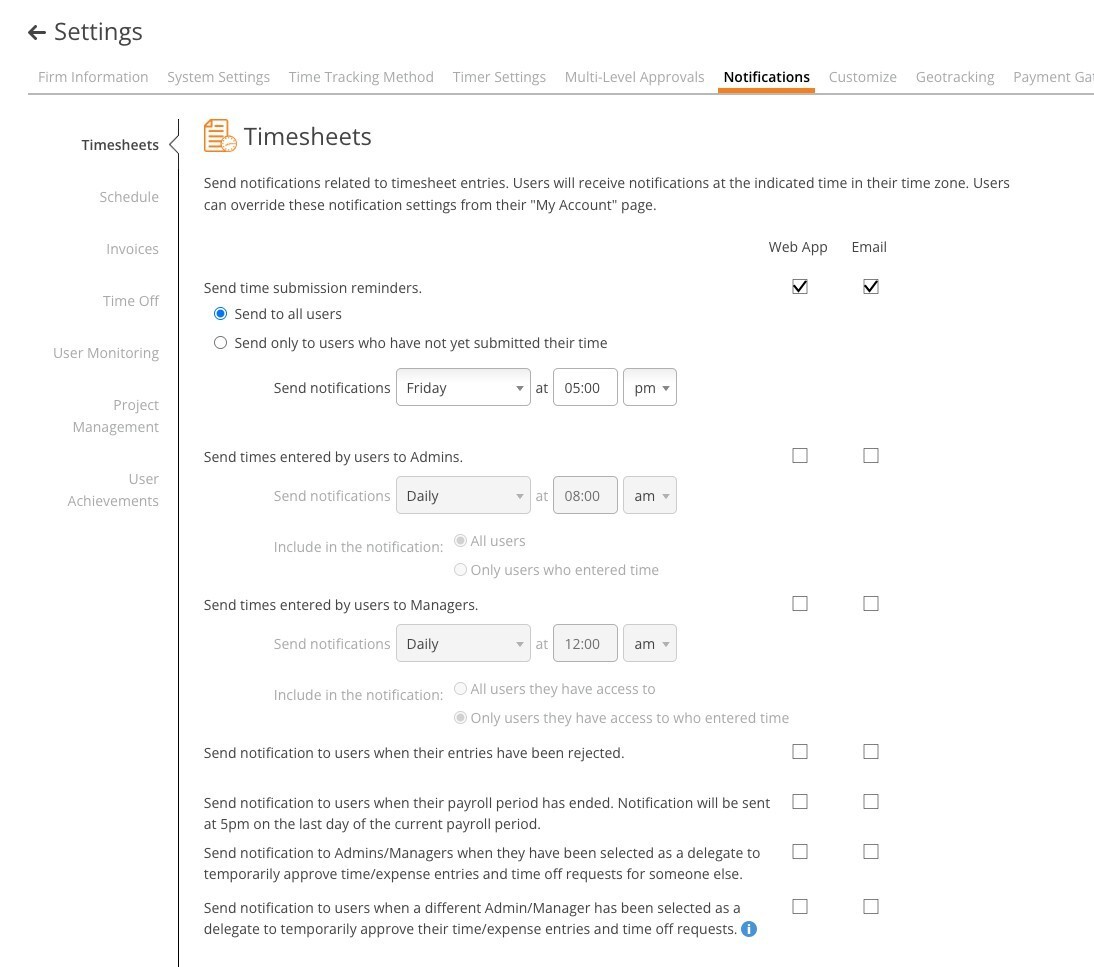
The Timesheets tab — reminders, digests to admins and managers, and workflow alerts.
Schedule
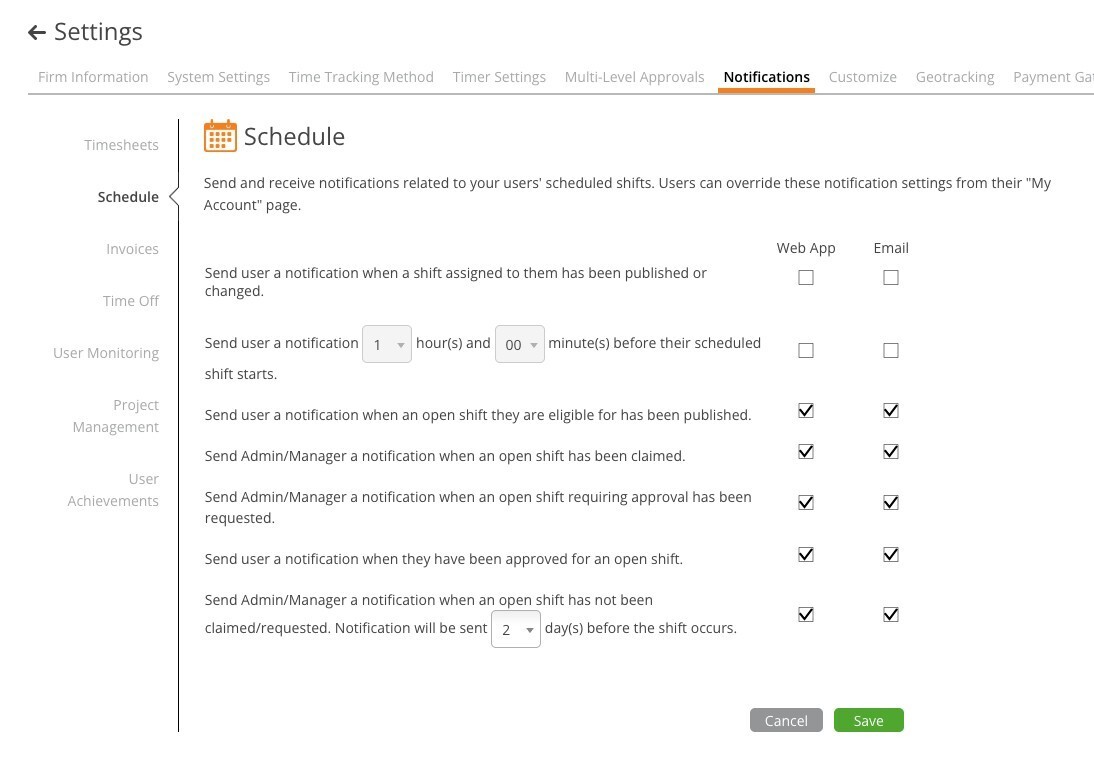
The Schedule tab — shift publishing, reminders, and open-shift alerts.
Invoices
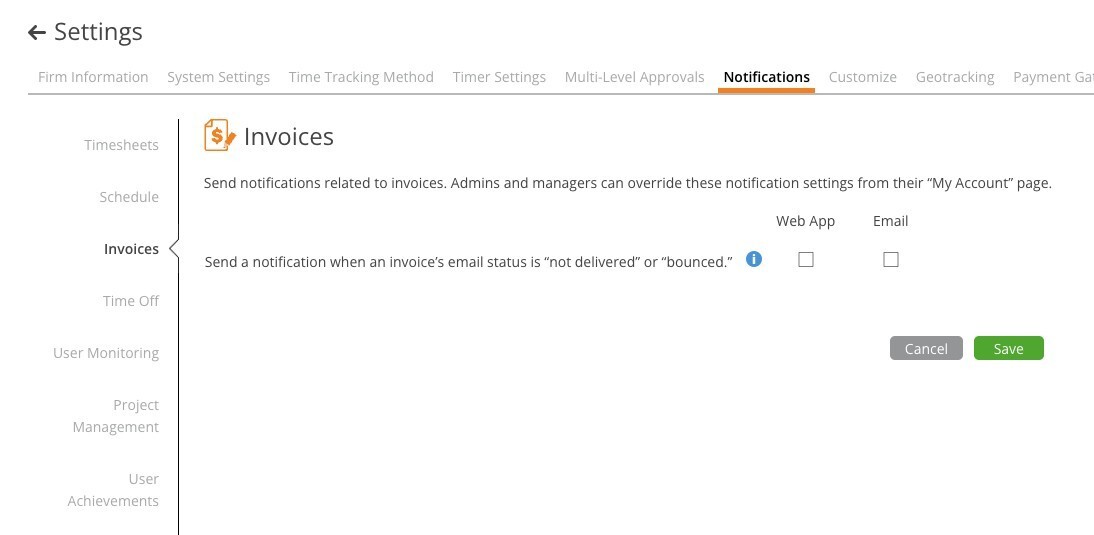
The Invoices tab has a single alert.
One alert: send a notification when an invoice's email status is "not delivered" or "bounced", so a failed send gets noticed rather than assumed delivered.
Time Off
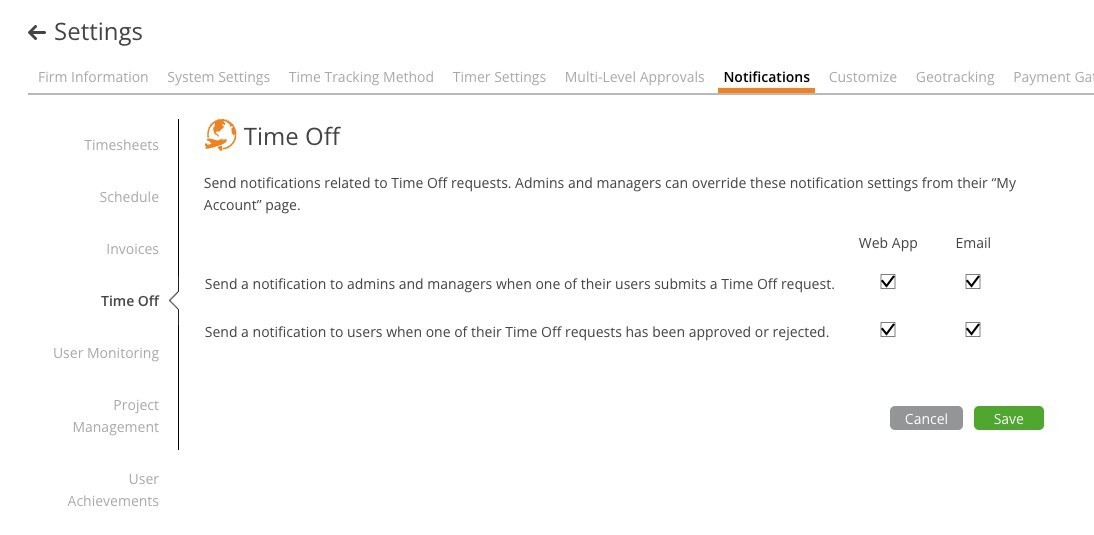
The Time Off tab.
Both are on for Web App and Email by default once Time Off is enabled.
User Monitoring
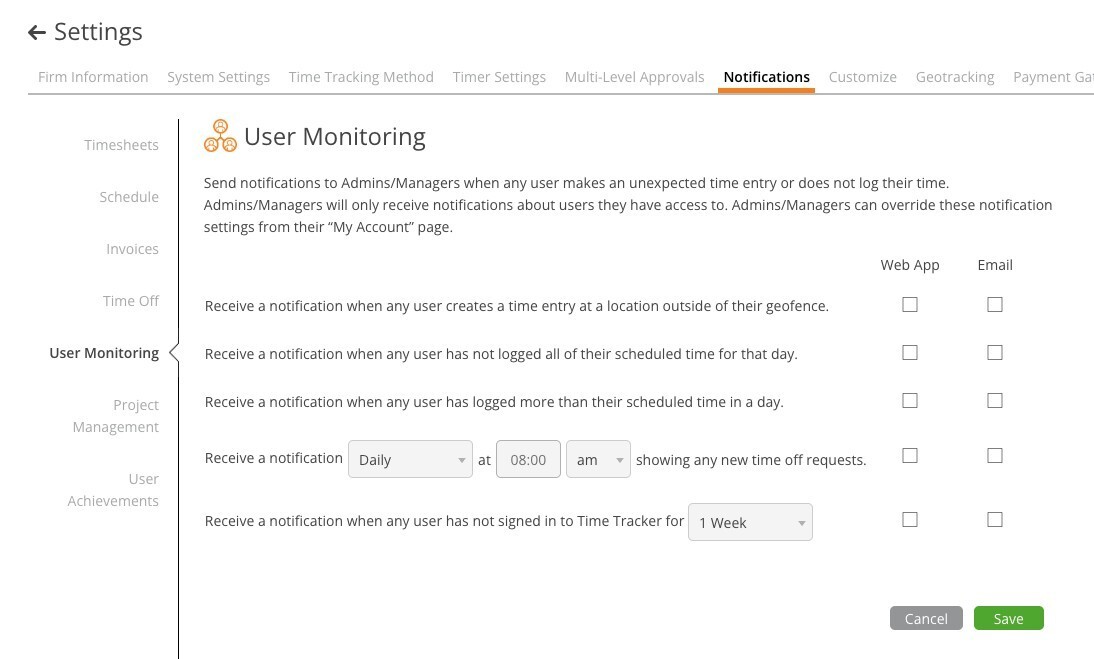
The User Monitoring tab — exceptions and inactivity.
These go to admins and managers, and only about the users they have access to.
Project Management
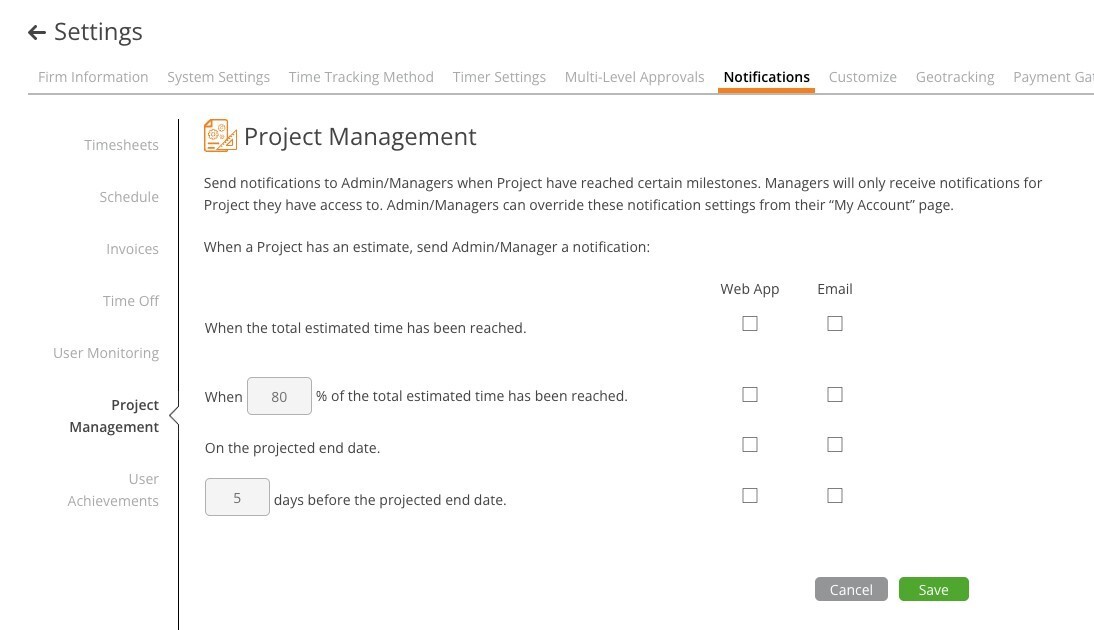
The Project Management tab — budget and deadline alerts.
Sent to admins and managers for projects they have access to, when the project has an estimate:
User Achievements
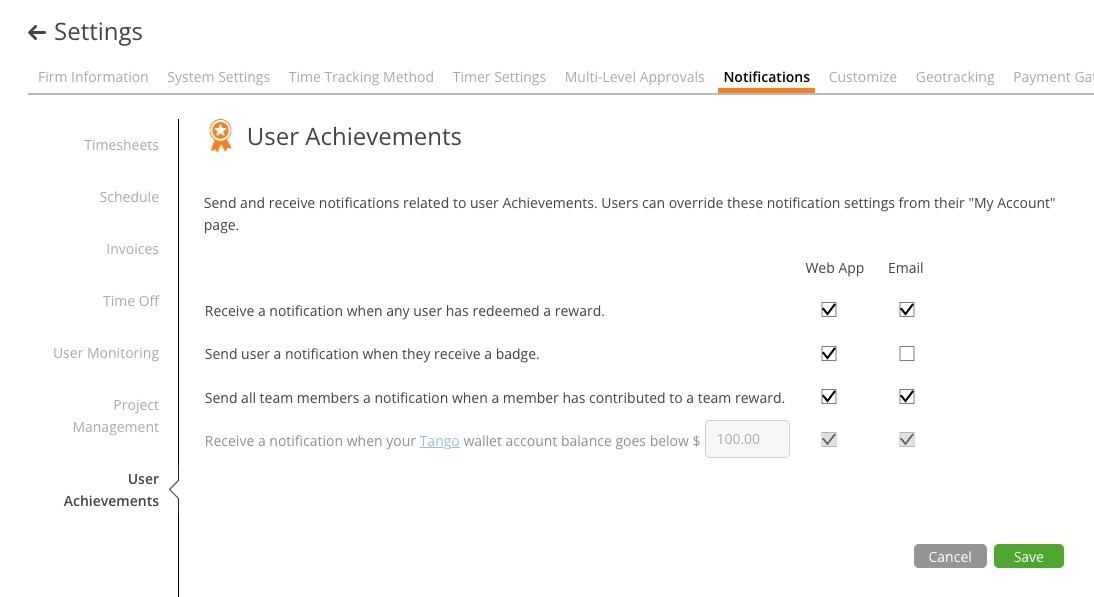
The User Achievements tab.
Tips
- Start with Web App only for noisy alerts (digests, monitoring) and add Email for the ones people must not miss (time off, rejected entries).
- Reminder and digest times are sent in each user's own time zone.
- If nobody is getting an alert you have ticked, check the user's My Account > Notifications — they may have overridden it.