
Applies to: Workforce · Premium · LawBillity
QuickBooks Desktop runs on a computer in your office, not in the cloud, so Time Tracker can't reach it directly. Instead, Intuit's free QuickBooks Web Connector, which runs on the same computer as QuickBooks, collects what's in your Time Tracker sync queue and passes it to QuickBooks (and sends changes back). Setup has six steps, all listed on one page in Time Tracker.
Before You Start
- Work on the Windows computer where QuickBooks Desktop is installed.
- Open QuickBooks Desktop and the company file you want to connect. Time Tracker connects to whichever company file is open when you first run the Web Connector.
- Sign in to QuickBooks as an admin, so you can approve Time Tracker's access.
- Have your Time Tracker password ready. The Web Connector asks for it.
- Check you have the Web Connector: in QuickBooks, go to File > Update Web Services. It's built into most versions. If it's missing, use the Download Web Connector link on the setup page.
Getting There
Go to More > Integrations and click QuickBooks Desktop, or open QuickBooks > Connect to QuickBooks in the left menu. When asked which version you use, click QuickBooks Desktop.
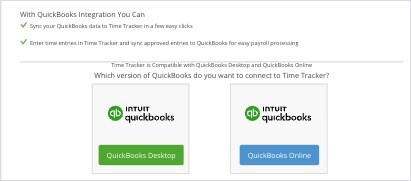
Choose QuickBooks Desktop.
Step 1: Enable the Connection
Click Enable QuickBooks Desktop Connection. The page confirms "Time Tracker is now configured to connect to QuickBooks Desktop."
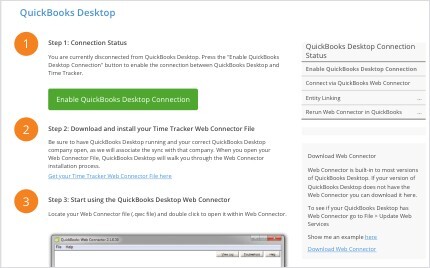
Step 1 before the connection is enabled.
Two optional settings then appear under Optional: Sync Options:
- Sync 1099 Vendors: also sync your 1099 vendors.
- Sync Other Names: also sync QuickBooks Other Names.
- If your company file has customers or jobs you'd rather not bring into Time Tracker, contact eBillity Support before you continue.
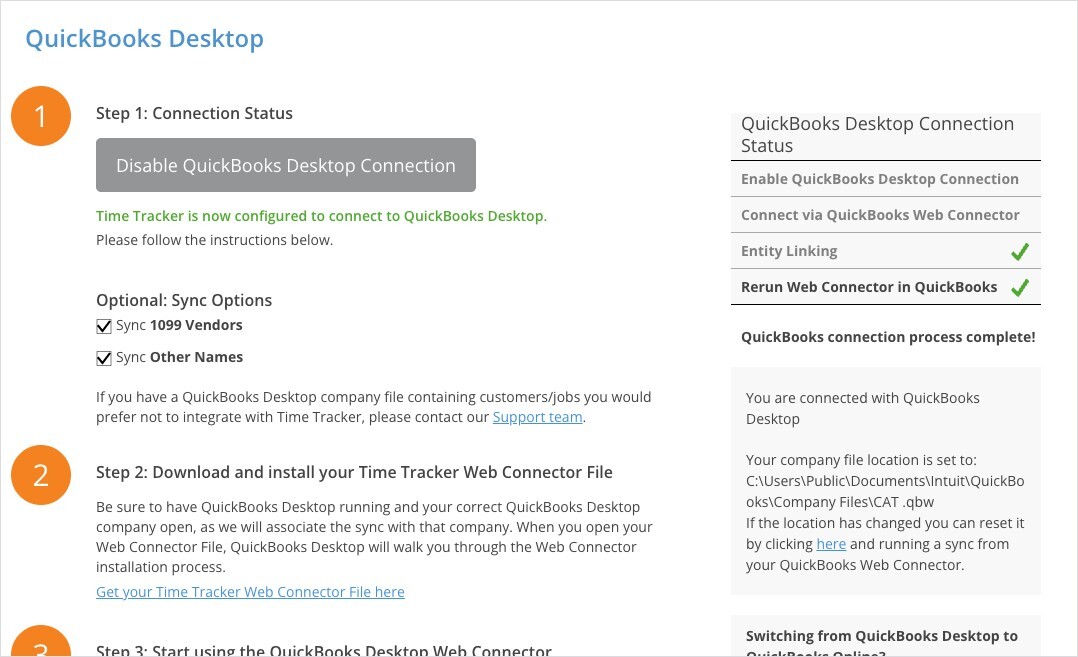
Step 1 after enabling, with the optional sync settings.
Step 2: Download Your Web Connector File
Click Get your Time Tracker Web Connector File here. This downloads a small .qwc file that tells the Web Connector how to reach your Time Tracker account. Save it somewhere you can find it.
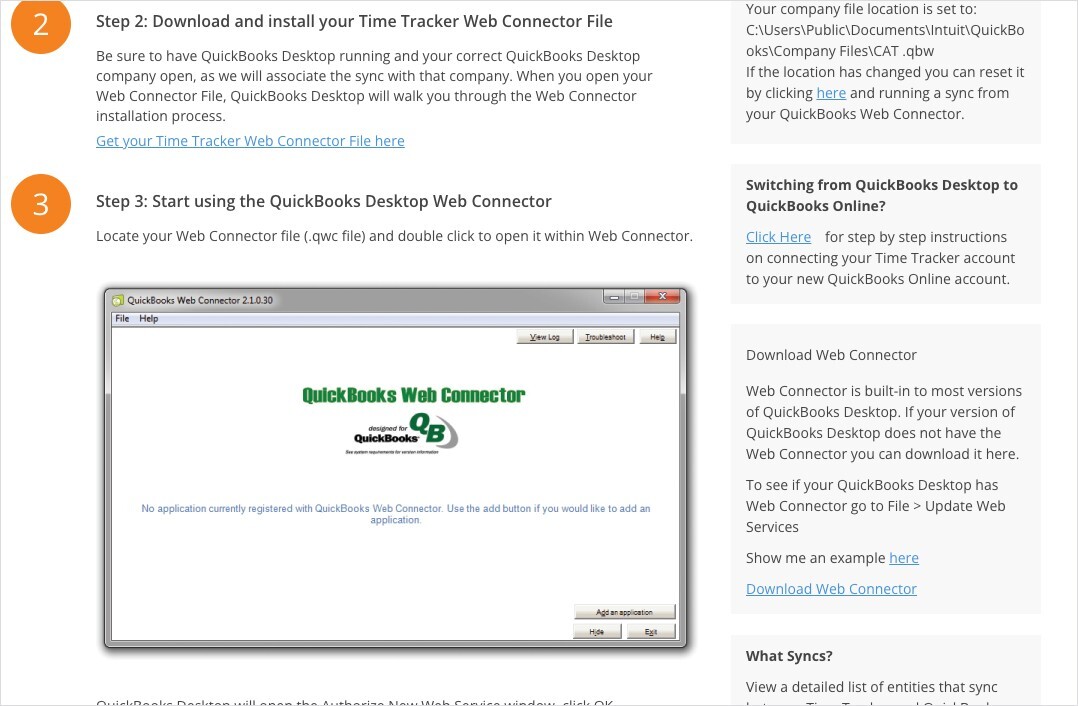
Steps 2 and 3 on the setup page.
Step 3: Add the File to the Web Connector
- Double-click the .qwc file. The Web Connector opens it.
- QuickBooks shows an Authorize New Web Service window for Time Tracker. Click OK.
- QuickBooks then shows the Application Certificate window. Select Yes, always; allow access even if QuickBooks is not running and click Continue.
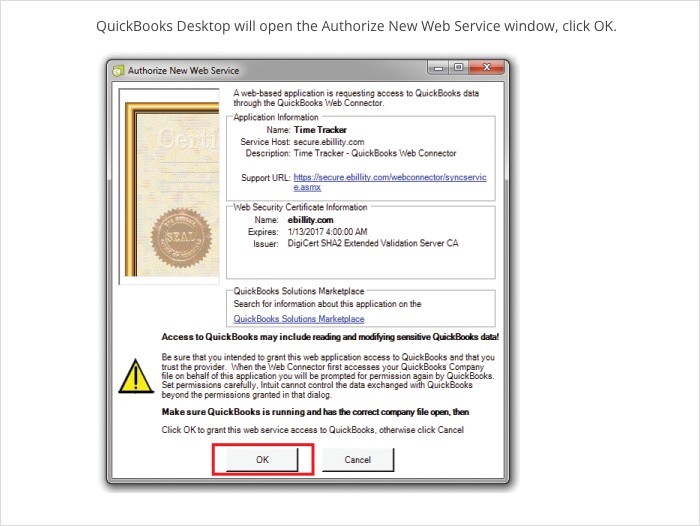
Click OK to authorize Time Tracker.
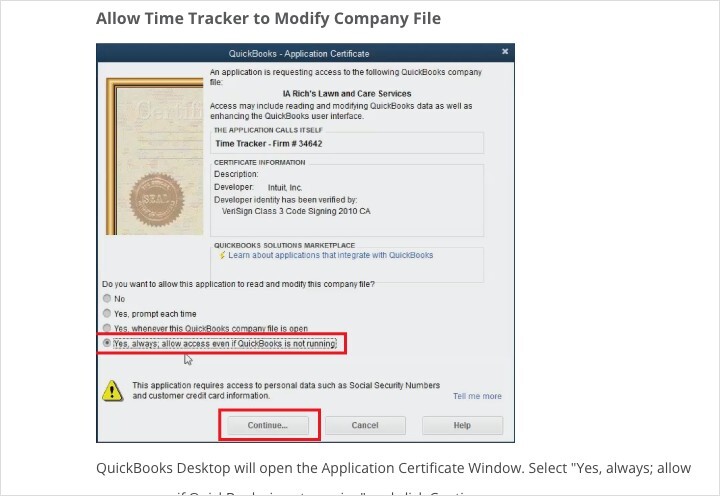
Choose "Yes, always; allow access even if QuickBooks is not running".
Step 4: Run the First Update
- In the Web Connector, tick the checkbox next to Time Tracker.
- Type your Time Tracker password in the Password field on the right.
- Click Update Selected at the top.
- Wait for both progress bars to reach 100%, then close the Web Connector.
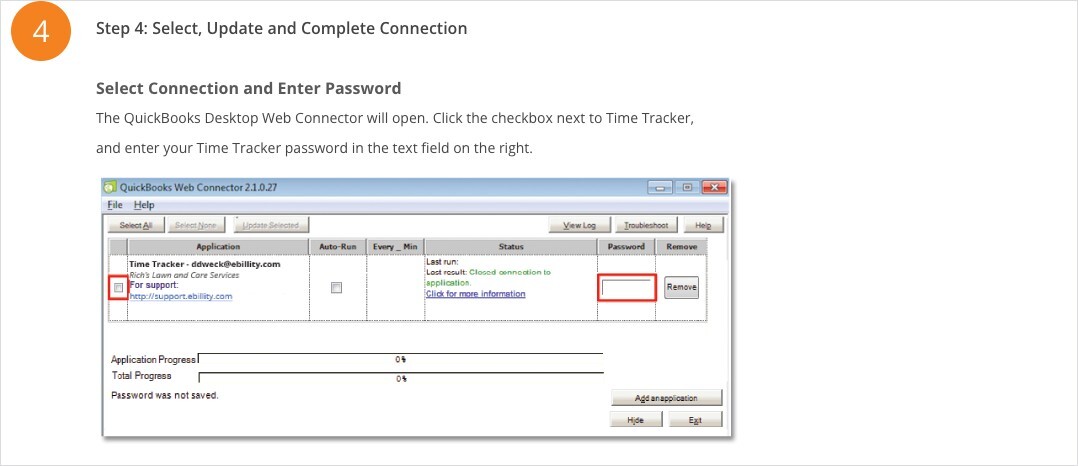
Tick Time Tracker and enter your Time Tracker password.
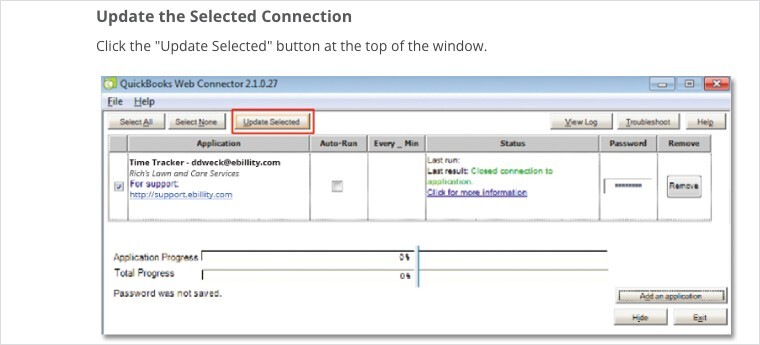
Click Update Selected.
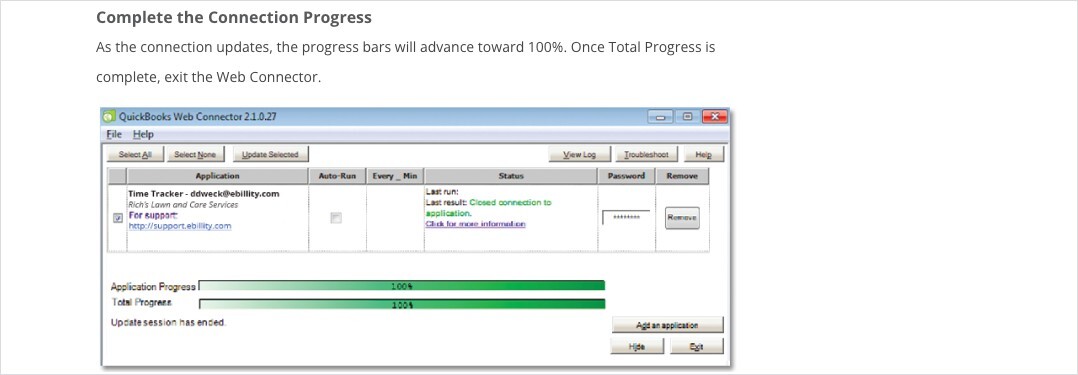
Both bars at 100%: the update is finished.
Step 5: Link Your Records
Back in Time Tracker, start the Entity Linking Process. Entity linking matches employees, customers, and projects in Time Tracker with the same records in QuickBooks Desktop, so you don't end up with duplicates in either system. If you need to start linking again later, use the click here link in this step.
Step 6: Run the Web Connector Again
When linking is finished, the page says "You have successfully completed the Entity Linking Process." Run the Web Connector once more (tick Time Tracker and click Update Selected) to complete your first sync.
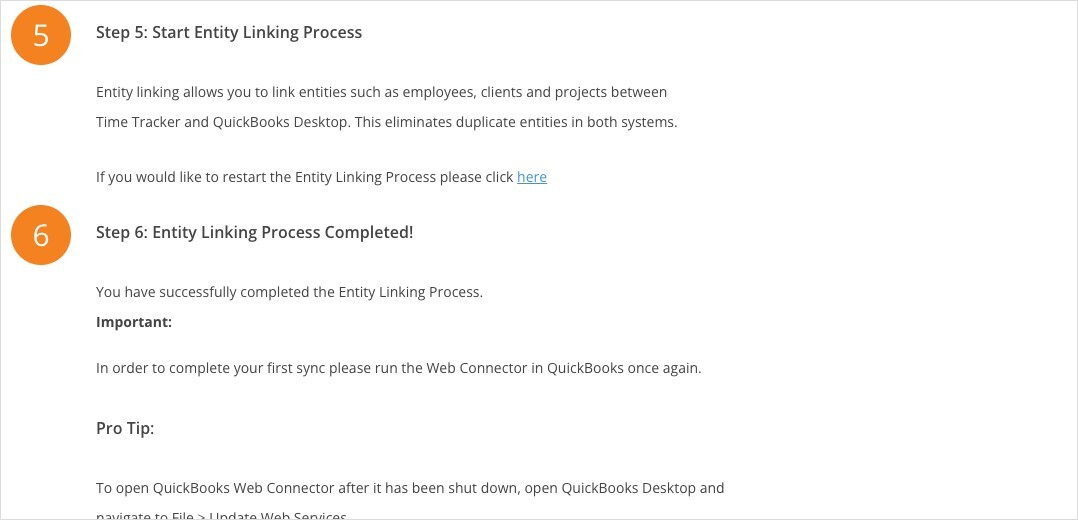
Steps 5 and 6, with the reminder to run the Web Connector again.
The QuickBooks Desktop Connection Status checklist on the right shows four steps: Enable QuickBooks Desktop Connection, Connect via QuickBooks Web Connector, Entity Linking, and Rerun Web Connector in QuickBooks. When all are done it says "QuickBooks connection process complete!" and shows the location of the company file you're connected to.
What Syncs
Click View Sync Table on the setup page for the full list.
Next Steps
From now on, Time Tracker queues items and the Web Connector delivers them. See "Running and Scheduling the QuickBooks Web Connector" for day-to-day syncing and automatic runs, and "How Syncing Works: Sync Queue, Sync Log, and Auto Sync" for the queue and log.