
Applies to: Workforce · Premium · LawBillity
To connect QuickBooks Online you sign in to QuickBooks, choose what goes into the sync queue automatically, match your Time Tracker records to their QuickBooks equivalents, and run a full sync. This article walks through every screen.
Before You Start
- You need to be a Time Tracker admin and able to sign in to QuickBooks Online as an admin.
- Clean up duplicate names in both systems. Records are matched by exact name, so "Acme Corp" and "Acme Corporation" become two customers.
- Decide which items should go to QuickBooks automatically (for example approved time entries and finalized invoices). You choose this in step 2.
Step 1: Connect
Go to More > Integrations and click QuickBooks Online, or open QuickBooks > Connect to QuickBooks in the left menu. When asked which version you use, click QuickBooks Online.
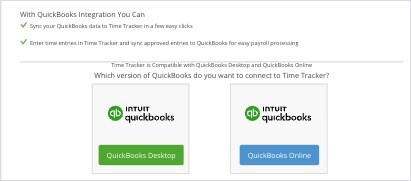
Choose QuickBooks Online.
Choose whether to include payroll, then click Connect to QuickBooks, sign in to your Intuit account, and approve the connection. You come back to Time Tracker, and the checklist on the right ticks Connect to QuickBooks.
Step 2: Sync Queue Settings
Under Auto Queue, tick the items that should be added to the sync queue automatically. Items you leave unticked can still be queued by hand at any time. Customers, projects, billable activities, and expense items are always queued automatically.
The Auto Queue options are: approved time entries, approved paid time off entries, expense entries, finalized invoices, payments, refunds, debits/credits, finance charges, and users.
Tick Bi-Directional Sync if you want to create users, customers, projects, billable activities, and expense items in Time Tracker and have them sync to QuickBooks. Then click Next.
Step 3: Client Linking
Time Tracker pulls your customers from QuickBooks ("Synchronizing with QuickBooks... Please wait while we pull your Client from QuickBooks") and lines them up with your Time Tracker customers. Exact name matches are linked for you.
Each linking step starts by pulling records from QuickBooks.
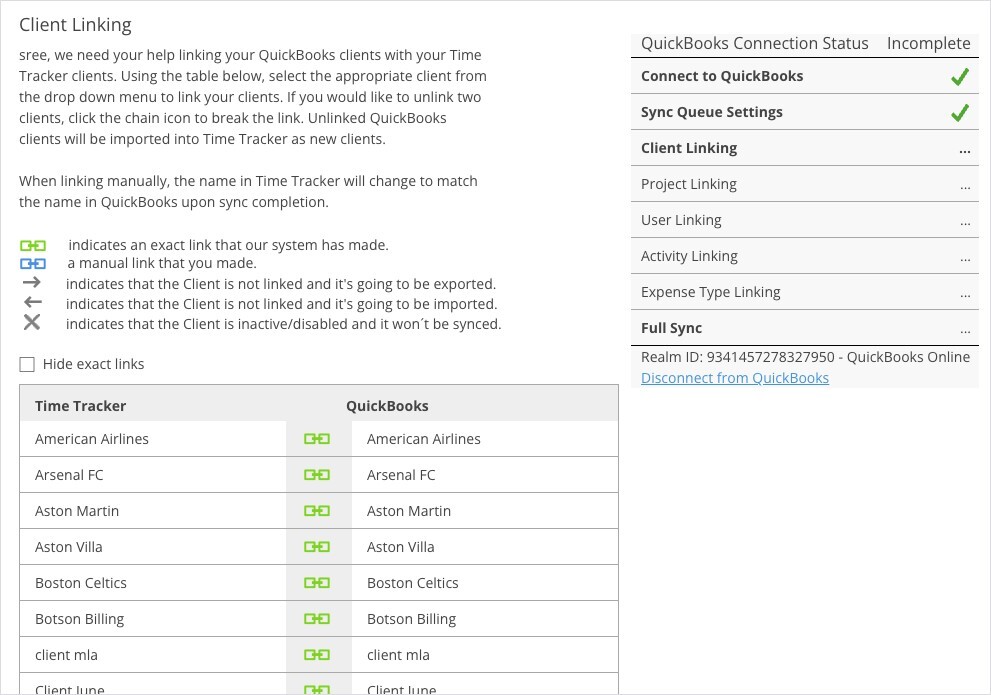
Client Linking. Green chains are exact matches.
- To link two records by hand, choose the QuickBooks record from the dropdown next to the Time Tracker record.
- To unlink two records, click the chain icon.
- Tick Hide exact links to see only the records that still need attention.
- When you link by hand, the Time Tracker name changes to match QuickBooks after the sync.
- QuickBooks customers you leave unlinked are imported into Time Tracker as new customers.
Click Next.
Step 4: Project Linking
Projects are matched to QuickBooks sub-customers and shown as Customer:Project. Only first-level projects can be linked. Link, unlink, or leave records as on the previous step, then click Next.
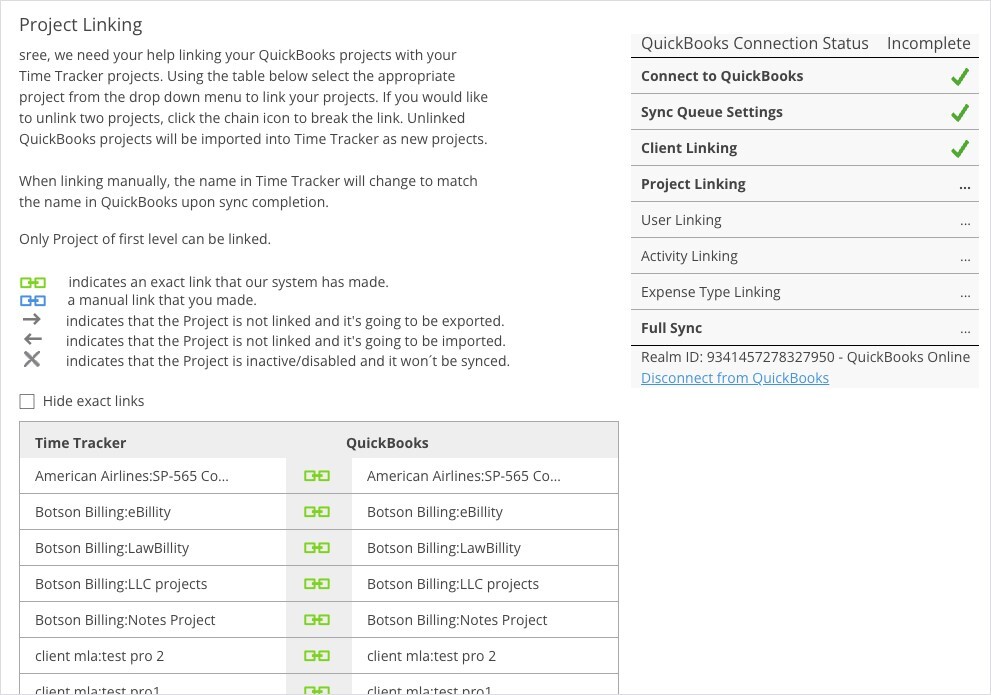
Project Linking. Projects appear as Customer:Project.
Step 5: User Linking
Users are matched to QuickBooks employees. At the top, choose whether QuickBooks vendors are included: No Vendors, 1099 Vendors Only, or All Vendors. Unlinked QuickBooks users are imported into Time Tracker as new users.
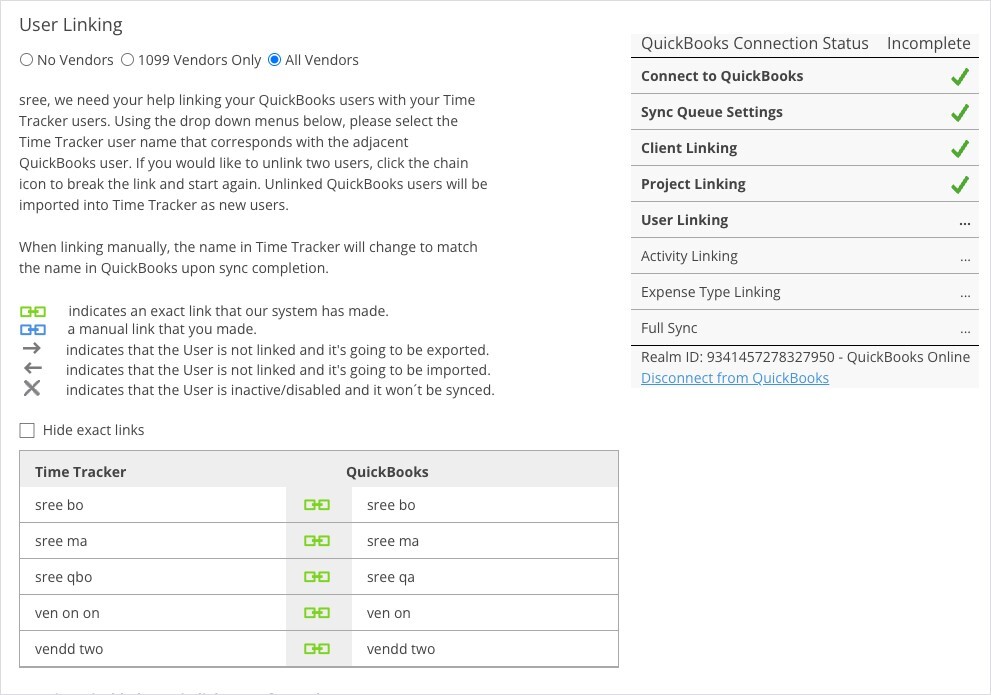
User Linking, with the vendor options at the top.
Step 6: Activity Linking
Billable activities are matched to QuickBooks products and services. Only first-level activities can be linked.
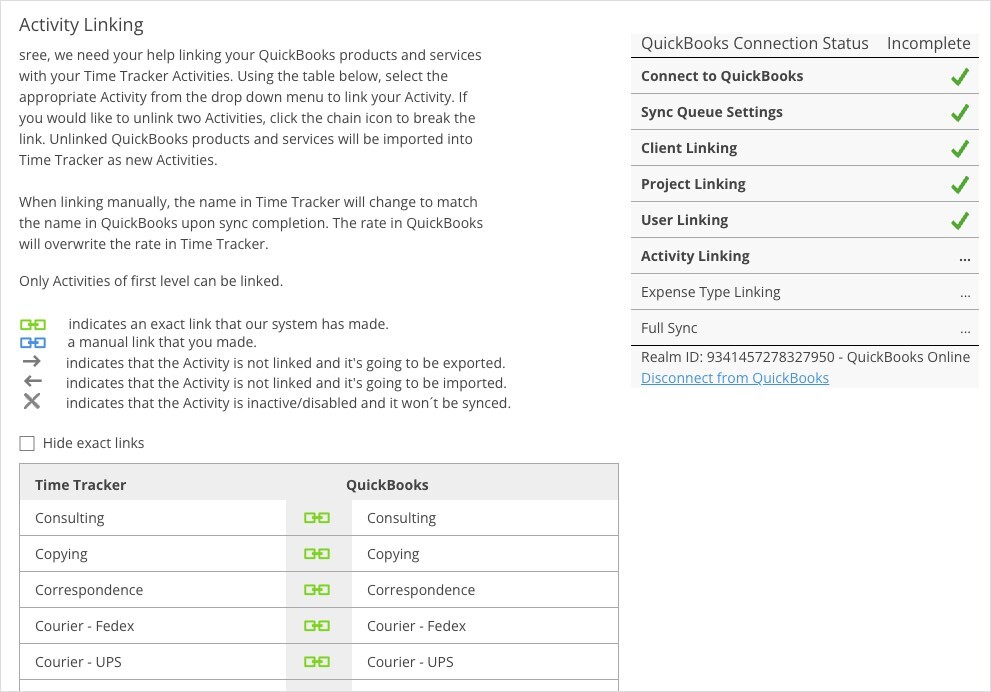
Activity Linking.
Step 7: Expense Type Linking
Expense types are matched to QuickBooks products and services in the same way, and the QuickBooks rate overwrites the Time Tracker rate. Only first-level expense types can be linked.
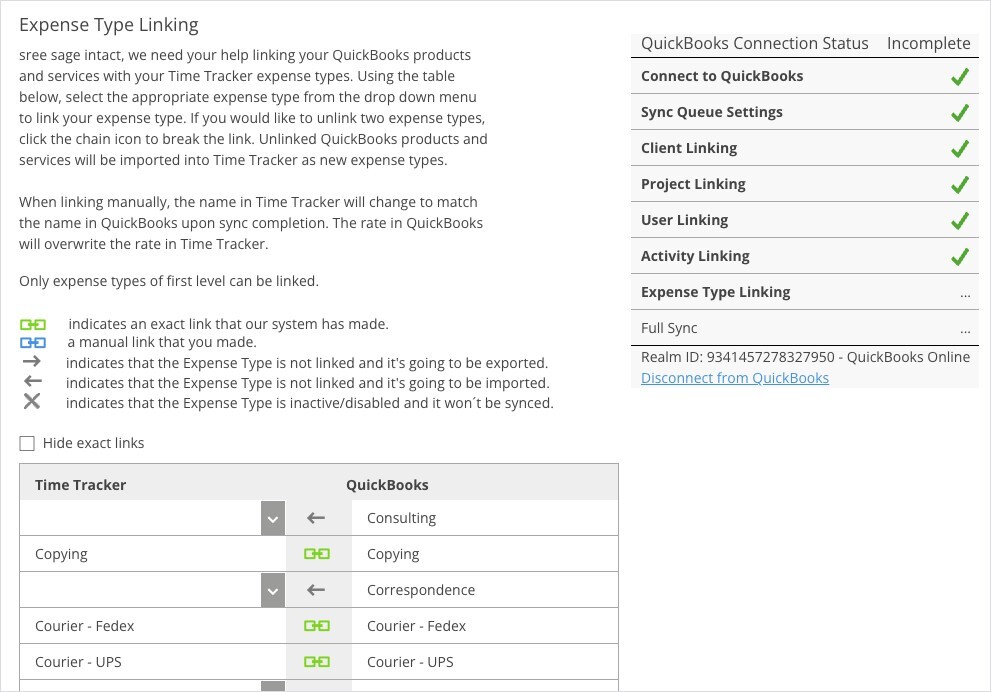
Expense Type Linking. Left arrows mark QuickBooks items that will be imported.
Step 8: Full Sync
Click Complete Synchronization. Time Tracker sends and receives all linked records and everything already waiting in the sync queue. This can take a few minutes; leave the window open until it finishes.
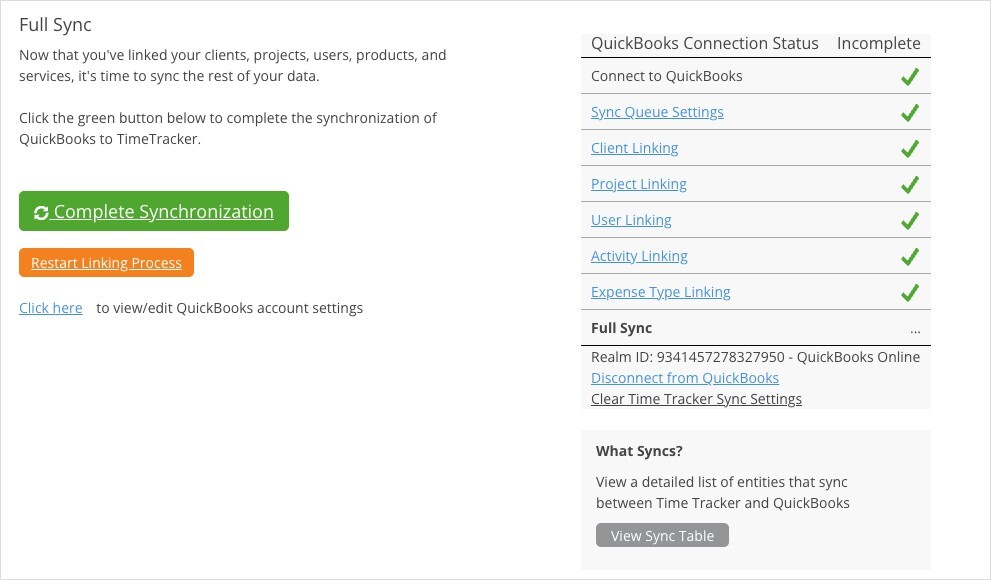
The Full Sync step.
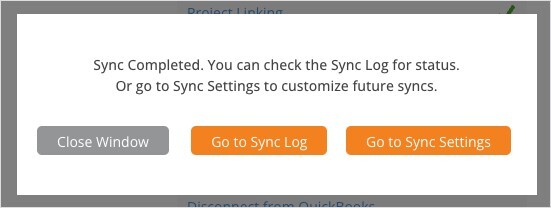
When it's done, open the Sync Log to check the result.
Click Go to Sync Log and check that the full sync finished. If any items failed, see "My Integration Isn't Syncing: Finding and Fixing a Failed Sync". The setup page now says "You are now connected to QuickBooks" and every step in the checklist has a green tick.
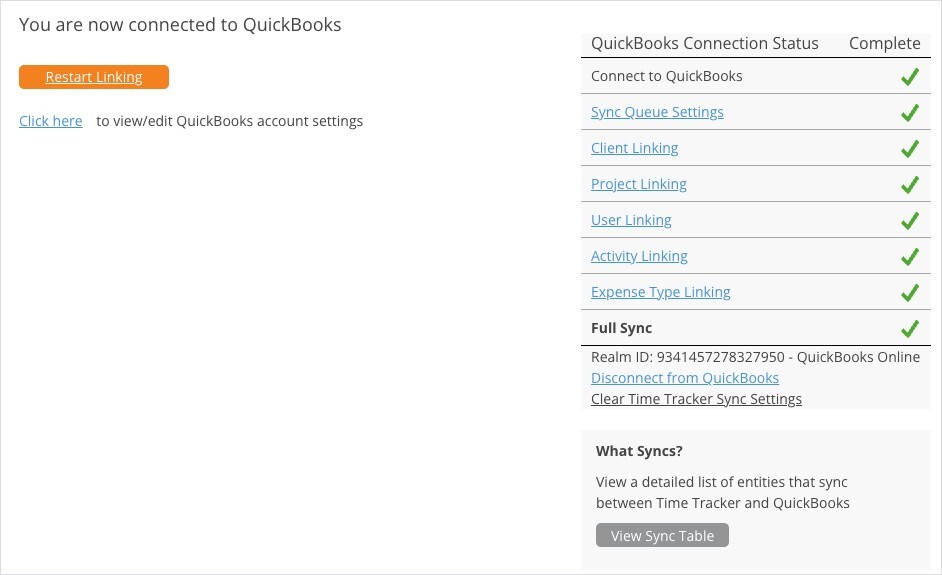
Setup complete: every step is ticked.
After Setup
Day-to-day syncing, the queue, the log, and Auto Sync are covered in "How Syncing Works: Sync Queue, Sync Log, and Auto Sync". Account settings (tax items, bank and receivable accounts, how expenses post), the sync table, and QuickBooks-specific errors are in "QuickBooks Online: What Syncs, Settings, and Fixing Errors".