
Applies to: Billing
If you keep your books in QuickBooks Online, connect it to Time Tracker Billing and your invoices, payments, and clients flow into your accounting without retyping anything.
Before You Connect
Clean up duplicate client names in both systems first. "Acme Corp" here and "Acme Corporation" in QuickBooks won't match, and you'll end up with two customers in your books.
Connecting
- Go to Settings and open the QuickBooks Online tab.
- Click Integrate with QuickBooks Online.
- Sign in to QuickBooks and authorize the connection.
- Map your fields when prompted, so each record type in one system matches the right one in the other.
What Syncs, and In Which Direction
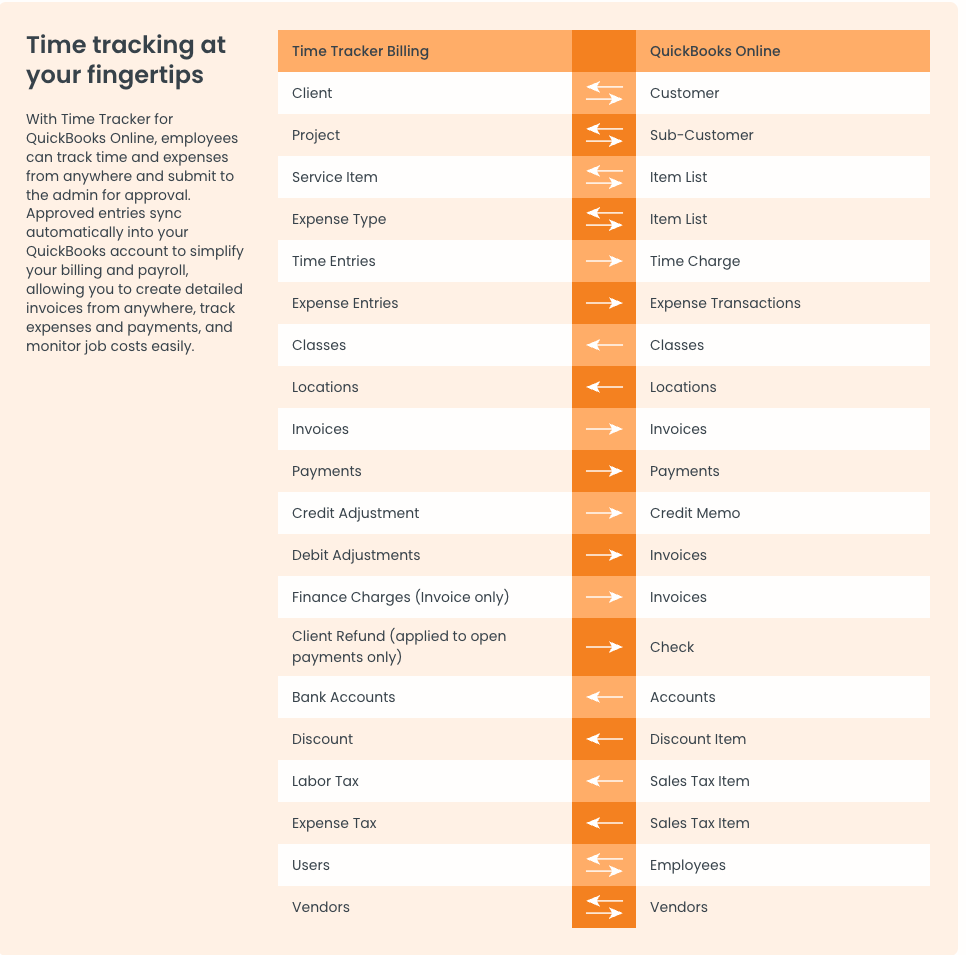
The field map on the QuickBooks Online tab. Arrows show which way each record type travels.
The highlights:
- Both directions — clients ↔ customers, projects ↔ sub-customers, users ↔ employees, vendors, service items, expense types.
- Into QuickBooks — time entries, expense entries, invoices, payments, adjustments, finance charges, client refunds.
- From QuickBooks — classes, locations, bank accounts, discount items, and sales tax items, so both systems use the same accounting definitions.
If Syncing Stops Working
- Go to Settings > QuickBooks Online and reconnect — authorization tokens expire from time to time.
- Check the field mapping: anything created after the first setup (a new expense type, a new tax item) may not be mapped yet.
- Check for duplicate names, which create duplicate records instead of matching.