
Applies to: Workforce · Premium
Sage 50 is desktop software, so Time Tracker syncs with it through the Sage 50 Connector: a small, secure program you install on the computer where Sage 50 runs. The Connector moves data between Sage 50 and Time Tracker each time you click Sync in it.
Before You Start
- Work on the computer where Sage 50 is installed, and have Sage 50 open and running.
- Know which version of Sage 50 you use (for example 2024). There's a separate Connector for each version.
- Have your Time Tracker email and password ready.
Getting There
Go to More > Integrations and click Sage 50, or open Sage 50 > Connect to Sage 50 in the left menu. The page lists six steps, with a Sage50 Setup checklist on the right.
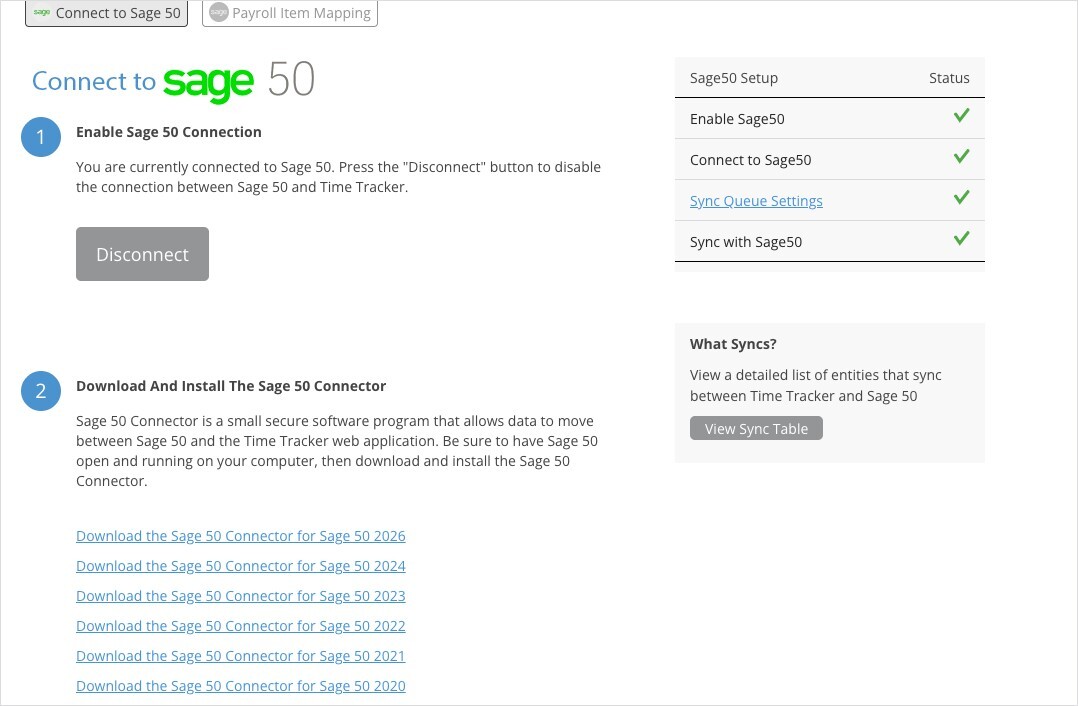
The Connect to Sage 50 page.
Step 1: Enable the Connection
Enable the Sage 50 connection. Once it's on, this step says "You are currently connected to Sage 50" and shows a Disconnect button.
Step 2: Download and Install the Sage 50 Connector
Click the download link that matches your Sage 50 version, then install the Connector on the computer where Sage 50 runs. If your version isn't listed, contact eBillity Support.
Step 3: Sign In to Time Tracker from the Connector
Open the Sage 50 Connector and enter your Time Tracker email and password, then click Login.
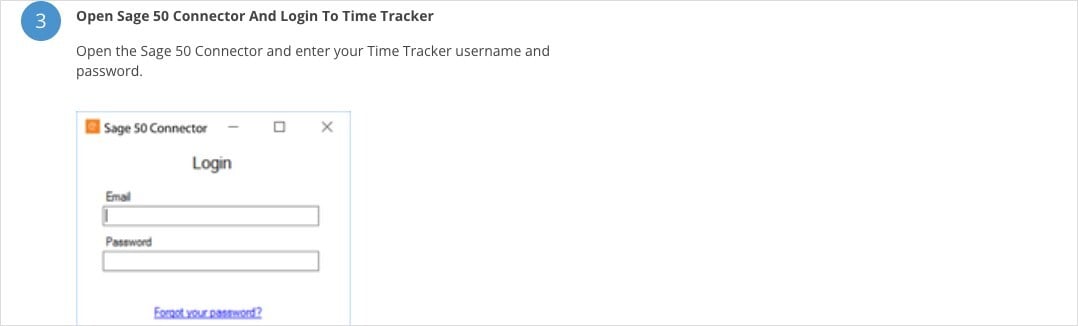
The Sage 50 Connector sign-in screen.
Step 4: Choose Your Firm
If your sign-in belongs to more than one Time Tracker firm, choose the firm to connect and click Go. If you only have one firm you won't see this screen.
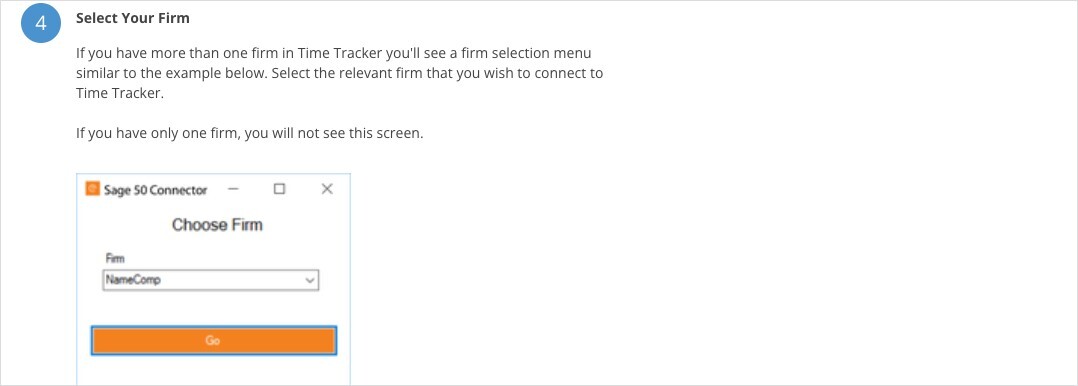
Choose the Time Tracker firm to connect.
Step 5: Set Default Accounts
Choose your Default Receivable Account and Default Sales Account, set the Fiscal Year, and click Save.
Step 6: Sync
Click Sync in the Connector. The first sync imports your Sage 50 records, such as employees, projects, and payroll items, into Time Tracker. When it's finished the Connector says "Success. Sync completed" and shows the last sync date.
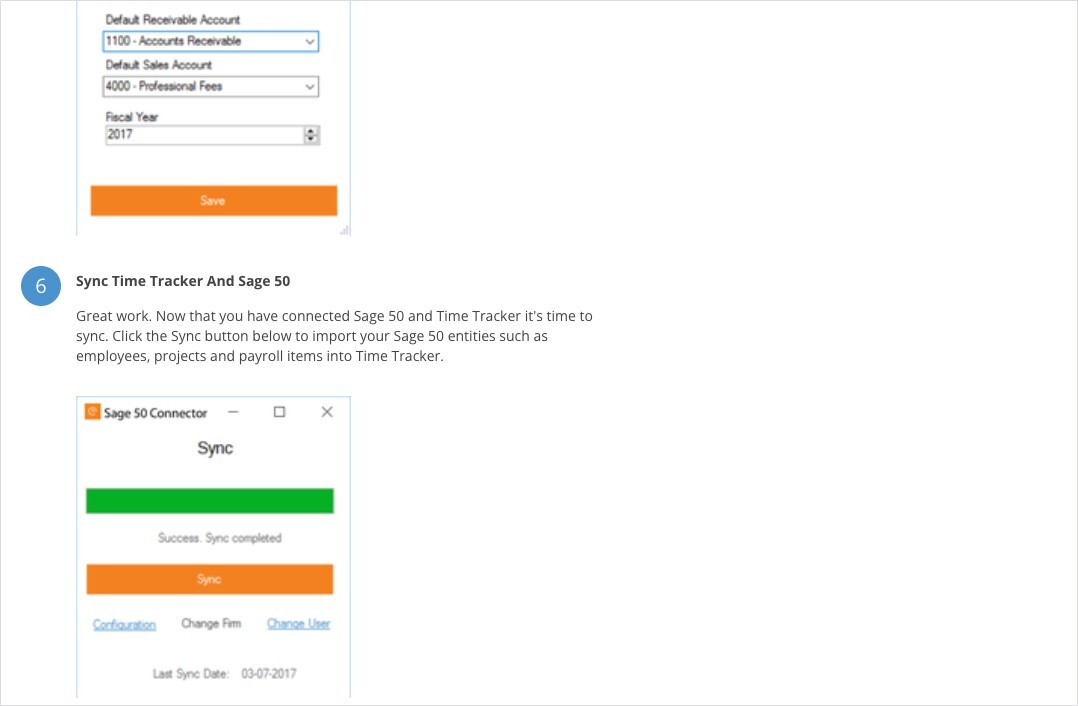
Set default accounts, then sync.
The Connector also has Configuration (to change your default accounts), Change Firm, and Change User links.
Syncing From Now On
There's no Sync button or Auto Sync for Sage 50 in Time Tracker. Items wait in Sync > Sync Queue until you open the Sage 50 Connector and click Sync. The Sync menu and Sync Queue remind you: "To sync, please run the Sage Connector".

The Sync menu shows how many items are waiting for the Connector.
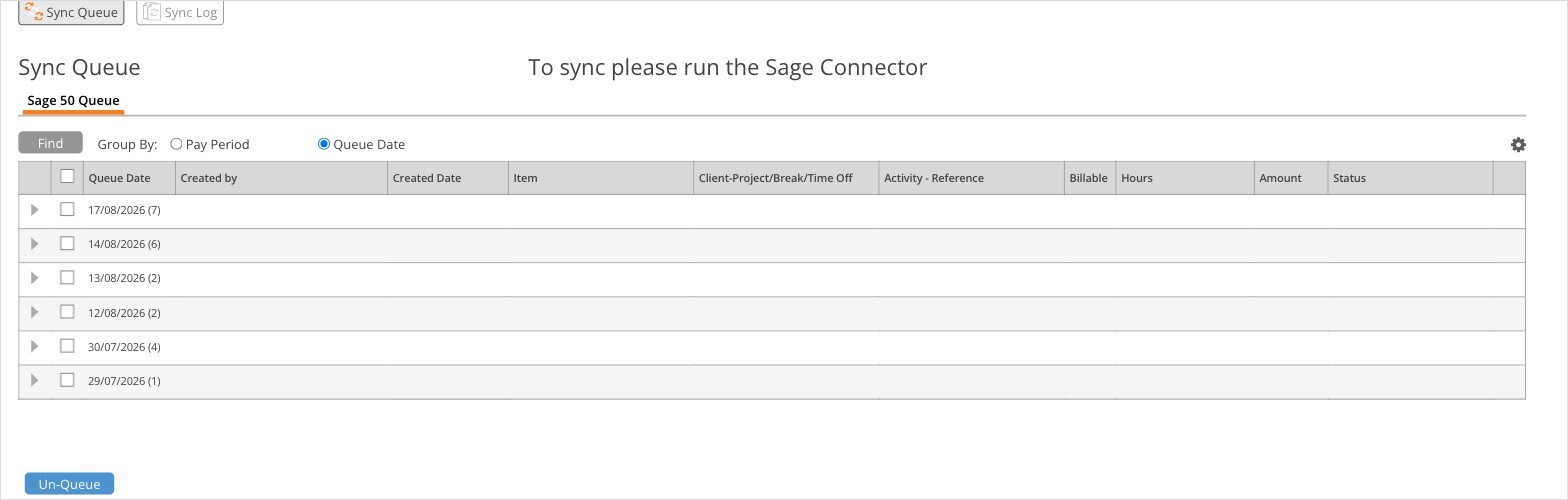
The Sage 50 Queue. Items here go to Sage 50 the next time you sync from the Connector.
Payroll
Sage 50 pay types come into Time Tracker on the first sync. Before you send time to payroll, map each user's regular, overtime, double time, holiday, personal day, and vacation hours on Sage 50 > Payroll Item Mapping. See "Payroll Item Mapping for Payroll Integrations".
What Syncs
Common Errors
For anything else, see "My Integration Isn't Syncing: Finding and Fixing a Failed Sync".