
Applies to: Premium
The SAP Concur integration brings your team's approved Concur expenses into Time Tracker so you can bill them to clients. Clients and projects are kept in step between the two, and Concur expense types and users come into Time Tracker.
Getting There
In the left menu, click Concur. The setup is split into tabs: Agreement, Connect account, Company Token, Set Projects & Clients, Map Users, and the optional Launch Time Tracker within Concur. The Setup Item checklist on the right ticks off each one.
Step 1: Agreement
- Sign in to SAP Concur.
- Click the App Center tab, type eBillity in the search field, click Search, then click the Time Tracker by eBillity application.
- Click Connect.
- Agree to Concur's terms and conditions.
- Sign in to Time Tracker.
Step 2: Connect Account
The Connect account tab confirms the connection between Time Tracker and your Concur account. Click View Sync Table here to see what syncs.
Step 3: Company Token
- Sign in to Concur.
- Open the Home menu and select Authentication Admin.
- Click Company Request Token.
- Enter the App ID shown on the Company Token tab in Time Tracker, and click Submit.
- From the confirmation message, copy the Company UUID and the Company Request Token into the matching fields on the Company Token tab.
- Click OK on Concur's confirmation message, then click Save in Time Tracker.
Step 4: Set Projects & Clients
Time Tracker uses a Concur list for clients and projects. It works with one-level lists, where client and project are at the same level, and two-level lists, where the client is the parent and the project is the child. Lists with three or more levels aren't supported.
You can use an existing Concur list or create one:
- In Concur, go to Administration > Expense > Expense Admin > List Management and create a new list for Time Tracker (for example ListTime Tracker).
- Go to Administration > Expense > Expense Admin > Forms and Fields. For Form Type, select Expense Entry, open the Connected Lists tab, and click New. Select your list and give the connected list a name (for example Time TrackerConnectedList). Click Next.
- Under Available Fields, select two custom fields and click Next. Rename the first to identify the client (for example Time Tracker Client) and the second to identify the project (for example Time Tracker Project), updating access rights if needed. Click Next.
- Tick the form you'll use and click Done.
Back in Time Tracker, select the Concur list you'll use and click Save. The tab also links to a video of these steps and to Concur's guide on connected lists.
Step 5: Map Users
Mapping links each Time Tracker user to their Concur login, so their approved expense entries come across every time you sync. On the Map Users tab, enter each user's Concur Login ID next to their name. If someone isn't listed, use the link on the tab to add more Time Tracker users.
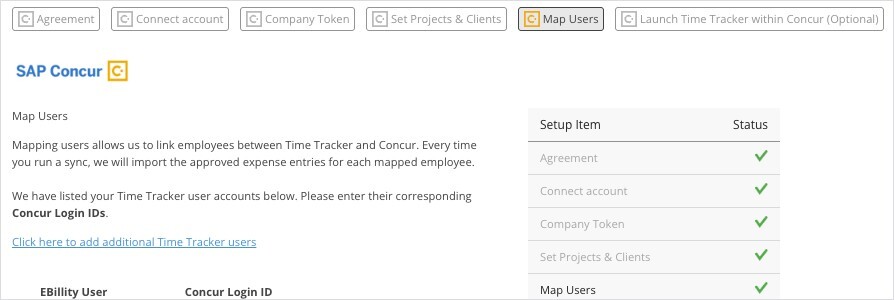
Map Users: enter each person's Concur Login ID.
What Syncs
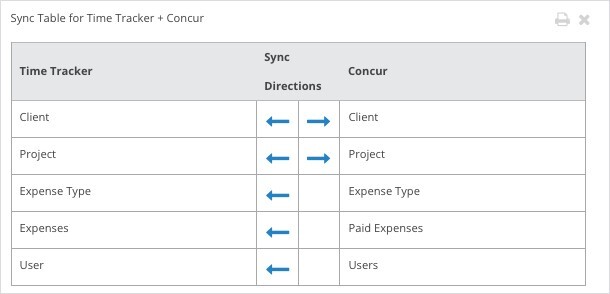
The Concur sync table.
Optional: Launch Time Tracker from Inside Concur
If you have a Concur Professional account, you can open the Time Tracker time entry window or dashboard from inside Concur with Concur's App Connector. Set up one App Connector for each window you want.
- In Concur, go to Administrator > Web Services > Manage Application Connector.
- Create the App Connector with the host name shown on the Launch Time Tracker within Concur tab in Time Tracker.
- Create a user name and password for it and save.
- Enter that user name and password on the tab in Time Tracker and click Enable App Connector.
- Add a field to the Concur expense form you'll use: go to Administration > Expense > Expense Admin > Forms and Fields, choose Expense Entry, modify an available custom field on the Fields tab, then add it to your form on the Form Fields tab.
To sync, click Sync at the top of the screen. See "How Syncing Works: Sync Queue, Sync Log, and Auto Sync".