
Applies to: Workforce · Premium
Xero is a cloud integration: you connect by signing in to Xero from Time Tracker, then sync with the Sync button or on a schedule. If you also use Xero Payroll, Time Tracker can send approved hours to Xero timesheets and leave.
Connecting
Go to More > Integrations and click Xero, or open Xero > Connection in the left menu. The Xero Connection Wizard has a Xero Setup checklist on the right:
- Enable Xero.
- Connect to Xero: sign in to Xero, choose your organisation, and allow access. Time Tracker then shows "Success! Your Time Tracker account is now connected to Xero" with the organisation name.
- Sync Queue Settings: choose which items are added to the sync queue automatically.
- Xero Account Settings: choose how Time Tracker's transactions post in Xero.
- Sync with Xero: run your first sync. It only takes a few seconds.
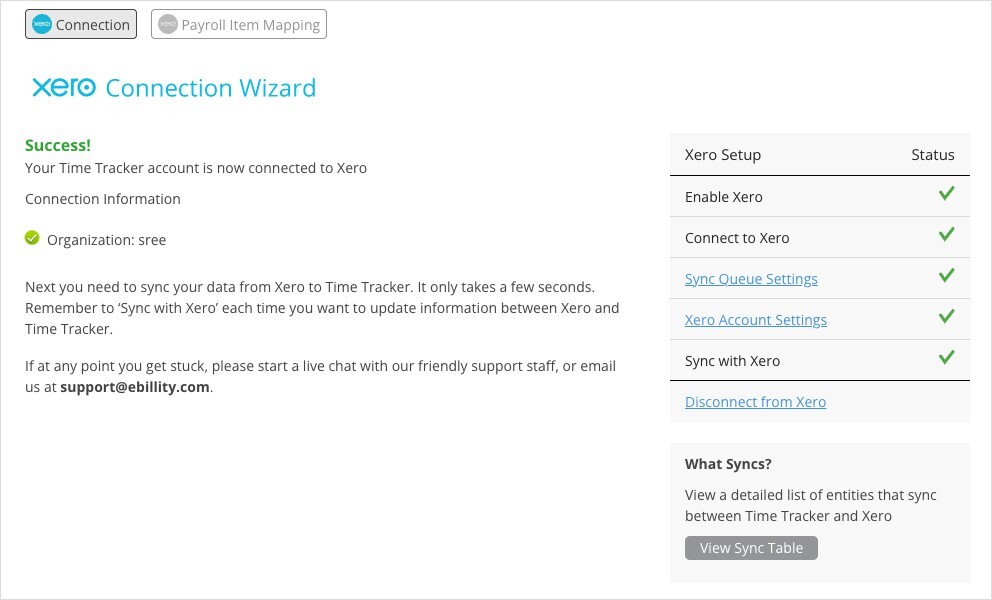
The Xero Connection Wizard once you're connected.
Remember to sync each time you want information updated between Xero and Time Tracker, or turn on Auto Sync. See "How Syncing Works: Sync Queue, Sync Log, and Auto Sync".
What Syncs
Xero Payroll
If you use Xero Payroll, the Sync menu lists Xero Payroll. Before sending time, open Xero > Payroll Item Mapping and choose the firm's default regular and overtime earning rates, plus any per-user overrides. See "Payroll Item Mapping for Payroll Integrations".
If a Sync Fails
Open Sync > Sync Log, expand the failed sync, and click Error to read Xero's message. See "My Integration Isn't Syncing: Finding and Fixing a Failed Sync".