
Applies to: Billing
At the end of a billing cycle, you need to turn tracked time and expenses into an invoice. Time Tracker Billing gathers the client's unbilled entries for you — you choose what to include, and the invoice builds itself.
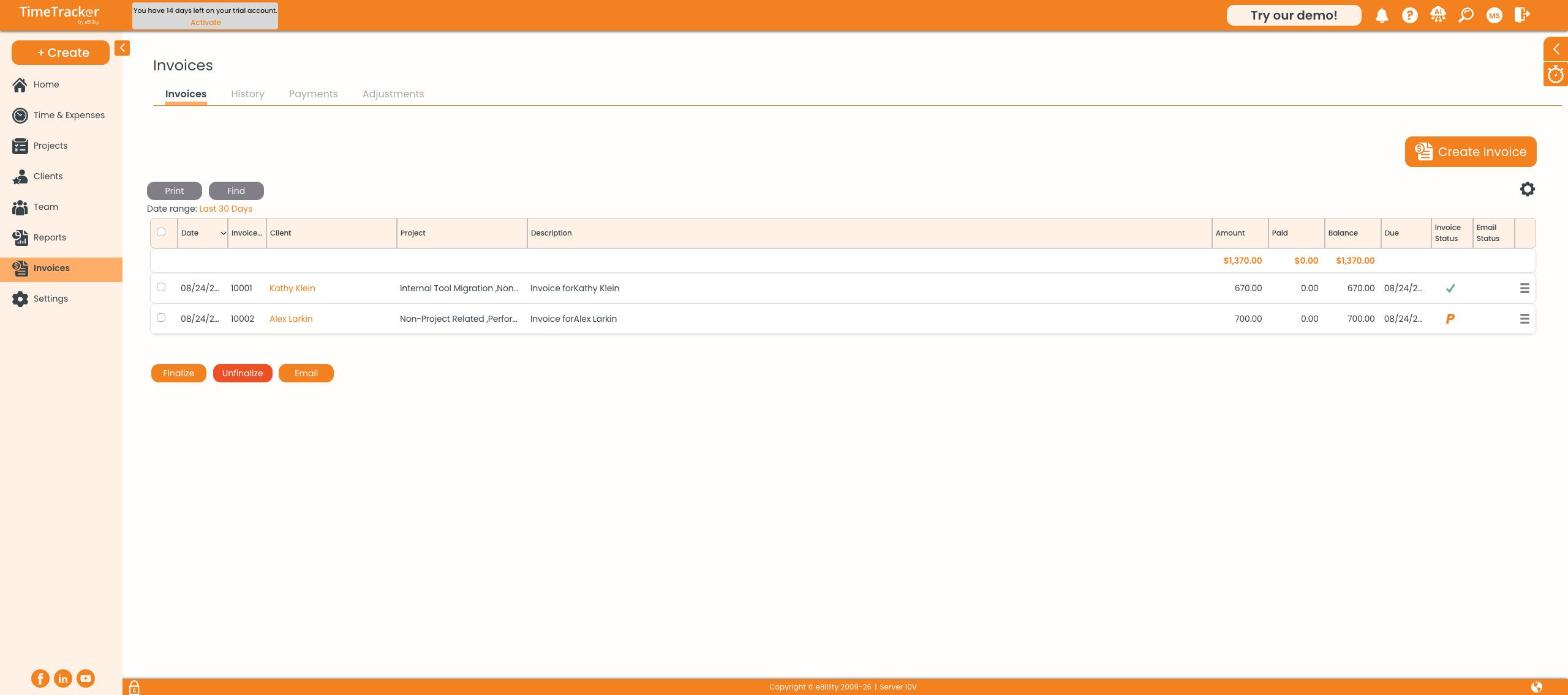
The Invoices page. Each row shows the amount, what's been paid, the balance, and the invoice's status.
Starting the Invoice
- Go to Invoices and click Create Invoice (or use + Create > Invoice).
- Check the Invoice Date. The invoice number shows TBD until you finalize.
- Choose the Client — their address and payment terms fill in automatically.
- Optionally add Notes for Client (appears on the invoice) or an Internal Description (doesn't).
- Click Select Invoice Entries.
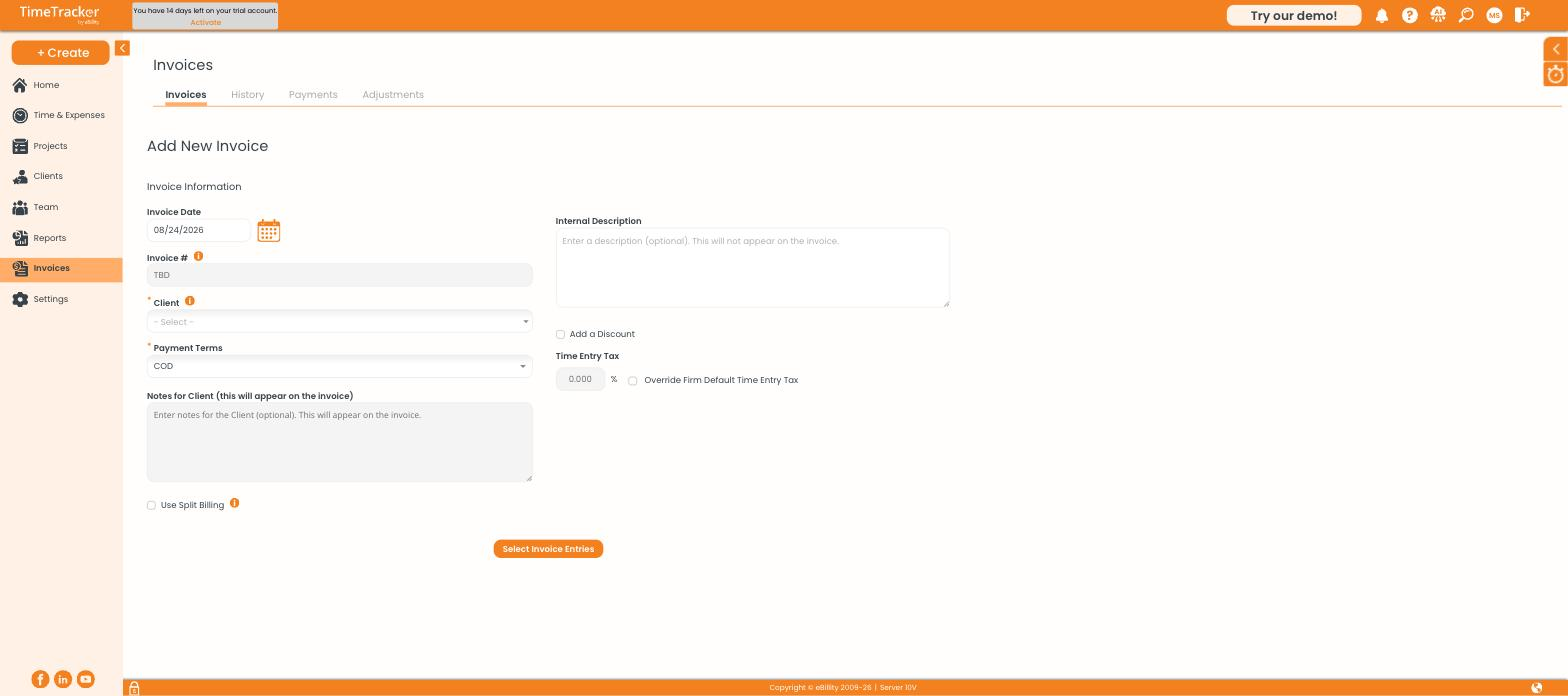
The invoice header: date, client, payment terms, and notes.
Choosing What to Bill
Every unbilled time entry and expense for the client appears below, grouped by project, each with a checkbox.
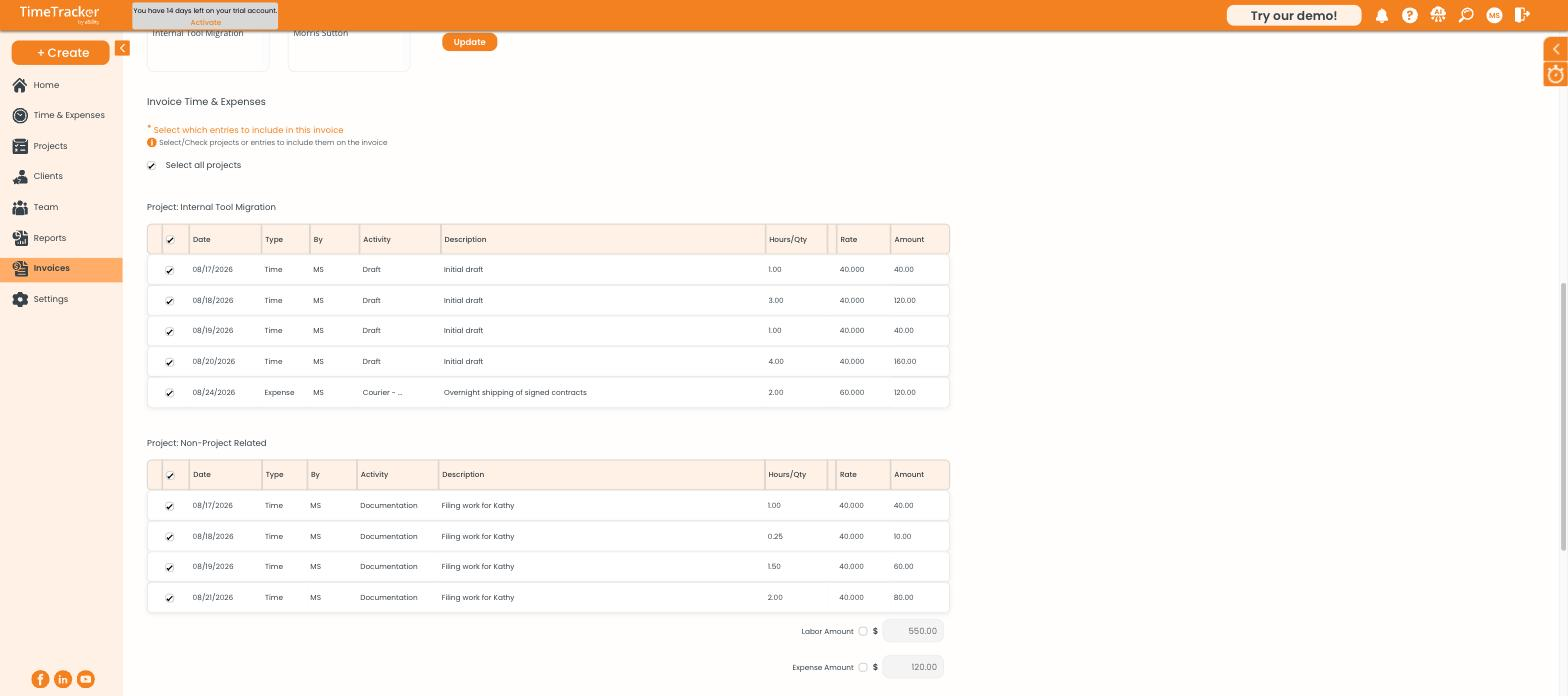
Entries grouped by project, showing hours, rate, and amount. Expenses appear under their own heading.
- Filter by Project or User if needed, then click Update.
- Choose All entries up to invoice date or set a Custom date range.
- Tick Select all projects to include everything, or untick lines to hold them back for a later invoice.
Reviewing and Saving
The totals appear below the entries: total hours, labor, expenses, and the invoice amount.
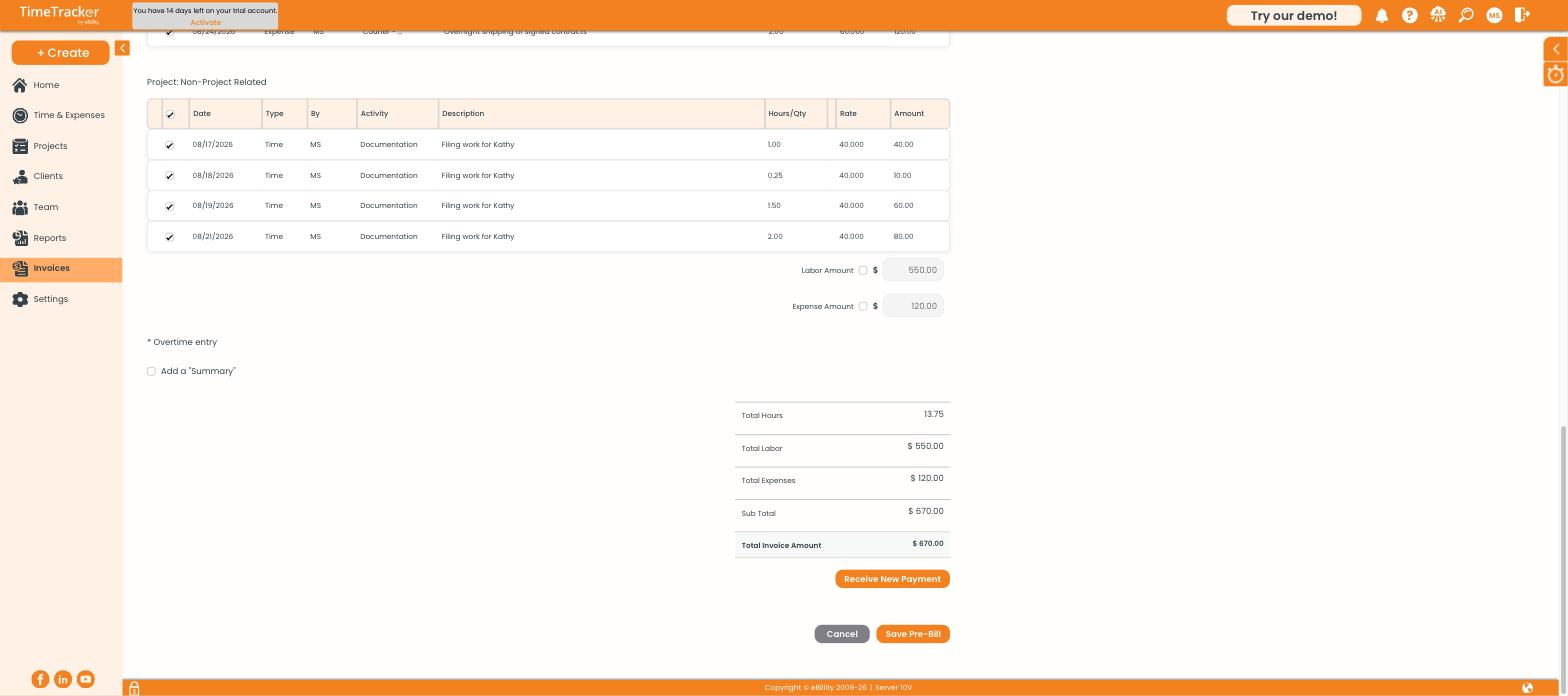
The invoice totals, with the Save Pre-Bill button beneath.
- Check the totals.
- Click Save Pre-Bill.
Next Steps
Your invoice is now a draft (a "pre-bill"). Its entries move to Pre-Billed status and it appears in the invoice list with an orange P. Nothing is locked yet — you can still edit or delete it. When it's ready to send, see "Finalizing and Sending an Invoice."