
Applies to: Billing
Before you can track time or send an invoice, you need a client to attach it to. A client is whoever receives your invoice — a person or a business — and everything else in Time Tracker Billing hangs off the client record.
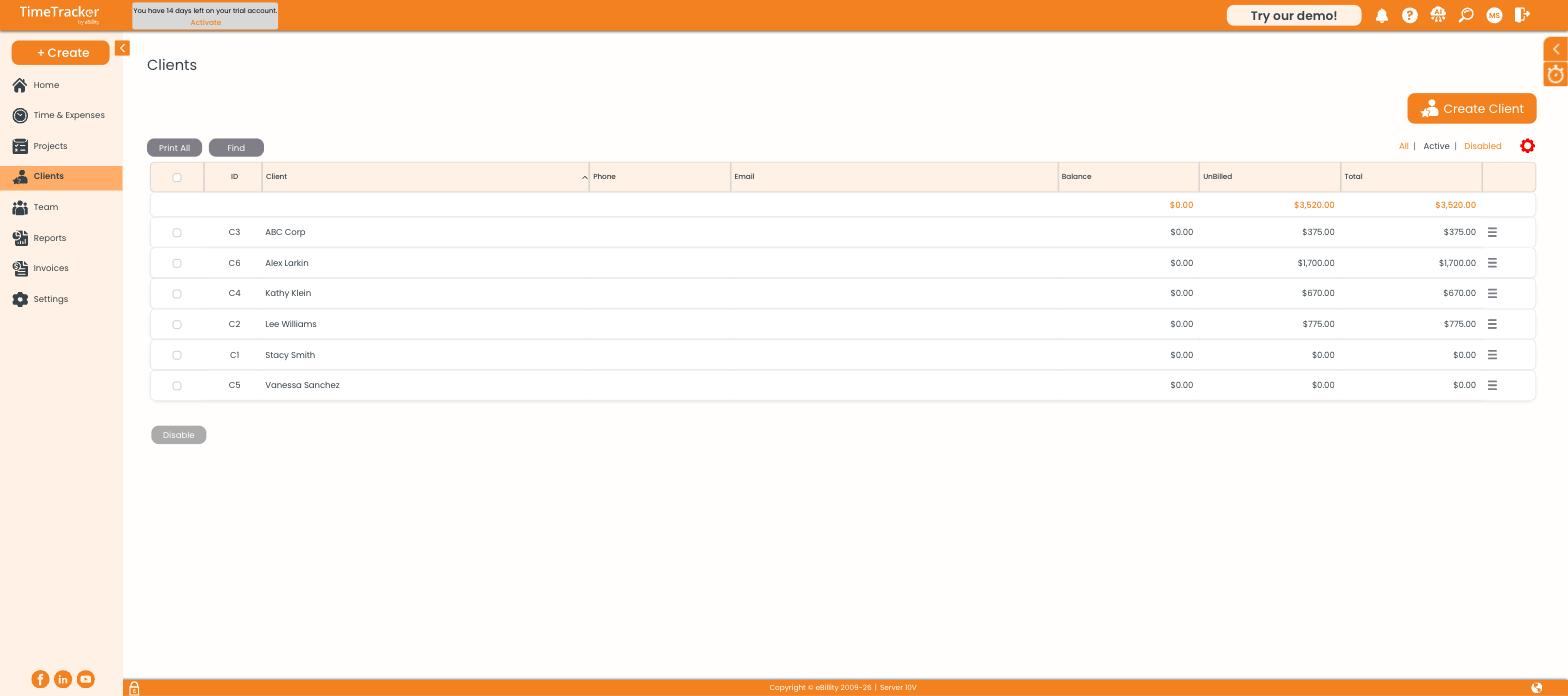
The client list shows each client's balance, unbilled amount, and total.
Creating a Client
- Go to Clients and click Create Client (or use + Create > Client).
- Choose a Client Type: Person gives you first and last name fields; Organization gives you a business name field.
- Enter the name exactly as it should appear on invoices.
- Fill in the remaining tabs as needed (see below), then click Save & Close.
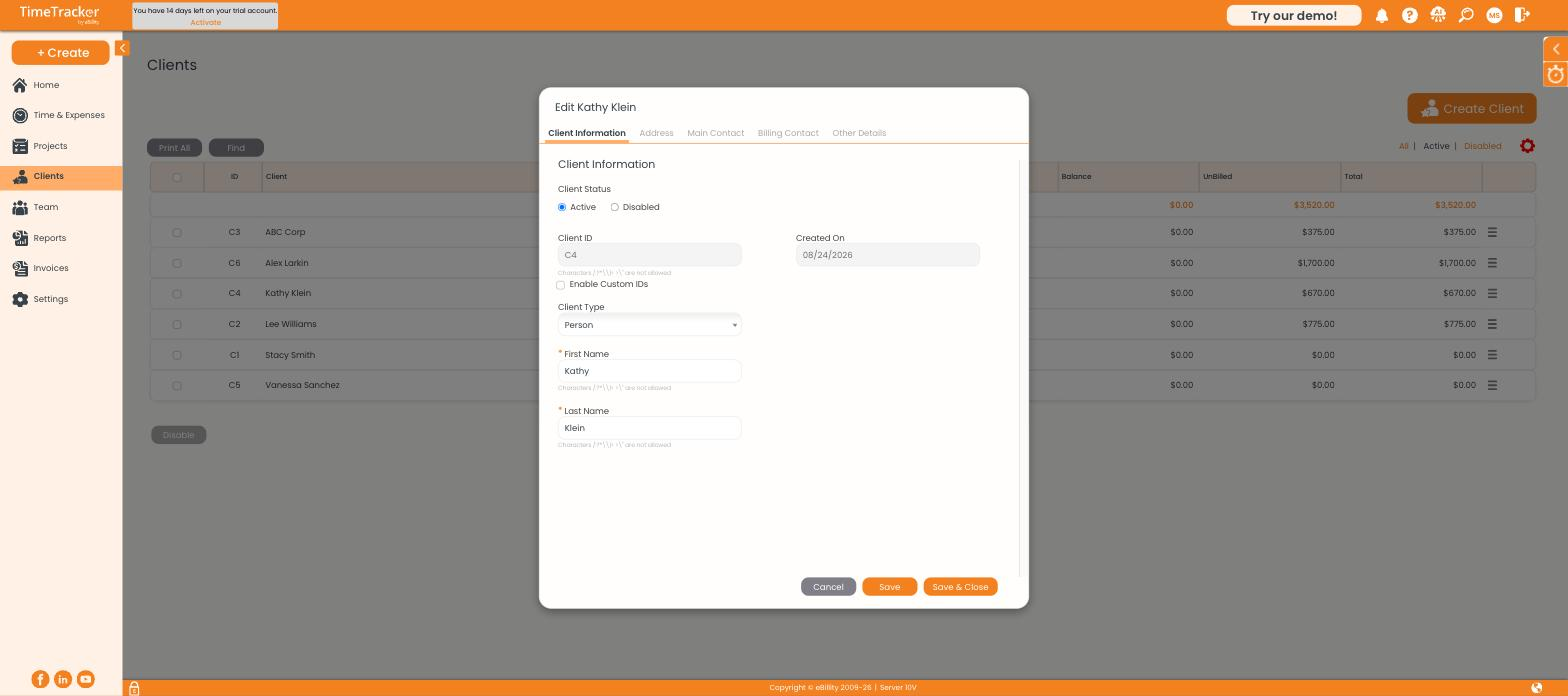
The client record opens on Client Information, with more tabs across the top.
What's on Each Tab
Setting Payment Terms
On the Other Details tab, choose the client's Payment Terms (e.g., COD, Net 30). This becomes the default on every invoice for the client and sets the due date. Click Add next to the field to create a term that isn't in the list.
Deactivating a Client
- Select the client in the list.
- Click Disable at the bottom.
The client disappears from dropdowns, but their invoices, entries, and reports stay intact. Use the All | Active | Disabled filters to switch views.