
Applies to: Billing
A project is a named piece of work for one client. Time and expenses are logged to it, budgets track against it, and invoices group by it. Create one for each engagement you want to see separately on invoices and reports.
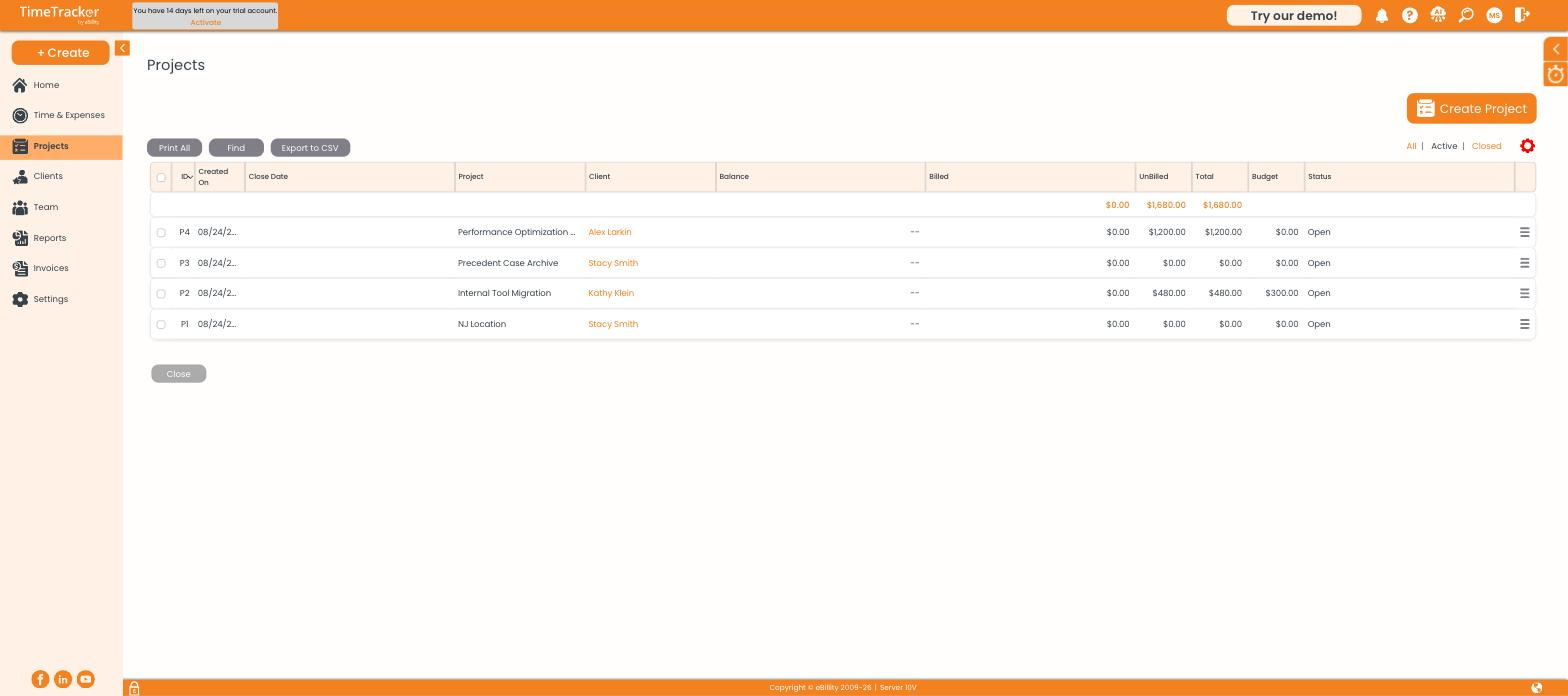
The project list, showing billed, unbilled, budget, and status for every project.
Creating a Project
- Go to Projects and click Create Project (or use + Create > Project).
- Choose the Client the project belongs to.
- Enter a Project Name the client will recognize — it appears on the invoice.
- Work through the other tabs as needed, then save.
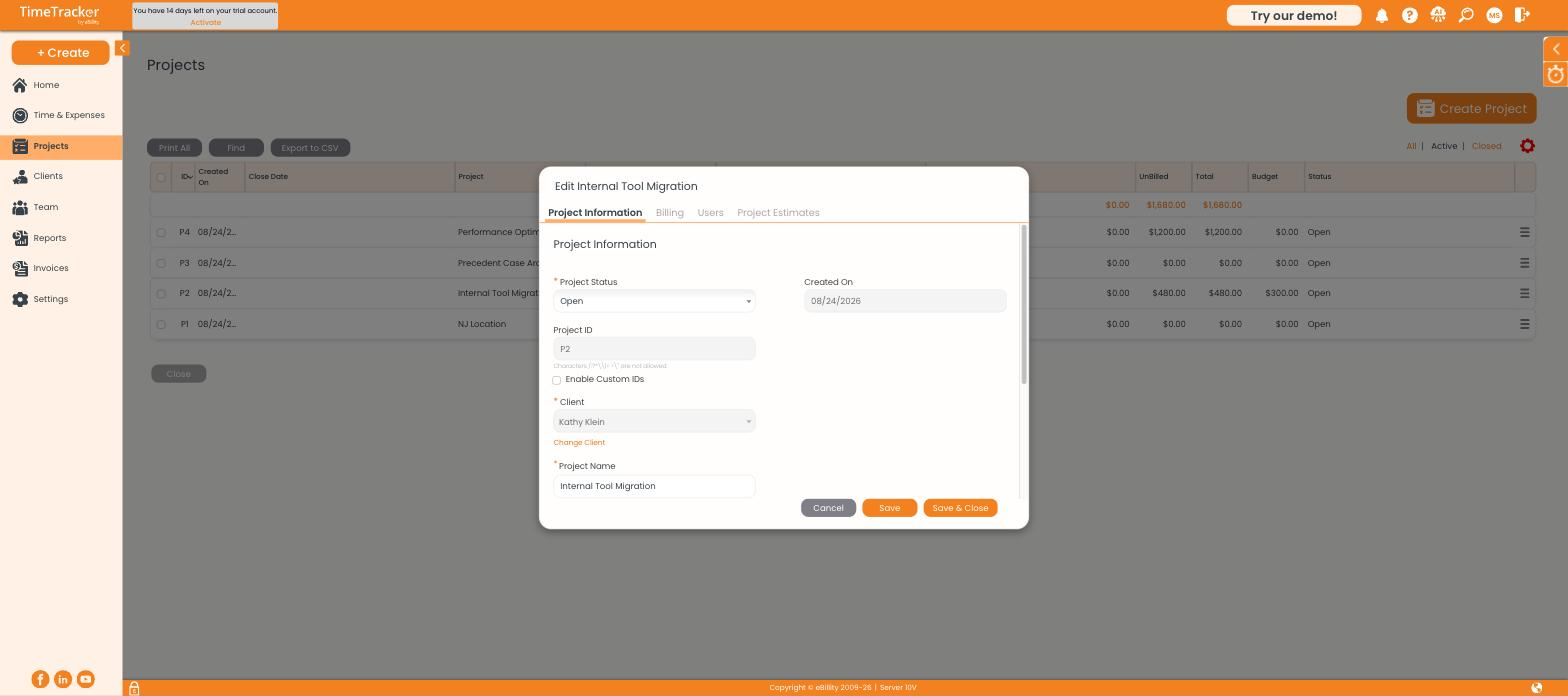
The project record, with tabs for Project Information, Billing, Users, and Project Estimates.
What's on Each Tab
Logging Time Without a Project
Some work doesn't belong to any project — a general client call, or scoping before the project exists. Log it against the client as Non-Project Related, which appears as its own option in the project dropdown.
This is enabled per client on the Other Details tab, and firm-wide at Settings > Timer Settings, where you can also rename the "Non-Project Related" label.
Closing a Finished Project
- Select the project in the list.
- Click Close at the bottom.
Closed projects leave your dropdowns but stay in reports and on past invoices. Use the All | Active | Closed filters to see them again, and Export to CSV to get the list into a spreadsheet.