
Applies to: Billing
When Time Tracker Billing prices an hour of work, it checks four places for a rate and uses the most specific one it finds. If you've ever created an invoice that came out at $0.00, this is why — no rate was set anywhere.
Where Rates Can Be Set
From most specific to least specific:
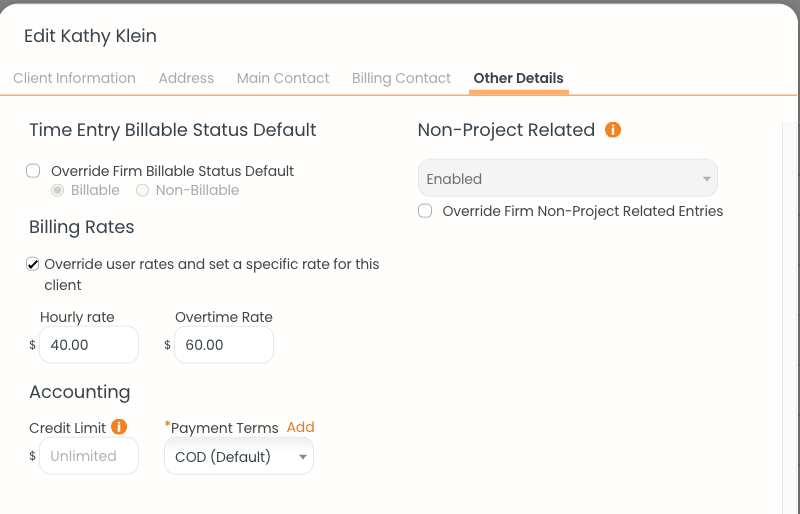
A client-level rate override on the Other Details tab. This rate wins over the user's own rate.
For example: if your rate on the Team page is $50/hour but the client's record has a $40/hour override, work for that client bills at $40. If one of that client's projects has its own $55 rate, work on that project bills at $55.
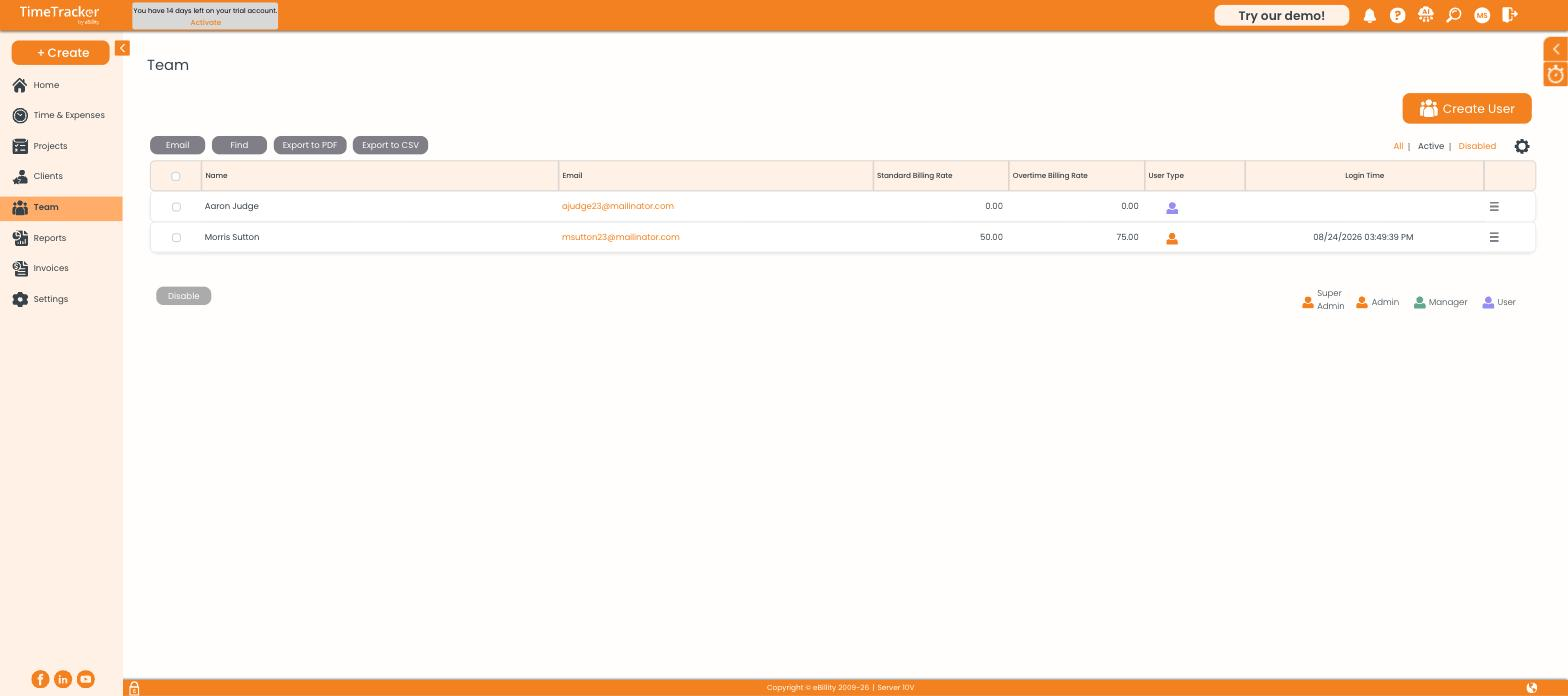
Each team member's standard and overtime rates on the Team page — used when nothing more specific is set.
Fixing a $0.00 Invoice
- Go to Team and check the user's Standard Billing Rate. A rate of 0.00 is the most common cause.
- Open the client's Other Details tab — if the override box is ticked, that rate is being used, even if it's blank.
- Open the project's Billing tab and check for a project-level override.
- Check the activity's Default Rate under Settings > Customize > Custom Lists.
- Set a rate at whichever level fits, then delete the $0.00 invoice and create it again.
Checking Which Rate Applied
When you build an invoice, the entry picker shows a Rate column on every line. If a number looks wrong, trace it through the four levels above before you finalize.
Overtime Rates
Each level also has an overtime rate field. To use overtime pricing, first enable it at Settings > Timer Settings > Overtime Billing Rates.