
Applies to: Workforce · Premium · LawBillity
Every integration in Time Tracker works the same way. Items wait in a Sync Queue, a sync sends them to the other software (and brings changes back), and the Sync Log records what happened. This article explains each part. It applies to every integration. Where QuickBooks Desktop or Sage 50 works differently, that's called out.
The Sync Menu
Click Sync in the top bar to see each connected integration, the date of its last sync, the result, and how many items are waiting. For cloud integrations the Sync button here runs a sync straight away.

The Sync menu in the top bar.
The Sync section in the left menu has three pages: Sync Queue, Sync Log, and Auto Sync.
How Items Get Into the Sync Queue
Nothing syncs until it is in the queue. Items get there in three ways:
- Automatically, always. New and changed customers, projects, billable activities, and expense items are added to the queue for you.
- Automatically, if you choose. During setup, the Sync Queue Settings step lets you pick which other items are queued automatically: approved time entries, approved paid time off entries, expense entries, finalized invoices, payments, refunds, debits and credits, finance charges, and users.
- By hand. Anything not set to queue automatically can be queued at any time. On Entries > Manage Team Entries, tick the entries and click Add to Queue.
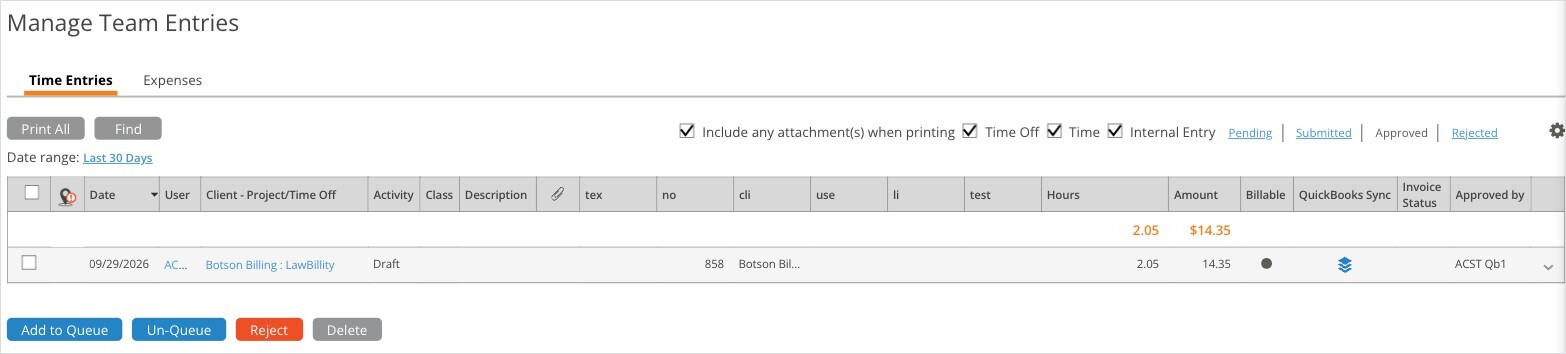
Manage Team Entries shows each entry's sync status, with Add to Queue and Un-Queue buttons.
The sync column on Manage Team Entries (for example QuickBooks Sync) shows whether each entry is queued or has synced. Hover over the icon for details; a queued entry reads "Queued. The item has been added to the sync queue. It has not yet synced." Entries can also be filtered by sync status: Not Queued, Queued, or Synced.
The Sync Queue
Go to Sync > Sync Queue. Items are grouped by the date they were queued. Choose Pay Period under Group By to group them by payroll period instead (set your payroll period in Settings first). Click the arrow next to a group to see its items.
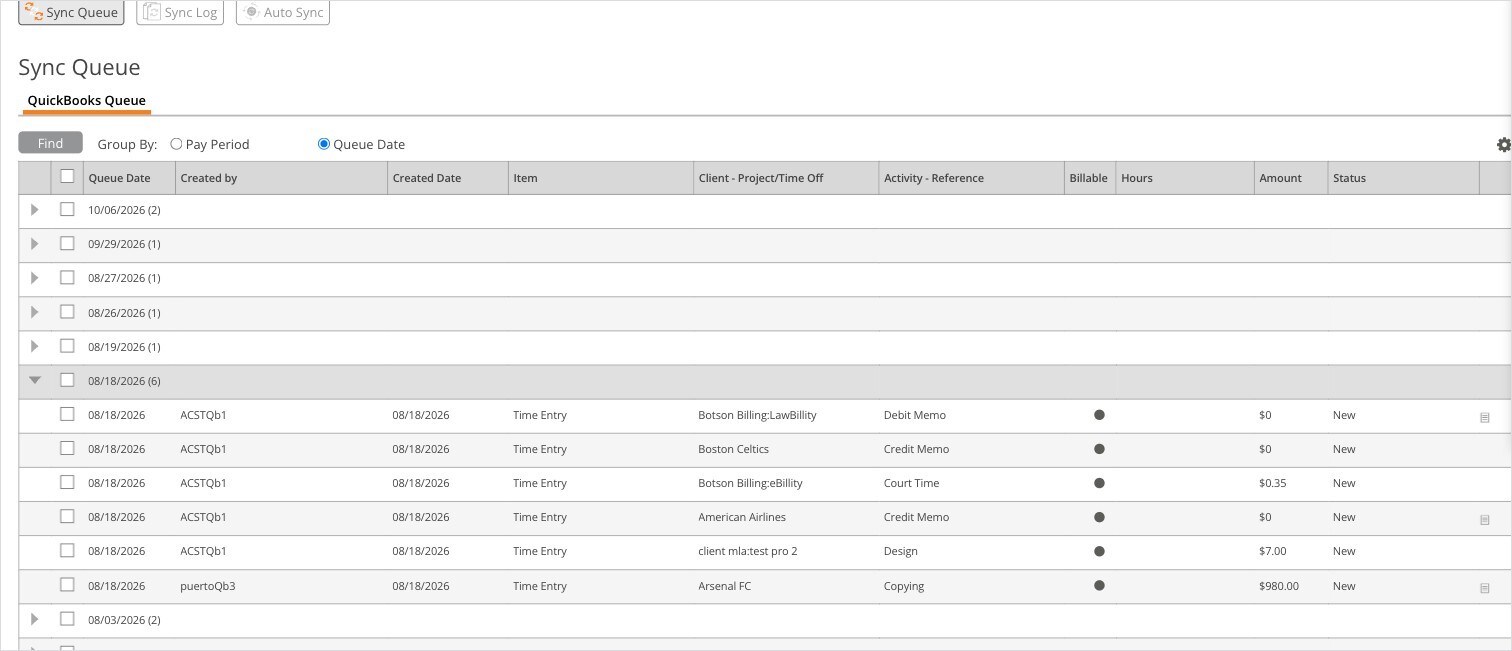
The Sync Queue with one group expanded.
For QuickBooks Desktop and Sage 50 there is no Sync button. The page says "To sync please run the Web Connector in QuickBooks Desktop" or "To sync please run the Sage Connector", and the queue is sent the next time that program runs.
The Sync Log
Go to Sync > Sync Log. Each row is one sync, with the date and time, the number of items, a status, and a detail line. The log keeps the last three months.
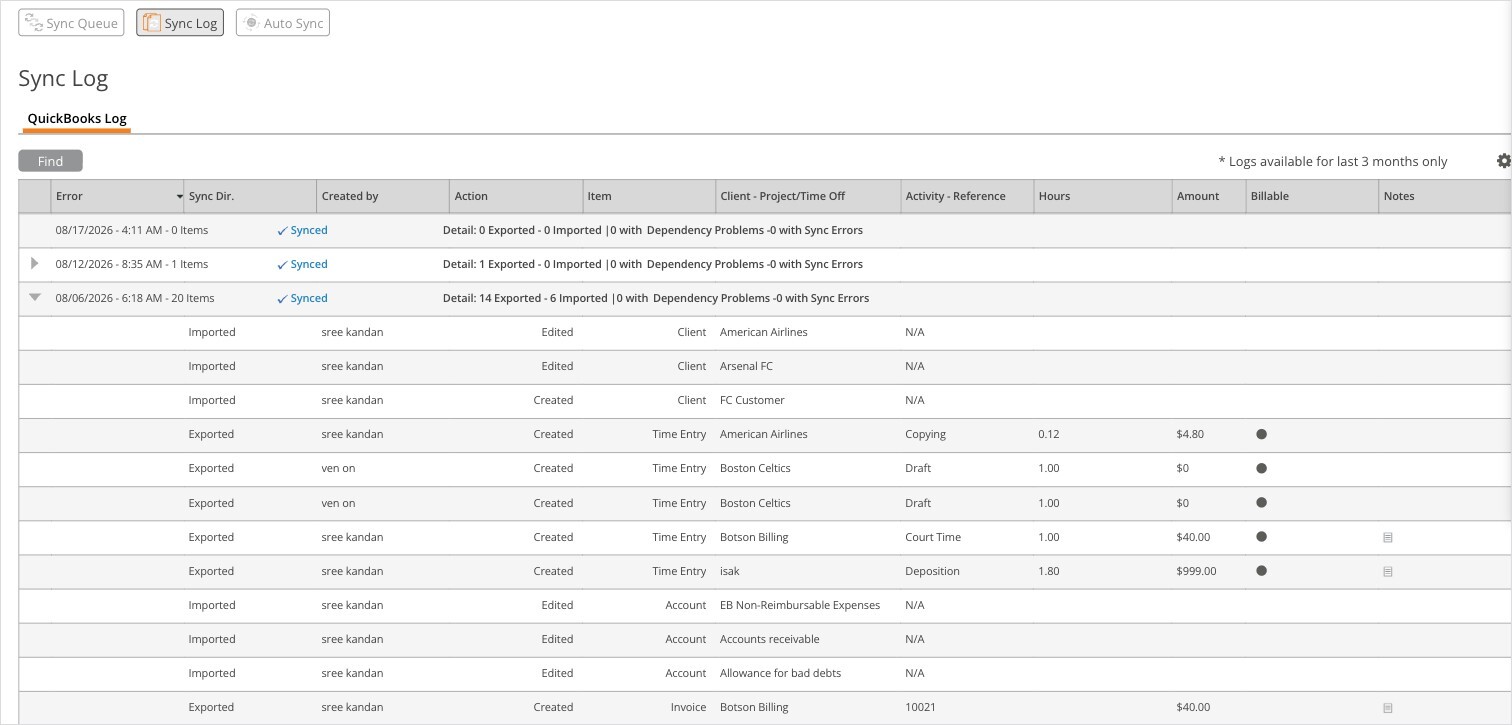
The Sync Log with a successful sync expanded to show each item.
The detail line reads, for example, "14 Exported - 6 Imported | 0 with Dependency Problems - 0 with Sync Errors". Exported means sent from Time Tracker to the other software. Imported means brought into Time Tracker.
Click the arrow at the start of a row to see every item in that sync. For each item you see the direction (Exported or Imported), who created it, the action (Created or Edited), the item type, the customer and project, the activity or reference number, hours, and amount. If an item failed, an Error link appears in the first column. Click it to read the message.
Dependency Problems
Some items can't sync on their own. A time entry needs its customer to exist in the other software first, and an invoice needs its customer and items. If the item it depends on wasn't in the queue, the item is held back and the sync shows Synced with Errors. Instead of an Error link, the item shows a Dependency link.

A sync with dependency problems is marked Synced with Errors.
Click Dependency to see what the item depends on. Click Add Dependencies & Sync These Items to queue the missing records and sync everything together.
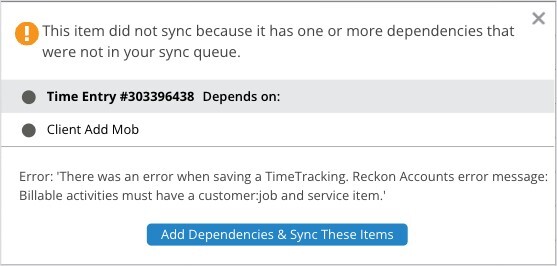
The dependency window lists what the item depends on.
Auto Sync
Go to Sync > Auto Sync. When Auto Sync is on, Time Tracker syncs everything in your queue automatically at 4am ET (GMT-5) on the days you choose. Under Repeat Settings, choose Daily (every 1 or more days, or every weekday), Weekly, or Monthly.
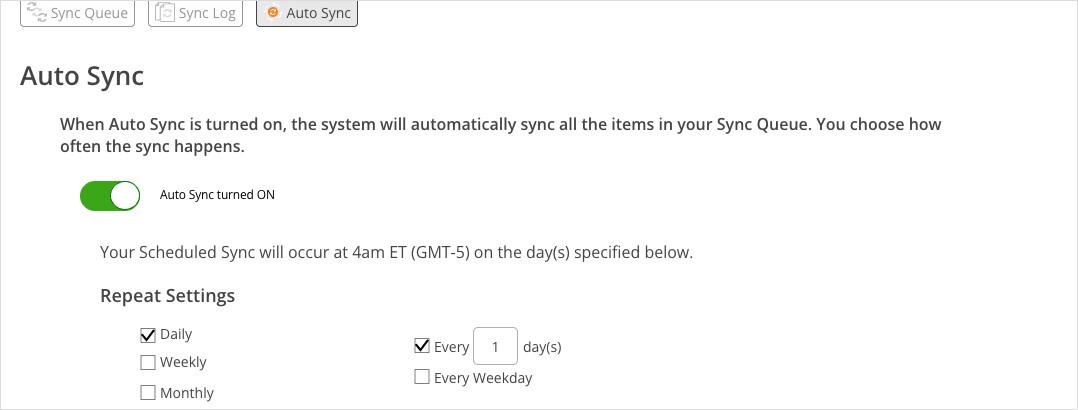
Auto Sync turned on, set to run every day.
Tips
- Sync often. Small syncs are quicker and easier to check than one large sync at the end of the month.
- Check the Sync Log after each sync, or after Auto Sync runs overnight. A Failed sync doesn't stop the next one, so the same error will keep coming back until the record is fixed.
- If something has failed, see "My Integration Isn't Syncing: Finding and Fixing a Failed Sync" for a step-by-step fix.