
Applies to: Workforce · Premium · LawBillity
When you need a day off, you request it from the Time Off page. Your manager or admin is notified, reviews it, and approves or rejects it. Approved time off appears on your timesheet automatically, so you never have to log it by hand.
Submitting a Request
- Click Time Off in the left sidebar under Entries.
- Click Add Time Off in the top right.
- Choose a Time Off Code. Only codes assigned to you are listed, and codes that track a balance show what you have left — for example "Holiday - Paid (1.74 Hours Available)".
- Pick the Date and enter the Hours and Minutes — 8 hours for a full day, 4 for a half day.
- For more than one day, click Add Date and fill in a row per day. Total Hours adds them up.
- Add a Description if your approver needs context. Both you and your approver can see it.
- Click Save.
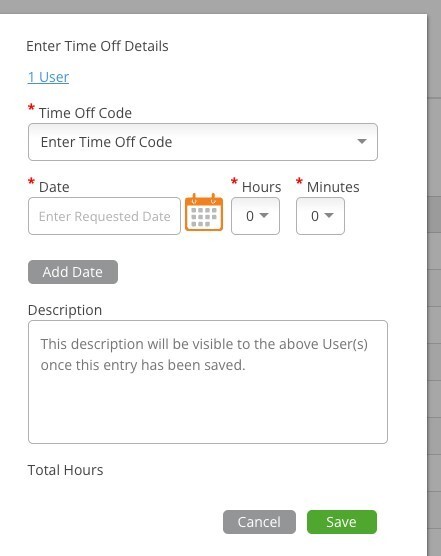
The Enter Time Off Details dialog.
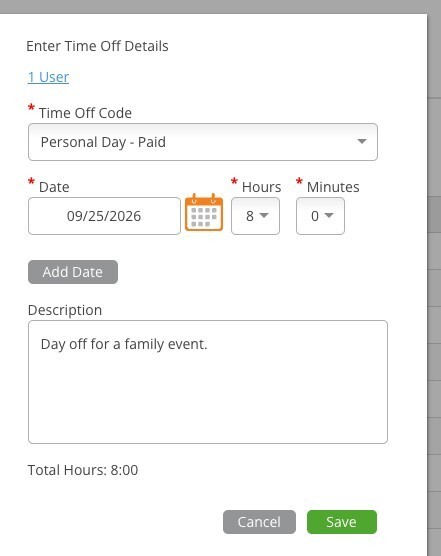
A completed request within balance — Save is enabled.
If You Do Not Have Enough Hours
If the request takes you past your balance and your firm does not allow negative balances, the form shows the shortfall in red and Save is greyed out. Reduce the hours, pick a different code, or ask your admin to add hours to your balance.
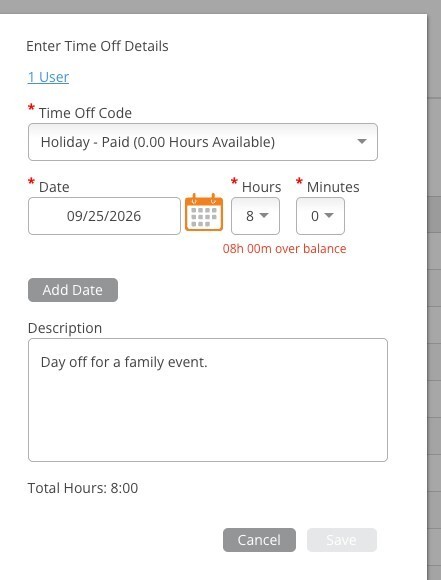
A request blocked because it exceeds the available balance.
Tracking Your Request
Your request appears on the Time Off list as Pending. When your manager acts on it the status changes to Approved (green) or Rejected, and the Action Taken column shows who decided and when. You will also get a notification in the web app or by email, depending on your firm's settings. Use the Mine toggle to see only your own requests, and tick Show Canceled Requests to include ones you withdrew.
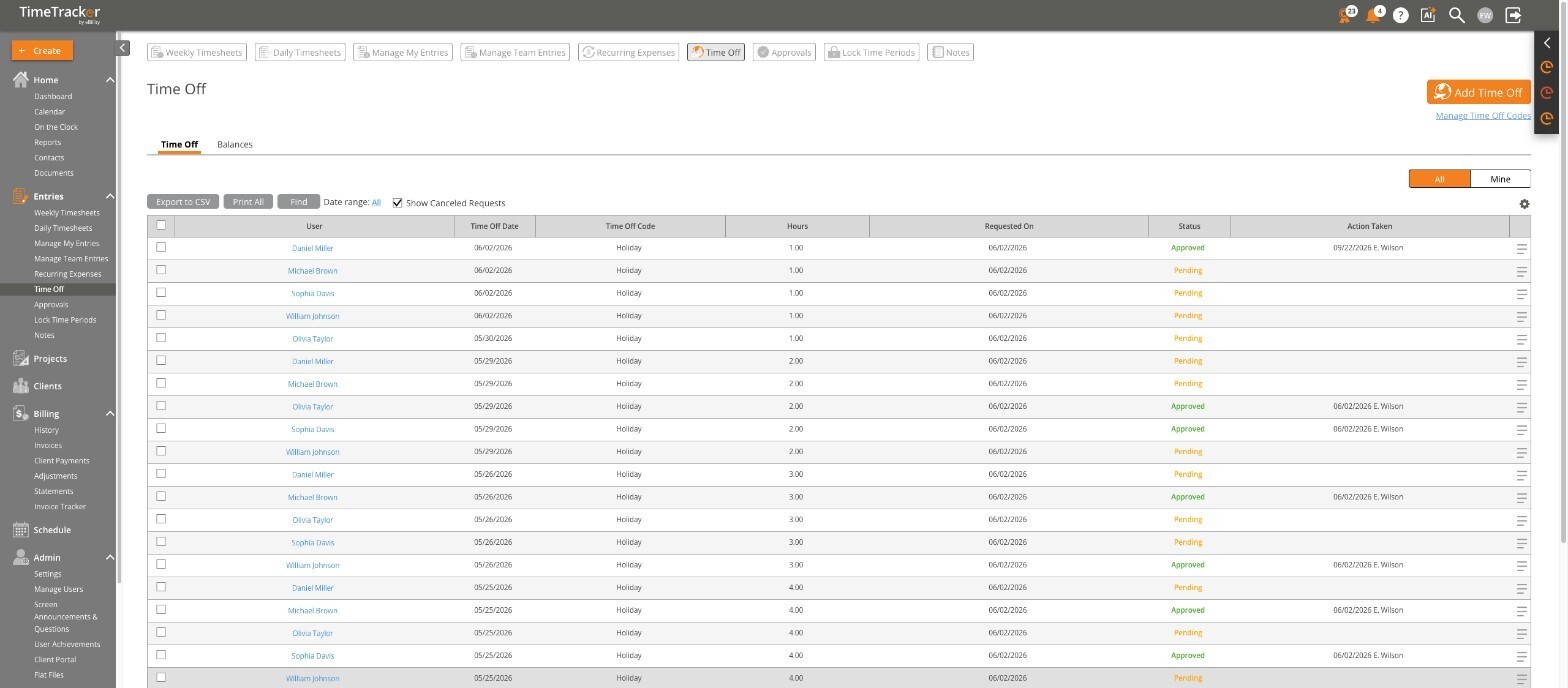
The Time Off list with pending and approved requests.
Tips
- Some firms block certain weekdays for time off (weekends, for example). If a date will not save, that is usually why.
- If your balance resets on a fixed date, you may be able to request days in the next accrual year before the reset — your admin controls this.
- Check the Balances tab on the Time Off page to see your full history for each code.