
Applies to: Billing
Before you send your first invoice, take a few minutes to make it look like it came from your firm. Everything here lives at Settings > Customize > Invoices.
Adding Your Logo
- Scroll to Invoice Logo.
- Click Choose File and select your logo (up to 5MB).
- Click Upload.
Choosing a Template
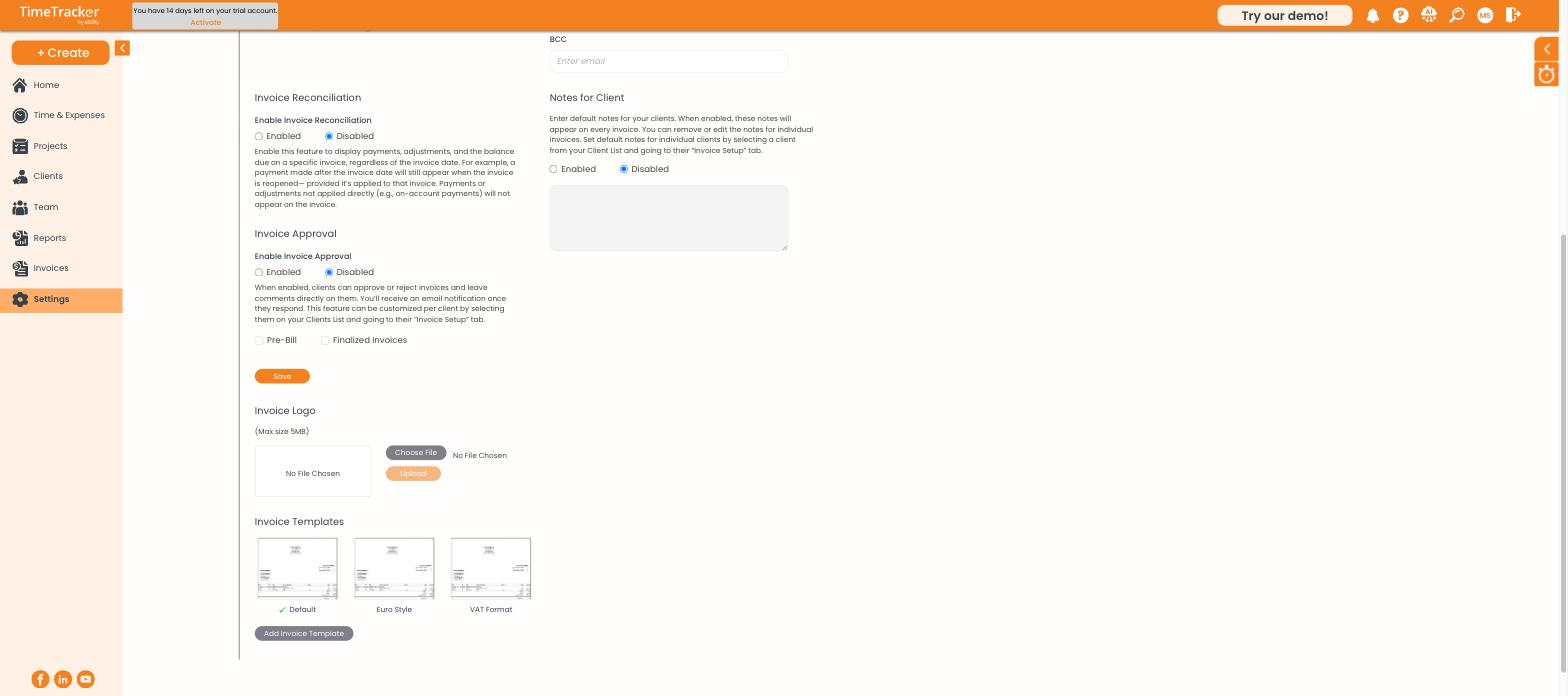
The logo upload area and the three built-in invoice templates.
- Default — standard layout for most firms
- Euro Style — European formatting conventions
- VAT Format — shows VAT on the invoice
Click a template to select it, or Add Invoice Template to build your own.
Charging Interest on Late Invoices
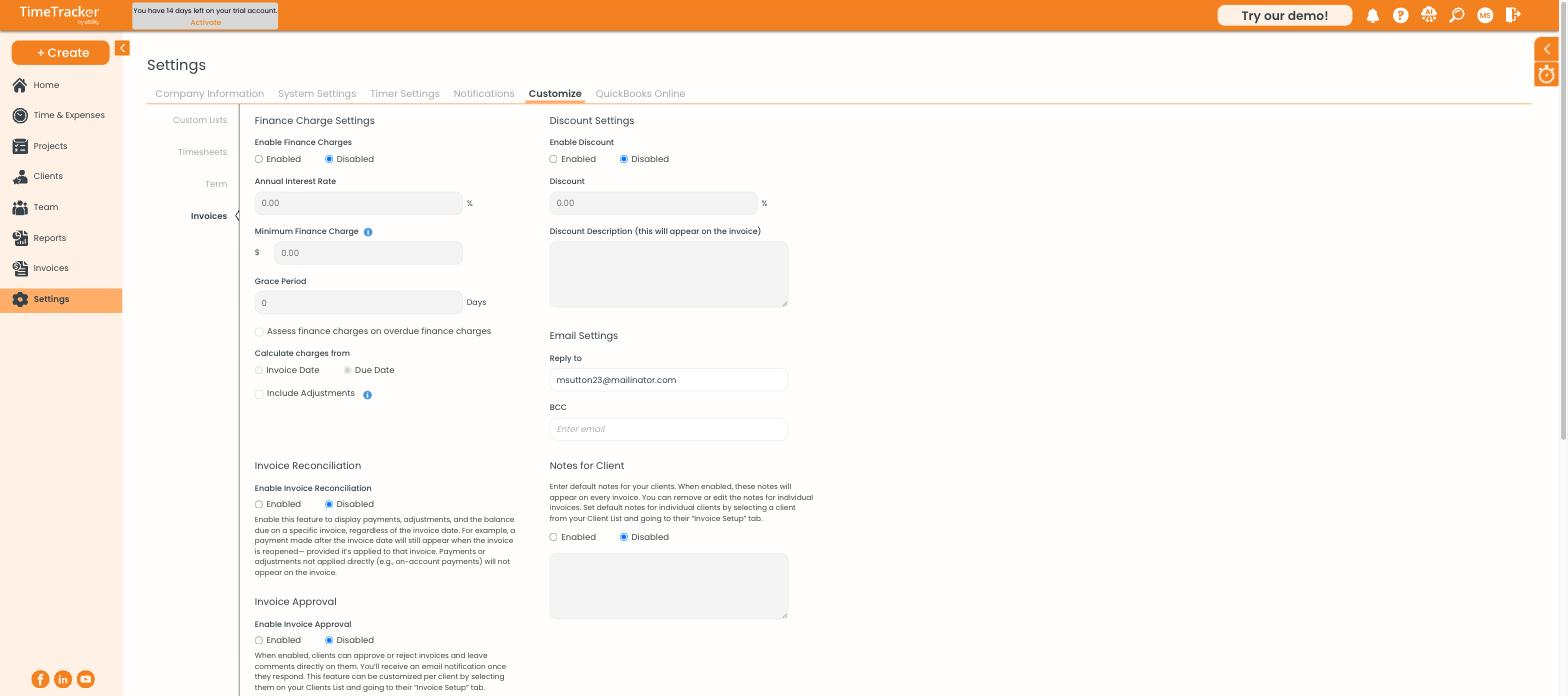
Finance charges, discounts, email settings, and invoice approval.
- Under Finance Charge Settings, select Enabled.
- Enter the Annual Interest Rate.
- Set a Minimum Finance Charge so tiny charges aren't issued.
- Set a Grace Period in days after the due date.
- Choose whether to calculate from the Invoice Date or Due Date.
Offering a Discount
Enable Discount Settings and set a percentage plus a description that appears on the invoice. For a one-off discount, tick Add a Discount on the invoice itself instead.
Email Settings
Set the Reply to address clients see when you email invoices, and a BCC address if you want a copy of everything sent.
Letting Clients Approve Invoices
Enable Invoice Approval and clients can approve or reject invoices and leave comments on them — you get an email when they respond. Choose whether it applies to Pre-Bill, Finalized Invoices, or both. To turn it on for specific clients only, use the client's Invoice Setup tab.